
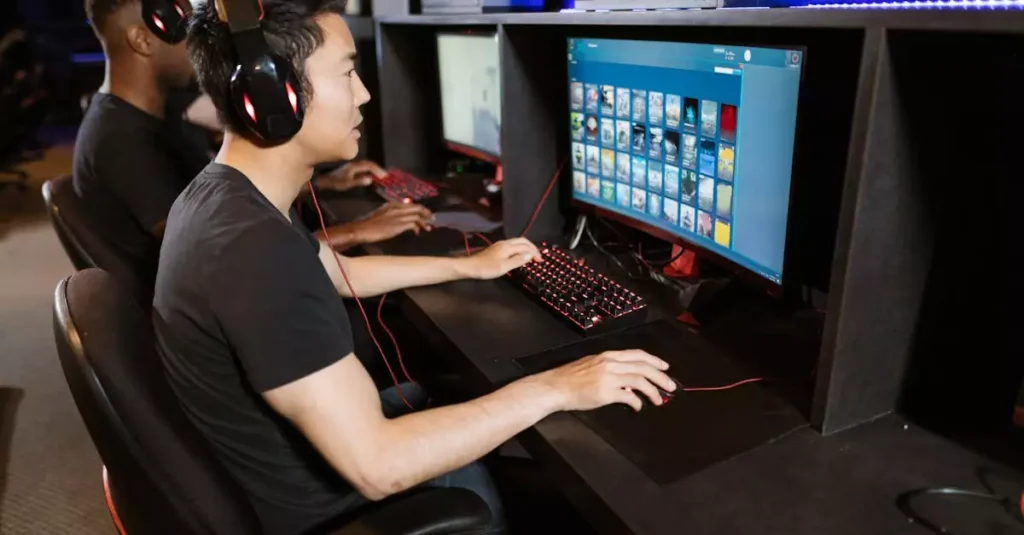
Among Us has become a cultural phenomenon in the gaming world, captivating millions with its engaging gameplay and social deduction mechanics. If you’re looking to enjoy this hit game on a larger screen with better controls, learning how to do an Among Us PC download is essential. Whether you want to play with friends or join online communities, the PC version offers a seamless experience that’s hard to beat. This 2026 guide will walk you through everything from system requirements to troubleshooting, ensuring you get the best out of your Among Us adventure on Windows 10 or other PC setups.

What Is Among Us and Why Play It on PC?
Among Us is a multiplayer social deduction game developed by InnerSloth, where players work together to complete tasks aboard a spaceship while trying to identify impostors sabotaging the mission. The game’s unique blend of cooperation, deception, and quick thinking has made it a favorite among casual gamers and streamers alike. Playing on PC enhances this experience by providing better graphics, more precise controls with a mouse and keyboard, and easier communication options.
The PC version supports cross-platform multiplayer, allowing you to join friends on mobile devices or other platforms. Additionally, the larger screen size and customizable settings on PC make it easier to spot clues and navigate the game environment. For those wondering why to choose PC over mobile, the gameplay feels more immersive, and updates often arrive sooner on PC. Plus, the social aspect of playing on PC is enhanced by easier voice chat integration.
In summary, Among Us on PC is perfect for players seeking a more refined gaming setup, better performance, and a more social, interactive experience.
System Requirements for Among Us on PC
Before proceeding with your Among Us PC download, it’s important to ensure your computer meets the game’s system requirements. Among Us is not demanding in terms of hardware, making it accessible to a wide range of PCs. Here are the minimum and recommended specifications to run Among Us smoothly on Windows 10 or other PC versions:
- Minimum Requirements: Windows 7 SP1+, 1 GB RAM, Intel HD 3000 graphics or equivalent, 250 MB available storage
- Recommended Requirements: Windows 10, 2 GB RAM, DirectX 10 compatible graphics card, 500 MB available storage
Among Us is lightweight, so even older PCs can handle the game without issues. However, for the best experience, especially when playing with multiple players online, having a stable internet connection and up-to-date graphics drivers is advised. If you want to play with higher frame rates and smoother graphics, ensure your PC exceeds the recommended specs.
Meeting these requirements guarantees that your Among Us game download for PC will run efficiently without crashes or lag, enhancing your gameplay experience.
Step-by-Step Guide to Download Among Us on PC
Downloading Among Us on PC is straightforward, but following a clear step-by-step guide ensures you avoid common pitfalls. Here’s how to complete your Among Us PC setup guide safely and efficiently:
- Step 1: Visit the official Steam page or InnerSloth’s website. For Steam, go to Steam Among Us.
- Step 2: Purchase or download the free version if available. Note that Among Us is free on mobile but usually paid on PC through official channels.
- Step 3: If using Steam, click “Install” to begin the download. For manual downloads, follow prompts to download the setup file.
- Step 4: Once downloaded, run the installer and follow on-screen instructions to install Among Us on your PC.
- Step 5: Launch the game from your desktop or Steam library and configure settings as desired.
Always ensure you download Among Us from official sources to avoid security risks. The best way to download Among Us PC is through trusted platforms like Steam or the official InnerSloth website. This method guarantees you receive legitimate files and support for future updates.
By following this guide, you’ll have Among Us installed and ready to play on your Windows 10 or other PC versions in no time.
Common Issues and How to Fix Them During Download
While downloading Among Us on PC is generally smooth, some users may encounter issues. Understanding common problems and their fixes can save you time and frustration during your Among Us PC download safe process.
- Download Stuck or Slow: Check your internet connection, pause other downloads, or restart your router. Using a wired connection often improves stability.
- Installation Errors: Ensure you have enough disk space and that your antivirus isn’t blocking the installer. Temporarily disable antivirus if necessary.
- Steam Client Issues: Restart Steam or clear its download cache through the settings menu.
- Game Crashes on Launch: Update your graphics drivers and verify the game files via Steam.
- Firewall Blocking: Add Among Us as an exception in your firewall settings to allow internet access.
If problems persist, visiting the official Among Us support page can provide additional troubleshooting steps and community advice.
Addressing these issues ensures your download and installation proceed smoothly, allowing you to enjoy the game without technical interruptions.
How to Update Among Us on PC
Keeping Among Us updated on your PC is crucial for accessing new features, bug fixes, and improved security. Here’s how to update Among Us effectively:
- Via Steam: Steam automatically updates games by default. To manually check, open Steam, go to your Library, right-click Among Us, select Properties > Updates, and ensure automatic updates are enabled.
- Manual Updates: If you downloaded Among Us outside of Steam, visit the official InnerSloth website to download the latest installer version.
- Check for Patch Notes: Staying informed about updates can help you understand new features or fixes. InnerSloth regularly posts updates on their site and social media.
Regular updates not only enhance gameplay but also improve security, making your Among Us official PC download safer and more enjoyable.
Remember to close the game before applying updates to avoid file corruption and ensure a smooth installation.
Tips for Playing Among Us Smoothly on Your PC
Once you have completed your Among Us PC download and installation, optimizing your setup for smooth gameplay is the next step. Here are some practical tips to get the best performance:
- Optimize Graphics Settings: Lower graphics settings if you experience lag, especially on older PCs.
- Use a Stable Internet Connection: A wired Ethernet connection reduces latency and disconnections during multiplayer sessions.
- Close Background Applications: Shut down unnecessary programs to free up system resources and improve performance.
- Update Drivers: Keep your graphics and network drivers up to date for compatibility and enhanced performance.
- Adjust In-Game Settings: Customize controls and sound settings to your preference for better in-game communication and maneuvering.
By following these tips, you can enjoy a smoother, more responsive Among Us experience on your PC, improving your chances of detecting impostors or successfully deceiving your crew.
Where to Find Official Among Us Downloads
Finding a safe and official source for your Among Us PC download is critical to avoid malware and ensure you receive legitimate updates. Here are the best places to download Among Us:
- Steam: The most popular and trusted platform for PC game downloads. Visit Among Us on Steam to purchase and download.
- InnerSloth Official Website: The developer’s site at innersloth.com offers direct download links and updates.
- Microsoft Store: Some versions of Among Us may be available here for Windows 10 users.
Avoid downloading Among Us from third-party websites or unofficial sources, as these can pose security risks and may contain modified or malicious files. The among us pc free download options outside official channels are often illegal or unsafe.
Sticking to these official sources not only protects your PC but ensures you enjoy the full Among Us experience with ongoing support and updates.
Conclusion
Downloading Among Us on PC in 2026 is easier than ever, provided you follow trusted steps and use official sources. This guide has detailed everything from system requirements to troubleshooting common download issues, helping you achieve a smooth and secure installation. Playing Among Us on PC offers enhanced controls, better graphics, and a more immersive social experience compared to mobile versions. By keeping your game updated and optimizing your PC settings, you can enjoy countless hours of fun with friends and players worldwide. Remember, always prioritize safety by downloading from official platforms like Steam or InnerSloth’s website to avoid risks. Get ready to uncover impostors and complete your tasks in Among Us on your PC with confidence and ease!
Frequently Asked Questions
Q: Is Among Us free to download on PC?
A: Among Us is generally a paid game on PC, especially when downloaded from official platforms like Steam. However, it is free on mobile devices. Always use official sources to avoid illegal or unsafe free downloads.
Q: What are the minimum PC requirements for Among Us?
A: The minimum requirements include Windows 7 SP1+, 1 GB RAM, Intel HD 3000 or equivalent graphics, and 250 MB of storage. Recommended specs include Windows 10, 2 GB RAM, and DirectX 10 compatible graphics for smoother gameplay.
Q: Can I download Among Us on PC without Steam?
A: Yes, you can download Among Us directly from InnerSloth’s official website, but Steam remains the most reliable and user-friendly platform for installation and updates.
Q: How do I fix download errors for Among Us on PC?
A: Common fixes include checking your internet connection, disabling antivirus temporarily, ensuring enough disk space, and clearing Steam’s download cache if using Steam. Restarting your PC can also help resolve issues.
Q: Is it safe to download Among Us from third-party sites?
A: No, downloading Among Us from unofficial third-party sites is risky and can expose your PC to malware or corrupt files. Always use official platforms like Steam or InnerSloth’s website for safe downloads.
Q: How do I update Among Us on my PC?
A: If you use Steam, updates are usually automatic. You can also manually check for updates in the Steam library. For non-Steam versions, visit InnerSloth’s official site to download the latest installer.