
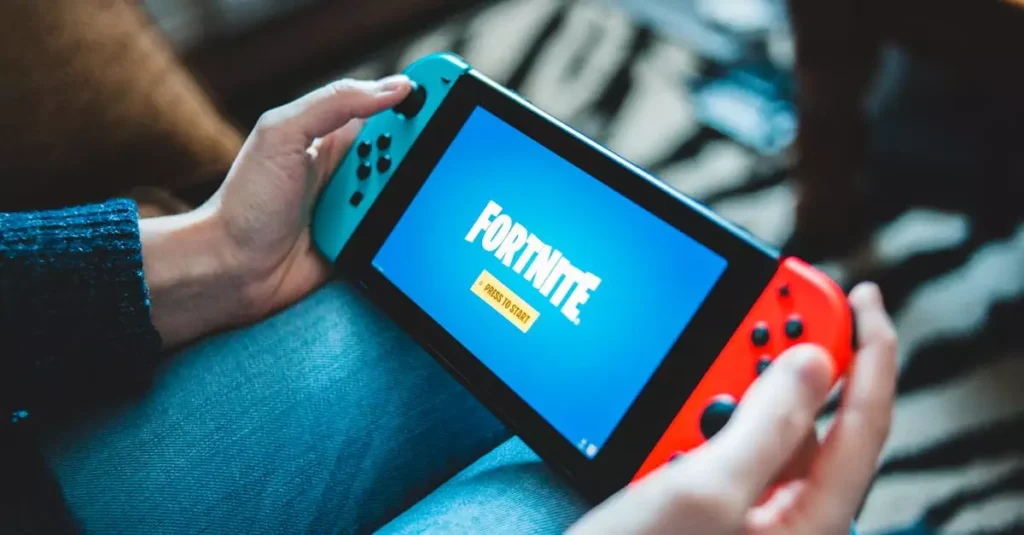
Fortnite continues to be one of the most popular battle royale games worldwide, attracting millions of players across various platforms. If you’re a Windows user eager to jump into the action, knowing how to properly execute a Fortnite download on Windows is essential. This 2026 guide will walk you through everything from system requirements to troubleshooting common issues, ensuring you get the best experience possible. Whether you’re running Windows 10 or Windows 11, we’ll cover the steps to install Fortnite, optimize its performance, and keep the game updated effortlessly. Get ready to master the download and installation process with expert tips and insights tailored to Windows PCs.
What is Fortnite and Why Download on Windows?
Fortnite is a free-to-play online multiplayer game developed by Epic Games, combining elements of shooting, building, and survival in a fast-paced battle royale format. Since its release, it has captivated gamers with its dynamic gameplay, frequent updates, and creative modes. Downloading Fortnite on Windows offers several advantages, including access to the full range of game modes, superior graphics settings, and the ability to use a keyboard and mouse for precise controls.
Windows PCs provide a flexible gaming environment, allowing players to customize settings for optimal performance. The Fortnite download for Windows 10 and Windows 11 ensures compatibility with the latest hardware and software features. Additionally, PC users benefit from faster updates and a large community for support and competitive play.
With Fortnite’s growing popularity, Epic Games continuously enhances the Windows version, making it a top choice for gamers who want the best experience. For more detailed information about Fortnite, you can visit the official Epic Games Fortnite page or learn about its history on Wikipedia.
Minimum and Recommended System Requirements for Fortnite on Windows
Before initiating your Fortnite Windows download free, it’s crucial to check if your PC meets the necessary system requirements. Running Fortnite smoothly depends heavily on your hardware and software setup, so understanding these specifications will save you from frustrating performance issues.
- Minimum Requirements: Intel Core i3-3225 or equivalent, 4GB RAM, Intel HD 4000 graphics, Windows 7/8/10 64-bit, and 16GB storage.
- Recommended Requirements: Intel Core i5-7300U or AMD Ryzen 3 3300U, 8GB RAM, Nvidia GTX 960 or AMD R9 280, Windows 10 64-bit, and 20GB storage.
Meeting the minimum specs allows you to play, but the recommended specs provide a much smoother experience with higher frame rates and better graphics quality. For users aiming for competitive gameplay or streaming, investing in a system that exceeds the recommended requirements is advisable.
Remember to keep your Windows operating system updated to the latest version, as Fortnite frequently leverages new Windows features for improved performance. For more details on Windows updates, visit the official Microsoft Windows site.

Step-by-Step Guide to Download Fortnite on Windows
Downloading Fortnite on Windows is straightforward once you follow the right steps. Here’s how to get started with your Fortnite download Windows 11 or Windows 10 PC:
- Step 1: Visit the official Epic Games website and download the Epic Games Launcher.
- Step 2: Install the launcher by following the on-screen instructions.
- Step 3: Open the Epic Games Launcher and create or log in to your Epic Games account.
- Step 4: Navigate to the Fortnite page inside the launcher and click the “Install” button.
- Step 5: Choose the installation directory and wait for the download and installation to complete.
- Step 6: Once installed, launch Fortnite and customize your settings before jumping into the game.
While some users look for ways to perform a Fortnite download no Epic Games launcher, the launcher is essential for managing updates, game files, and account security. Avoid unofficial methods as they can pose risks to your PC security and game integrity.
Following these steps ensures a clean installation with minimal issues, allowing you to enjoy Fortnite’s latest content and updates seamlessly.
Troubleshooting Common Download Issues on Windows
Downloading Fortnite on Windows is usually smooth, but occasionally, you might encounter issues such as slow downloads, errors, or installation failures. Here are some common problems and how to fix them:
- Slow Download Speeds: Check your internet connection stability, pause other downloads, or switch to a wired connection. You can also clear the Epic Games launcher cache.
- Download Errors: Restart the launcher, run it as an administrator, or temporarily disable antivirus/firewall software that might block the download.
- Installation Fails: Ensure you have enough disk space and that your storage device is functioning properly.
- Fortnite Download Error Windows Solutions: Updating your network drivers, repairing the Epic Games launcher, or reinstalling it can resolve persistent errors.
Keeping your Windows system updated and your drivers current also helps prevent many common issues. If problems persist, consulting Epic Games support or community forums can provide additional solutions tailored to your specific error codes.
How to Update Fortnite on Windows Automatically
Keeping Fortnite updated is vital to access new features, patches, and balance changes. The Epic Games Launcher handles updates automatically, but you can optimize this process for convenience.
- Enable Auto-Updates: In the Epic Games Launcher settings, ensure that automatic updates are enabled for Fortnite.
- Background Downloads: Allow the launcher to run in the background so updates can download even when you’re not actively playing.
- Schedule Updates: You can set specific times for updates to avoid bandwidth conflicts during peak hours.
This automation ensures you never miss out on new content or critical fixes. If you experience issues with updates not applying, try restarting the launcher or repairing Fortnite through the launcher’s options.
Optimizing Fortnite Performance on Windows PCs
After your Fortnite download Windows is complete, optimizing performance can dramatically enhance your gameplay. Here are some effective tips:
- Update Graphics Drivers: Use the latest Nvidia, AMD, or Intel drivers for optimal compatibility and performance.
- Adjust In-Game Settings: Lower settings like shadows, view distance, and effects to improve frame rates, especially on mid-range PCs.
- Close Background Applications: Free up system resources by closing unnecessary programs during gameplay.
- Use Game Mode in Windows: Enable Windows Game Mode to prioritize gaming performance.
- Fix Fortnite Download Slow Windows: If download speeds impact gameplay, optimize your network settings or switch to a better connection.
By combining these strategies, you can achieve smoother gameplay and reduce lag or stuttering, creating a more enjoyable Fortnite experience on your Windows PC.
Conclusion
Downloading Fortnite on Windows is an accessible process when you understand the system requirements, installation steps, and how to troubleshoot common issues. Whether you’re using Windows 10 or Windows 11, following this guide ensures a smooth setup and optimal gaming experience. Remember to keep your system updated, use the Epic Games Launcher for easy management, and optimize your PC settings for the best performance. With proper preparation, you’ll be ready to dive into Fortnite’s vibrant world and enjoy its fast-paced battle royale action without interruptions. Stay informed and keep your game up to date to fully benefit from all the latest features and improvements.
Frequently Asked Questions
Q: Is Fortnite free to download on Windows?
A: Yes, Fortnite is completely free to download and play on Windows PCs. You can get it from the official Epic Games Launcher without any cost. In-game purchases are optional and mostly cosmetic.
Q: What are the minimum system requirements to run Fortnite on Windows?
A: The minimum requirements include an Intel Core i3-3225 processor, 4GB RAM, Intel HD 4000 graphics, and at least 16GB of storage. However, for better performance, meeting or exceeding the recommended specs is advised.
Q: How do I fix Fortnite download errors on Windows?
A: Common fixes include restarting the Epic Games Launcher, running it as administrator, clearing cache, checking your internet connection, and temporarily disabling antivirus or firewall software that may block downloads.
Q: Can I download Fortnite without the Epic Games Launcher on Windows?
A: No, the Epic Games Launcher is required to download, install, and update Fortnite on Windows. It manages game files and ensures you have the latest version securely.
Q: How much space do I need to download Fortnite on my PC?
A: Fortnite requires approximately 16 to 20GB of free storage space. It’s recommended to have additional space for updates and temporary files during installation.
Q: Does Fortnite support Windows 11 for download and play?
A: Yes, Fortnite is fully compatible with Windows 11. The game runs smoothly on Windows 11 PCs, provided your system meets the necessary hardware requirements.