

Call of Duty Warzone on PC remains one of the most popular battle royale games in 2026, offering intense multiplayer action and strategic gameplay. Whether you’re a seasoned veteran or a newcomer, optimizing your experience on PC is crucial for competitive edge and smooth gameplay. This guide covers everything from system requirements and graphics settings to hardware upgrades and troubleshooting tips, ensuring you get the most out of Call of Duty Warzone on your PC. With detailed insights and expert advice, you’ll be ready to drop into Verdansk with confidence and peak performance.

Introduction to Call of Duty Warzone on PC
Call of Duty Warzone has revolutionized the battle royale genre with its fast-paced gameplay, massive maps, and dynamic player interactions. On PC, the game offers a superior experience thanks to customizable settings and the potential for high frame rates. Unlike consoles, PC players can tweak every aspect of the game—from graphics quality to network settings—to gain a significant advantage. Understanding the basics of Warzone on PC is essential to harness the full potential of your hardware and enjoy the game without frustrating interruptions.
Warzone’s competitive environment demands not only skill but also a well-optimized system. Many players face issues such as lag, stuttering, and frame drops, which can be mitigated by following best practices for system setup and game configuration. This guide will walk you through the critical elements needed to enhance your Warzone experience on PC, including system requirements, performance optimization, and troubleshooting.
For a comprehensive overview of the game, you can visit the official Call of Duty Warzone Wikipedia page.
Minimum and Recommended System Requirements
Before diving into optimization, it’s vital to know if your PC meets the necessary system requirements to run Call of Duty Warzone smoothly. The minimum specs ensure the game launches and runs, but the recommended specs provide a much better experience with higher frame rates and visual fidelity.
Minimum Specs for Call of Duty Warzone PC:
- OS: Windows 10 64-bit
- Processor: Intel Core i3-4340 or AMD FX-6300
- RAM: 8 GB
- Graphics: NVIDIA GeForce GTX 670 / GTX 1650 or Radeon HD 7950
- Storage: 175 GB available space
- DirectX: Version 12
Recommended Specs for Call of Duty Warzone PC:
- OS: Windows 10 or 11 64-bit
- Processor: Intel Core i5-9600K or AMD Ryzen 5 3600X
- RAM: 16 GB
- Graphics: NVIDIA GeForce GTX 1660 Super or AMD Radeon RX 580
- Storage: SSD with 175 GB free space
- DirectX: Version 12
Meeting these requirements helps ensure stable gameplay and access to higher graphics settings. For more detailed information, check out the official system requirements guide.
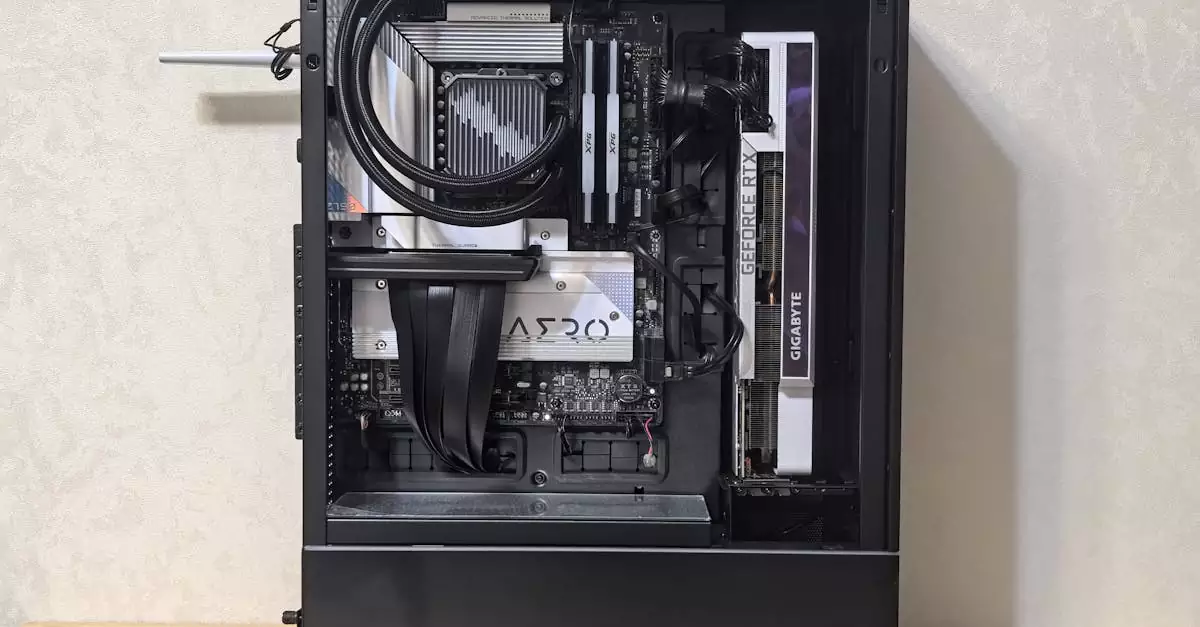
Optimizing Graphics Settings for Smooth Gameplay
Optimizing graphics settings is the key to balancing visual quality and performance in Call of Duty Warzone on PC. Even if your hardware meets the recommended specs, tweaking in-game settings can significantly improve frame rates and reduce input lag, which is crucial in competitive play.
Start by adjusting the following settings:
- Display Mode: Use Fullscreen mode for the best performance and lowest input latency.
- Render Resolution: Set to 100% for native resolution; lower it slightly if FPS drops occur.
- Texture Quality: Medium to High depending on GPU capacity.
- Shadow Map Resolution: Lowering shadows can boost FPS dramatically since shadows are GPU-intensive.
- Anti-Aliasing: Use SMAA or turn off if you need more FPS.
- Ray Tracing: Disable unless you have a high-end GPU like RTX 3080 or above.
Also, disable unnecessary post-processing effects such as motion blur and film grain for clearer visuals and better performance. Enabling V-Sync can reduce screen tearing but may introduce input lag, so it’s often better to leave it off in competitive settings.
For a step-by-step guide and further tweaks, visit this PC Gamer optimization guide.
Common PC Performance Issues and Fixes
Even with the right hardware, players might encounter performance issues such as stuttering, crashes, or lag spikes in Call of Duty Warzone on PC. Identifying the root cause is essential to applying the correct fix.
Frequent issues include:
- High CPU/GPU usage: Can cause overheating and throttling. Solution: Clean your PC, improve cooling, and monitor usage with software like MSI Afterburner.
- Memory leaks: Warzone is known for memory leaks causing gradual FPS drops over time. Restarting the game or system periodically helps.
- Background applications: Close unnecessary apps that consume CPU, RAM, or bandwidth.
- Outdated drivers: Always keep GPU and network drivers updated to prevent compatibility issues.
- Corrupted game files: Use the game launcher’s repair tool to fix corrupted files.
Regular maintenance and monitoring can prevent most performance issues. Also, adjusting in-game settings as described earlier helps maintain stable frame rates. If problems persist, checking forums and official support channels can provide additional insights.
Best Hardware Upgrades for Warzone
If you want to elevate your Call of Duty Warzone PC experience, investing in hardware upgrades is often the most effective solution. While software tweaks help, hardware fundamentally determines your game’s performance ceiling.
Recommended upgrades include:
- Graphics Card (GPU): A powerful GPU like the NVIDIA GeForce RTX 3060 or AMD Radeon RX 6700 XT will handle high settings and ray tracing smoothly.
- Processor (CPU): A modern multi-core CPU such as Intel Core i5-12600K or AMD Ryzen 5 5600X improves game responsiveness and reduces bottlenecks.
- RAM: 16 GB DDR4 or DDR5 RAM ensures smooth multitasking and quicker game data loading.
- Storage: Switching from HDD to SSD drastically reduces load times and improves texture streaming in-game.
- Cooling System: Better cooling prevents thermal throttling, maintaining consistent performance during long sessions.
Balancing your budget across these components is key. For example, pairing a high-end GPU with an underpowered CPU can limit performance gains. Prioritize upgrades based on your current bottlenecks, which you can identify using performance monitoring tools.
Tips to Reduce Lag and Improve FPS
Lag and low FPS can ruin the competitive edge in Call of Duty Warzone on PC. Fortunately, there are several practical tips to reduce these issues and enhance gameplay smoothness.
- Use a wired Ethernet connection: This reduces network latency and packet loss compared to Wi-Fi.
- Close background programs: Especially bandwidth-heavy apps like streaming services or downloads.
- Adjust in-game graphics: Lower settings such as shadows, particles, and effects to gain FPS.
- Disable Fullscreen Optimizations: Right-click on the game executable, go to Properties > Compatibility, and check “Disable fullscreen optimizations.”
- Limit frame rate: Cap FPS to your monitor’s refresh rate to avoid unnecessary GPU strain.
- Optimize power settings: Set your PC’s power plan to “High performance” in Windows settings.
Consistently applying these tips can help you maintain a stable and responsive gaming experience, especially during intense firefights.
How to Update Drivers and Software for Warzone
Keeping your PC’s drivers and software up to date is crucial for optimal Call of Duty Warzone performance. Manufacturers regularly release updates that fix bugs, improve compatibility, and enhance performance for popular games like Warzone.
Steps to update drivers:
- Graphics Drivers: Visit NVIDIA or AMD’s official website or use their software tools (GeForce Experience or Radeon Software) to download the latest GPU drivers.
- Windows Updates: Regularly check for Windows updates through Settings > Update & Security to ensure system stability.
- Network Drivers: Update your network adapter drivers from the manufacturer’s website to reduce connection issues.
- Game Updates: Always install the latest patches and updates released by Activision to fix bugs and improve game performance.
Scheduling regular updates and using reliable software tools can save you from many common issues and keep your system running smoothly.
Conclusion and Final Optimization Tips
Optimizing Call of Duty Warzone on PC is a multifaceted process involving understanding system requirements, fine-tuning graphics settings, upgrading hardware, and maintaining your PC with regular updates. Meeting or exceeding the recommended specs is the first step to enjoying a smooth and immersive gaming experience. Adjusting graphics settings provides a balance between visuals and performance, while addressing common issues like lag and stuttering ensures uninterrupted gameplay.
Hardware upgrades such as a better GPU, CPU, and SSD can significantly boost performance, but even small tweaks like disabling unnecessary background apps and using a wired connection can make a noticeable difference. Staying proactive with driver updates and system maintenance further enhances stability and performance.
By following this guide, you’ll be well-equipped to dominate the battlefield in Call of Duty Warzone on your PC in 2026 and beyond.
Frequently Asked Questions
Q: What are the minimum system requirements for Call of Duty Warzone on PC?
A: The minimum requirements include an Intel Core i3-4340 or AMD FX-6300 CPU, 8 GB RAM, and an NVIDIA GTX 670 or equivalent GPU, running Windows 10 64-bit. These specs allow the game to run but may limit graphics quality and performance.
Q: How can I improve FPS in Call of Duty Warzone on PC?
A: Improving FPS involves lowering graphics settings like shadows and anti-aliasing, closing background apps, updating drivers, and ensuring your hardware meets recommended specs. Using an SSD and enabling high-performance power settings also help maintain stable FPS.
Q: Why is Call of Duty Warzone lagging on my PC?
A: Lag can be caused by network issues, outdated drivers, high CPU/GPU usage, or background programs consuming resources. Using a wired connection, updating drivers, and optimizing settings usually resolve lag problems.
Q: Which graphics settings are best for Warzone performance?
A: For the best performance, use fullscreen mode, set render resolution to 100%, lower shadow quality, disable ray tracing, and turn off motion blur and film grain. These settings balance visuals with smooth gameplay.
Q: Can I play Call of Duty Warzone on a low-end PC?
A: Yes, but you’ll need to lower graphics settings significantly and may experience reduced visual quality and performance. Meeting minimum specs is essential, and optimizing settings can help make the experience playable.
Q: How often should I update my drivers for optimal gameplay?
A: It’s recommended to check for driver updates monthly or whenever you experience performance issues. Keeping your GPU and network drivers current ensures compatibility and stability with the latest game patches.

