
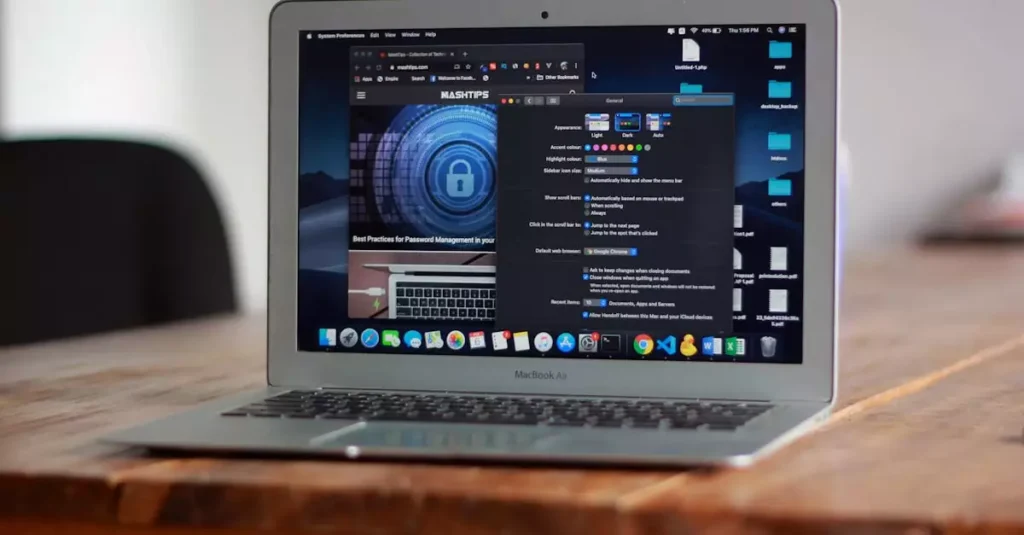
Genshin Impact has taken the gaming world by storm with its stunning open-world design and immersive gameplay. While the game is officially available for Windows, PlayStation, and mobile platforms, many Mac users are eager to enjoy this popular title on their devices. However, playing Genshin Impact on macOS requires a bit of know-how due to compatibility and performance considerations. In this ultimate guide for 2026, we’ll walk you through everything from system requirements to installation and optimization tips specifically tailored for Mac users. Whether you own a MacBook Air or a MacBook Pro, this guide will ensure you get the best Genshin Impact experience on your macOS device.

Introduction to Genshin Impact on macOS
Genshin Impact is an action role-playing game developed by miHoYo that has gained immense popularity thanks to its expansive open world, compelling storylines, and cross-platform play. However, for macOS users, the game poses unique challenges as there is no native macOS version officially supported by the developer. This means that Mac users need to explore alternative methods to enjoy the game, such as using virtualization software or Boot Camp to run Windows on their Macs.
Despite the lack of direct support, the vibrant Mac community has found several workarounds to play Genshin Impact on macOS devices. Compatibility varies depending on your Mac model and hardware specifications, so understanding the system requirements and installation process is crucial. This guide aims to provide a detailed overview of how to set up and optimize Genshin Impact on macOS, covering everything from download sources to performance tweaks and troubleshooting common issues.
Whether you are a casual gamer or a dedicated traveler of Teyvat, playing Genshin Impact on Mac is entirely feasible with the right approach. Let’s dive deeper into the system requirements and get you started on your adventure.
Minimum and Recommended System Requirements for macOS
Before attempting to install Genshin Impact on your Mac, it’s essential to verify that your system meets the necessary requirements. Since Genshin Impact does not have an official macOS version, these requirements are based on running the Windows version on a Mac via Boot Camp or virtualization, which means your Mac must be capable of handling Windows and the game simultaneously.
Minimum System Requirements:
- macOS version: macOS Catalina 10.15 or later (for virtualization support)
- Processor: Intel Core i5 or Apple M1 chip with virtualization support
- RAM: 8 GB
- Graphics: Integrated Intel Iris Plus Graphics or Apple M1 GPU
- Storage: At least 30 GB free space for game installation
- Internet: Stable broadband connection
Recommended System Requirements:
- Processor: Intel Core i7 or Apple M1 Pro/Max chip
- RAM: 16 GB or more
- Graphics: Dedicated GPU such as AMD Radeon Pro 5500M or Apple M1 Pro/Max GPU
- Storage: SSD with 50 GB free space
- Internet: High-speed broadband for smooth multiplayer experience
MacBook Pro models from 2018 onwards and MacBook Air models with M1 chips generally offer the best compatibility and performance. Older Macs with integrated graphics may struggle to maintain smooth frame rates, especially at higher settings. For detailed Windows system requirements, visit the official Genshin Impact website or support pages.
Step-by-Step Installation Guide for macOS
Installing Genshin Impact on macOS requires a few extra steps compared to standard platforms due to the lack of native support. The most reliable method is to use Boot Camp to install Windows on your Mac or use virtualization software like Parallels Desktop. Here’s a detailed guide for each approach:
Method 1: Using Boot Camp
- Backup your data to avoid any loss during partitioning.
- Open Boot Camp Assistant from the Utilities folder.
- Follow the prompts to partition your hard drive and install Windows 10 or 11.
- Once Windows is installed, boot into Windows and download the official Genshin Impact Windows client from the official website.
- Install the game and update your drivers for optimal performance.
- Restart your Mac and boot into Windows whenever you want to play.
Method 2: Using Virtualization (Parallels Desktop)
- Download and install Parallels Desktop or a similar virtualization tool.
- Set up a Windows virtual machine within macOS.
- Install Windows and ensure it has the latest updates.
- Download and install Genshin Impact in the Windows VM.
- Adjust VM settings to allocate sufficient RAM and CPU cores for better performance.
- Launch the game from the VM and enjoy playing without rebooting.
While Boot Camp generally offers better performance as it runs Windows natively, virtualization provides convenience by allowing you to switch between macOS and Windows without restarting. Choose the method that fits your workflow and hardware capabilities.
Performance Optimization Tips for Mac Users
Running Genshin Impact on macOS, especially through Boot Camp or virtualization, can sometimes lead to performance hiccups. To ensure smooth gameplay, consider the following optimization tips tailored for MacBook Air, MacBook Pro, and other macOS devices:
1. Adjust In-Game Graphics Settings
Lower the resolution and set graphics details to medium or low. Disabling shadows and anti-aliasing can significantly improve frame rates on integrated GPUs.
2. Close Background Applications
Macs running virtualization or Boot Camp benefit from freeing up RAM and CPU resources by closing unnecessary apps before launching the game.
3. Use an External Cooling Pad
MacBooks can throttle performance due to overheating. Using a cooling pad or ensuring proper ventilation helps maintain stable frame rates.
4. Allocate More Resources in Virtual Machines
If using Parallels or similar software, increase the CPU cores and RAM assigned to the Windows VM for better performance.
5. Update Graphics Drivers
Ensure you have the latest Windows-compatible graphics drivers installed via Boot Camp or within your VM for optimal GPU performance.
6. Enable Game Mode and Power Settings
In Windows, enable Game Mode and set power options to High Performance to prioritize gaming.
Implementing these tips will help you enjoy Genshin Impact with less lag and smoother visuals on your MacBook Air or Pro.
Common Issues and How to Fix Them on macOS
Playing Genshin Impact on macOS can come with some challenges. Here are common issues users face and practical solutions:
1. Game Crashes or Fails to Launch
This often occurs due to incompatible graphics drivers or insufficient hardware resources. Updating drivers, verifying Windows updates, and reinstalling the game usually resolves this.
2. Low Frame Rates and Stuttering
Adjusting in-game graphics to lower settings, closing background apps, and ensuring your Mac has adequate cooling can mitigate this.
3. Network Connection Problems
Genshin Impact requires a stable internet connection. Use a wired connection or ensure strong Wi-Fi signal strength. Restarting your router can also help.
4. Issues with Virtual Machine Performance
Allocate more CPU and RAM to your VM, and consider enabling hardware acceleration if your virtualization software supports it.
5. Storage Space Errors
Ensure you have sufficient free disk space on your macOS partition and Windows partition for game files and updates.
For persistent problems, consulting the official Genshin Impact support page or Apple’s macOS support (link) can provide additional assistance.
Alternative Ways to Play Genshin Impact on Mac
If you prefer not to install Windows on your Mac, there are alternative options to enjoy Genshin Impact on macOS:
1. Cloud Gaming Services
Platforms like NVIDIA GeForce Now or Xbox Cloud Gaming allow you to stream Genshin Impact directly to your Mac without installing the game. This requires a stable, high-speed internet connection but offers smooth gameplay without taxing your hardware.
2. Mobile Version via iOS
If you have an iPhone or iPad, you can play the Genshin Impact mobile version and enjoy cross-save features with your Mac through cloud syncing.
3. Remote Desktop Solutions
If you have a Windows PC, you can remotely stream Genshin Impact to your Mac using remote desktop software, although this method depends on your network speed and PC availability.
These alternatives provide flexible options for Mac users who want to experience Genshin Impact without the hassle of dual-booting or virtualization.
FAQs About Genshin Impact on macOS
Q: Can I run Genshin Impact natively on macOS?
A: Currently, Genshin Impact does not support a native macOS version. Mac users must run the Windows version via Boot Camp or virtualization software to play the game.
Q: What are the minimum system requirements for Genshin Impact on Mac?
A: Your Mac should have at least an Intel Core i5 or Apple M1 chip, 8 GB RAM, and integrated or better graphics. For smooth gameplay, a MacBook Pro with a dedicated GPU and 16 GB RAM is recommended.
Q: How do I optimize Genshin Impact performance on a MacBook?
A: Lower in-game graphics settings, close background apps, allocate more resources in VMs, update drivers, and use cooling solutions to improve performance on MacBooks.
Q: Are there any known issues playing Genshin Impact on macOS?
A: Common issues include crashes, low frame rates, and network problems. These can often be resolved by updating drivers, adjusting settings, and ensuring stable internet connectivity.
Q: Is it better to use Boot Camp or virtualization for Genshin Impact on Mac?
A: Boot Camp offers better performance by running Windows natively, while virtualization provides convenience without rebooting. Choose based on your hardware and usage preferences.
Q: Can I use an external GPU with my Mac to improve gameplay?
A: Yes, Macs that support Thunderbolt 3 can use external GPUs to boost graphics performance, which can significantly enhance Genshin Impact gameplay.
Conclusion: Best Practices for Playing on Mac
Although Genshin Impact lacks a native macOS version, Mac users can still enjoy this captivating game through Boot Camp or virtualization. Ensuring your Mac meets the system requirements and following our installation and optimization tips will provide the best possible experience. For casual players or those seeking convenience, cloud gaming offers a viable alternative. Managing performance by adjusting graphics settings and keeping your system updated is key to smooth gameplay, especially on MacBook Air and MacBook Pro models. With the right setup, exploring the world of Teyvat on your Mac is not only possible but also highly enjoyable. Stay updated with official game news and Apple support to keep your gaming experience seamless.

