
Call of Duty Modern Warfare 2 on PC continues to be one of the most thrilling and competitive first-person shooters in 2026. With its immersive gameplay, intense multiplayer battles, and stunning graphics, it remains a favorite among gamers worldwide. However, to fully enjoy this action-packed experience, understanding the technical requirements and optimization techniques is essential. Whether you’re a seasoned player or new to the franchise, this ultimate guide will walk you through everything you need to know about Call of Duty Modern Warfare 2 PC—from system specs and installation to troubleshooting and performance enhancement tips. Dive in to get the most out of your gaming sessions and dominate the battlefield with ease.

Introduction to Call of Duty Modern Warfare 2 on PC
Call of Duty Modern Warfare 2 on PC delivers an unmatched gaming experience characterized by fast-paced action, realistic environments, and a rich storyline. The PC version benefits from higher frame rates, customizable controls, and superior graphics capabilities compared to consoles. This makes it a preferred choice for competitive players who seek precision and responsiveness. Additionally, the PC platform offers extensive mod support and community-driven content, enhancing replayability. Understanding the unique features of the PC version, such as advanced graphics options and multiplayer customization, can significantly improve your gameplay experience.
Moreover, the game’s multiplayer mode is highly active, featuring various game types and maps that keep players engaged. The PC community is vibrant, and regular updates from Activision ensure that the game evolves with new content and balance tweaks. For those interested, detailed information about the game’s development and updates can be found on the official Activision website.
Minimum and Recommended System Requirements
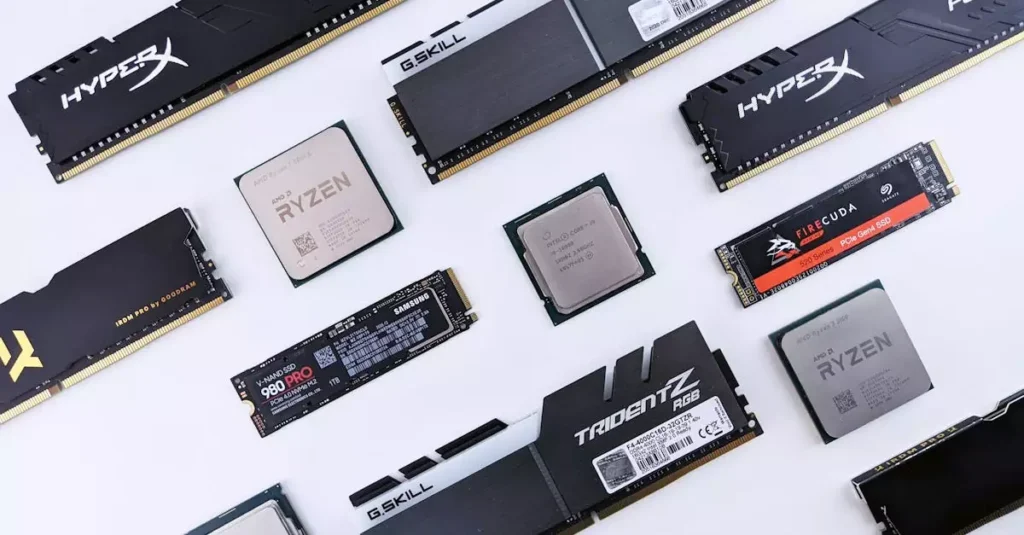
Before diving into Call of Duty Modern Warfare 2 PC, it’s crucial to verify that your system meets the necessary specifications. The minimum requirements ensure the game runs, but for the best experience, the recommended specs are ideal. Meeting or exceeding these specs guarantees smoother gameplay, better visuals, and reduced lag during multiplayer sessions.
Minimum Requirements:
- OS: Windows 10 64-bit
- Processor: Intel Core i3-6100 / AMD Ryzen 3 1200
- Memory: 8 GB RAM
- Graphics: NVIDIA GeForce GTX 960 / AMD Radeon RX 470
- Storage: 125 GB available space
- DirectX: Version 12
Recommended Requirements:
- OS: Windows 10/11 64-bit
- Processor: Intel Core i5-12600K / AMD Ryzen 5 5600X
- Memory: 16 GB RAM
- Graphics: NVIDIA GeForce RTX 3060 / AMD Radeon RX 6700 XT
- Storage: 125 GB SSD
- DirectX: Version 12
These specifications reflect the modern warfare 2 pc system requirements 2026, ensuring compatibility with the latest updates and expansions. Upgrading hardware to meet the recommended specs will significantly improve your gaming experience, particularly in demanding multiplayer battles.
How to Optimize Graphics Settings for Smooth Gameplay
Optimizing your graphics settings is key to balancing visual quality and performance in Call of Duty Modern Warfare 2 PC. The game offers a wide range of customizable settings that allow you to tailor the experience based on your hardware capabilities. Adjusting these settings can reduce stuttering, improve frame rates, and enhance overall responsiveness.
Start by setting the resolution to match your monitor’s native resolution for sharp visuals. Then, tweak the texture quality, shadow details, and anti-aliasing options. For mid-range PCs, setting textures to high and shadows to medium offers a good balance. Disabling or lowering motion blur and depth of field can also improve clarity during fast movements.
Enabling NVIDIA DLSS (Deep Learning Super Sampling) or AMD FSR (FidelityFX Super Resolution) can boost performance without sacrificing much visual fidelity, especially on compatible GPUs. Additionally, turning off V-Sync may reduce input lag, which is critical for competitive multiplayer matches. Regularly updating your graphics drivers and the game itself ensures you benefit from the latest optimizations.
Step-by-Step Installation and Setup Guide
Installing Call of Duty Modern Warfare 2 PC is straightforward, but following a clear process ensures a smooth setup. First, purchase the game from a legitimate source such as the official Activision store or authorized platforms like Steam or Battle.net. After purchase, download the installer and launch it.
During installation, choose the preferred installation directory, ideally on an SSD for faster load times. Once installed, launch the game and configure the initial settings. Set your display resolution, select your preferred control scheme (mouse and keyboard or controller), and adjust audio levels.
Next, log in with your Activision account to access online features and multiplayer modes. It’s advisable to check for updates immediately after installation to download patches and fixes. For detailed instructions and troubleshooting during installation, visit the Activision support page.
Troubleshooting Common PC Issues
Even with optimal hardware, players may encounter issues when running Call of Duty Modern Warfare 2 PC. Common problems include crashes, low frame rates, connectivity issues, and graphical glitches. Troubleshooting these issues can significantly improve your gaming experience.
Firstly, ensure your PC drivers, especially graphics drivers, are up to date. Outdated drivers are a frequent cause of crashes and performance drops. Running the game as an administrator can resolve permission-related errors. If you experience stuttering or frame drops, lowering graphics settings or closing background applications can help.
For connectivity problems in multiplayer mode, check your internet connection and firewall settings to ensure the game is allowed through. Verifying the integrity of game files via your platform’s client can fix corrupted files. If problems persist, consulting the official Activision troubleshooting resources or community forums provides additional solutions tailored to specific errors.
Multiplayer Mode and Online Features Overview
Call of Duty Modern Warfare 2 PC shines brightest in its multiplayer mode, offering a variety of game types such as Team Deathmatch, Domination, and Search and Destroy. The PC platform supports dedicated servers, which reduce latency and provide a smoother competitive environment compared to peer-to-peer connections.
Players can customize their loadouts with a wide range of weapons, attachments, and perks to suit different playstyles. The game also features cross-platform play, allowing PC users to compete with console players, broadening the player base and matchmaking pool.
In addition to traditional multiplayer, the PC version includes cooperative modes and special events that keep gameplay fresh. Voice chat and clan support enhance teamwork and social interaction. Mastering the multiplayer mechanics and understanding map layouts are essential for climbing the ranks and enjoying the full scope of online features.
Tips for Improving Performance on Low-End PCs
Not everyone has access to high-end gaming rigs, but you can still enjoy Call of Duty Modern Warfare 2 PC on low-end systems with some clever adjustments. Begin by lowering the resolution and reducing texture quality to lessen the strain on your GPU and CPU. Turning off resource-heavy features like ray tracing, shadows, and ambient occlusion can yield substantial performance gains.
Disabling background programs and optimizing your PC’s power settings for maximum performance can also help. Using game mode features in Windows 10 or 11 prioritizes resources for gaming. Additionally, tweaking the game’s configuration files to disable unnecessary visual effects can improve frame rates.
Regularly cleaning your system from dust and ensuring proper cooling prevents thermal throttling, which can degrade performance. While these tips won’t match the experience of a high-end setup, they allow for smoother gameplay and better responsiveness on budget hardware.
Conclusion
Call of Duty Modern Warfare 2 PC remains a top choice for FPS enthusiasts in 2026, offering immersive gameplay and intense multiplayer action. Ensuring your PC meets the minimum or recommended system requirements is the first step to a satisfying experience. By optimizing graphics settings and following the installation guide, players can achieve a smooth and visually impressive game. Troubleshooting common issues and applying performance tips for low-end PCs can further enhance gameplay quality. Whether you are diving into multiplayer battles or exploring the campaign, following these best practices will help you get the most out of Modern Warfare 2 on PC. Stay updated with official sources and community tips to keep your gaming edge sharp.
Frequently Asked Questions
Q: What are the minimum PC requirements for Call of Duty Modern Warfare 2?
A: The minimum requirements include a Windows 10 64-bit OS, Intel Core i3-6100 or AMD Ryzen 3 1200 CPU, 8 GB RAM, and a NVIDIA GeForce GTX 960 or AMD Radeon RX 470 GPU. At least 125 GB of storage and DirectX 12 support are also needed to run the game smoothly at basic settings.
Q: How can I improve performance for Modern Warfare 2 on my PC?
A: To improve performance, lower graphics settings such as shadows and texture quality, disable motion blur, and use technologies like DLSS or FSR if supported. Keeping your drivers updated and closing unnecessary background applications will also help maintain stable frame rates.
Q: Is there a difference between the PC and console versions?
A: Yes, the PC version offers higher frame rates, customizable controls, and better graphics options. It also supports mods and has dedicated servers for multiplayer, which generally provide lower latency compared to consoles.
Q: Where can I download Call of Duty Modern Warfare 2 for PC?
A: You can download the game from official platforms like the Activision website, Steam, or Battle.net. Always purchase from authorized sources to avoid security risks and ensure access to updates and support.
Q: Can I play Modern Warfare 2 multiplayer on PC without lag?
A: Yes, by ensuring a stable and fast internet connection, using wired Ethernet instead of Wi-Fi, and playing on dedicated servers, you can minimize lag. Adjusting in-game network settings and closing bandwidth-heavy applications also helps maintain smooth multiplayer gameplay.

