
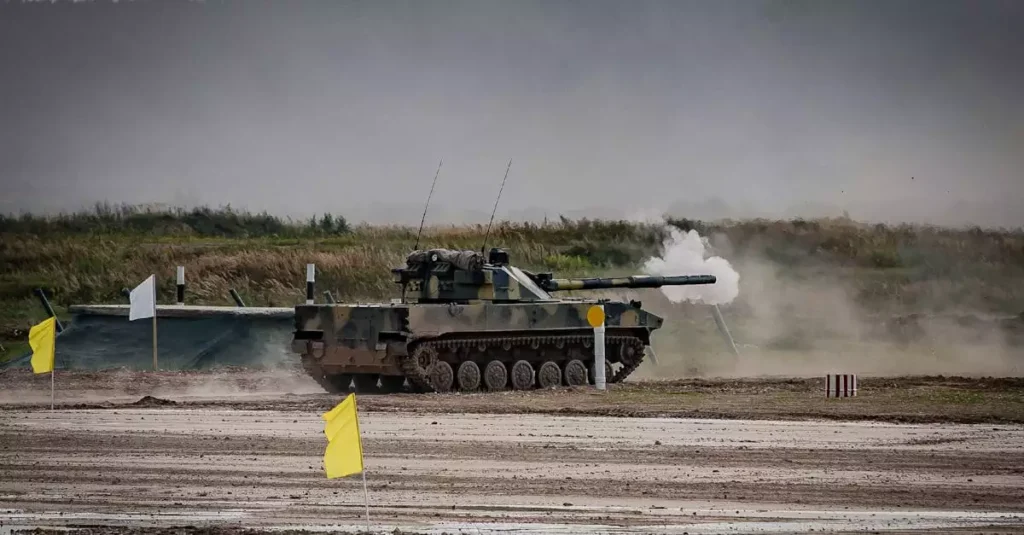
War Thunder has solidified itself as one of the most engaging and realistic military vehicle combat games available on Steam, captivating players worldwide with its vast array of aircraft, tanks, and naval units. Whether you’re a newcomer or a seasoned pilot, mastering War Thunder on Steam requires understanding its unique gameplay mechanics, technical requirements, and community dynamics. This ultimate guide to War Thunder on Steam will walk you through everything from downloading the game and troubleshooting common problems to optimizing performance and excelling in multiplayer battles. With insights drawn from over 500 hours of gameplay and community feedback, you’ll be well-equipped to dive into the action and enjoy a smooth, immersive experience in 2026 and beyond.

Introduction to War Thunder on Steam
War Thunder on Steam offers a comprehensive combat simulation that spans air, land, and sea warfare. Developed by Gaijin Entertainment, it features historically accurate vehicles and detailed battlefields that bring World War II and beyond to life. The Steam platform enhances accessibility by integrating community features, achievements, and seamless updates, making it the go-to choice for many players.
One of the standout aspects of War Thunder on Steam is its cross-platform gameplay, allowing players on PC, PlayStation, and Xbox to compete together. The game’s realistic physics and vehicle mechanics demand strategic thinking and skillful control, which can be refined through consistent practice and engagement with the community. Whether you’re dogfighting in the skies or commanding a tank battalion, War Thunder provides a dynamic experience that blends historical accuracy with intense multiplayer action.
Additionally, Steam’s workshop and modding support add layers of customization, making War Thunder a continuously evolving game that caters to both casual players and hardcore simulation enthusiasts. Understanding the basics and the platform-specific features will help you get started quickly and enjoy the full potential of War Thunder on Steam.
How to Download and Install War Thunder via Steam
Downloading War Thunder on Steam is straightforward but can occasionally present challenges, especially for users unfamiliar with the platform. First, ensure you have a Steam account and the Steam client installed on your PC. Head to the official War Thunder page on Steam by visiting this link.
Click the “Play Game” button to add War Thunder to your Steam library. The game is free-to-play, so there’s no upfront cost. Once added, navigate to your library, select War Thunder, and click “Install.” The download size is considerable due to the high-quality assets, so a stable internet connection is recommended.
During installation, Steam handles all the necessary files, including DirectX and Visual C++ redistributables. However, if you encounter “War Thunder Steam download issues,” such as stalled downloads or corrupted files, common fixes include restarting Steam, clearing the download cache, or switching to a different download server in Steam’s settings.
After installation, launch the game and allow any additional updates to download. These updates often include new vehicles, maps, and gameplay improvements, ensuring you have the latest content and fixes.
Common Issues and Fixes for War Thunder on Steam
War Thunder on Steam is generally stable, but some players experience issues such as crashes, update failures, or performance drops. Understanding these common problems and their solutions can save you time and frustration.
War Thunder Steam crashing fix: Frequent crashes can be caused by outdated drivers, corrupted game files, or conflicts with background software. Start by updating your GPU drivers and verifying the game files through Steam to replace any corrupted data. Disabling overlays (Steam, Discord) and running the game as an administrator also helps stabilize gameplay.
War Thunder Steam update problems: Sometimes updates fail to install or get stuck. Clearing the Steam download cache or restarting your router to refresh your connection often resolves these issues. Additionally, temporarily disabling antivirus software can prevent false positives from blocking updates.
War Thunder Steam download issues: These might include slow speeds or interrupted downloads. Switching your Steam download region or using a wired internet connection can improve download reliability and speed.
By addressing these common issues proactively, you can maintain a smooth and uninterrupted War Thunder experience on Steam.
Optimizing Performance for War Thunder on Steam
To enjoy War Thunder’s detailed graphics and intense battles without lag or stuttering, optimizing performance is crucial. Start by reviewing the War Thunder Steam system requirements to ensure your PC meets or exceeds the minimum specifications:
| Specification | Minimum | Recommended |
|---|---|---|
| OS | Windows 7 64-bit | Windows 10 64-bit |
| Processor | Intel Core i3-3220 / AMD FX-6300 | Intel Core i5-6600K / AMD Ryzen 5 1600 |
| Memory | 4 GB RAM | 8 GB RAM |
| Graphics | NVIDIA GeForce GTX 460 / AMD Radeon HD 6850 | NVIDIA GeForce GTX 970 / AMD Radeon RX 570 |
| DirectX | Version 11 | Version 12 |
| Storage | 35 GB available space | 35 GB available space |
Lowering in-game graphics settings such as shadows, reflections, and anti-aliasing can significantly improve frame rates without sacrificing gameplay quality. Enabling V-Sync or frame rate caps may reduce screen tearing and stabilize performance. Additionally, closing unnecessary background applications frees up system resources.
For advanced users, updating GPU drivers and adjusting power settings to “High Performance” mode in Windows can deliver noticeable improvements. Monitoring your system temperature is also important to prevent thermal throttling during long gaming sessions.
War Thunder also supports multi-core CPUs efficiently, so ensuring your system’s CPU affinity is set correctly in task manager can help optimize CPU usage. Combining these tweaks will help you enjoy fluid gameplay and competitive responsiveness on Steam.
Setting Up Controllers and Custom Controls
War Thunder on Steam supports a wide range of input devices, including keyboard and mouse, joysticks, HOTAS setups, and game controllers. Setting up your controller correctly can enhance immersion and precision, especially for aircraft combat.
War Thunder Steam controller setup is straightforward. Steam’s built-in controller configuration supports devices like Xbox, PlayStation, and Steam Controllers. To configure, connect your controller and open Steam’s Big Picture Mode. Navigate to War Thunder’s properties, and under “Controller,” select your preferred configuration or customize button mappings.
Within War Thunder’s options menu, you can fine-tune sensitivity, dead zones, and assign specific functions to controller buttons. For flight enthusiasts, adjusting axis curves and response curves improves handling of planes and helicopters.
For those using joysticks or HOTAS, War Thunder offers detailed calibration tools and presets tailored for specific hardware. This allows you to achieve realistic control over pitch, yaw, throttle, and weapons systems. Experimenting with these settings and practicing in test flights will help you find the optimal setup.
Overall, utilizing a controller can provide a more intuitive and enjoyable experience, especially for players transitioning from consoles or those who prefer analog controls over the keyboard and mouse.
Understanding War Thunder Steam Updates and Patch Notes
War Thunder is regularly updated on Steam with new content, bug fixes, and gameplay balancing. Staying informed about War Thunder Steam update problems and patch notes helps you understand changes and prepare for new challenges.
Gaijin Entertainment releases detailed patch notes for each update on the official website and community forums. These notes cover new vehicles, map adjustments, performance improvements, and bug fixes. You can view the latest patch notes at War Thunder Patch Notes.
Updates typically happen every few weeks, with major updates introducing significant content like new nations, game modes, or mechanics. Minor patches focus on fixing exploits, improving matchmaking, and optimizing performance.
Sometimes, update installations may encounter errors or stalls on Steam. Common troubleshooting steps include restarting Steam, verifying game cache, or temporarily disabling firewall and antivirus software. Keeping the Steam client updated also ensures compatibility with War Thunder’s latest versions.
By regularly reviewing patch notes and maintaining your game installation, you’ll enjoy a smoother experience and stay competitive with the latest features and balance changes.
Multiplayer Tips and Strategies
War Thunder’s multiplayer is the heart of the game, featuring dynamic battles that test your tactical skills and teamwork. To succeed, it’s essential to understand both individual mechanics and cooperative strategies.
Here are some key War Thunder Steam multiplayer tips to help you get started:
- Know your vehicle: Each tank, plane, and ship has unique strengths and weaknesses. Learn their armor, weapon ranges, and mobility to maximize effectiveness.
- Use terrain wisely: In ground battles, cover and elevation can be lifesavers. Position your tank to minimize exposure and exploit enemy blind spots.
- Communicate with teammates: Use in-game chat or voice communication to coordinate attacks and share intel on enemy positions.
- Practice situational awareness: Constantly scan your surroundings to avoid ambushes and spot opportunities for flanking or retreat.
- Manage your resources: Ammo and repair kits are limited in battles. Use them judiciously and retreat to safe zones when necessary.
Improving your aim and maneuvering skills through training modes or custom battles also pays off in multiplayer. Remember, patience and adaptability often trump aggressive tactics, especially in high-tier matches where opponents are more skilled.
Mastering multiplayer on War Thunder Steam requires both game knowledge and teamwork, making every victory rewarding and every defeat a learning opportunity.
Community and Support Resources
The War Thunder community on Steam is vibrant and supportive, offering a wealth of resources to help players improve and troubleshoot issues. The official War Thunder forums and subreddits provide discussions on tactics, updates, and technical support.
For direct help with technical problems such as War Thunder Steam crashing fix or performance optimization, the Steam Community Hub and Gaijin’s support site are invaluable. Players often share detailed guides and solutions based on real experience, making these platforms essential for both new and veteran players.
Additionally, numerous content creators on YouTube and Twitch offer gameplay tutorials, vehicle reviews, and live streams that can deepen your understanding of the game’s mechanics. Engaging with these communities fosters connections with like-minded players and keeps you updated on the latest strategies and news.
Finally, don’t hesitate to submit bug reports or feedback to Gaijin Entertainment through official channels, as player input directly influences game improvements and future updates.
Conclusion
War Thunder on Steam delivers an immersive and challenging combat experience that blends historical authenticity with modern multiplayer action. By understanding how to download and install the game properly, addressing common issues, and optimizing your system, you set the stage for smooth and enjoyable gameplay. Customizing controls, staying updated with patch notes, and applying multiplayer strategies further enhance your performance and enjoyment. Engaging with the active community and utilizing support resources ensures you’re never alone on your journey to mastery. Whether you’re soaring through the skies or commanding armored vehicles on the battlefield, this guide equips you with the knowledge to thrive in War Thunder on Steam in 2026 and beyond.
Frequently Asked Questions
Q: How do I fix War Thunder crashing on Steam?
A: To fix crashing, update your graphics drivers, verify the game files via Steam, disable overlays like Discord or Steam, and run the game as an administrator. Also, ensure your system meets the minimum requirements and close unnecessary background applications.
Q: What are the minimum system requirements for War Thunder on Steam?
A: The minimum requirements include Windows 7 64-bit, an Intel Core i3-3220 or AMD FX-6300 CPU, 4GB RAM, and a NVIDIA GeForce GTX 460 or AMD Radeon HD 6850 GPU, with at least 35 GB of free storage.
Q: Can I use a controller to play War Thunder on Steam?
A: Yes, War Thunder supports various controllers including Xbox, PlayStation, and Steam Controllers. You can configure your controller settings through Steam’s Big Picture Mode and customize controls within the game.
Q: How often does War Thunder update on Steam?
A: War Thunder typically receives updates every few weeks, ranging from major content additions to minor bug fixes. Patch notes are regularly published to keep players informed.
Q: Is War Thunder free on Steam?
A: Yes, War Thunder is free-to-play on Steam, allowing players to download and enjoy the game without any initial purchase. Optional in-game purchases are available for cosmetic and progression enhancements.
Q: How to improve multiplayer connection in War Thunder on Steam?
A: To improve multiplayer connection, use a wired Ethernet connection, choose the closest Steam download server, close bandwidth-heavy applications, and ensure your firewall or antivirus isn’t blocking the game.