

Assassin’s Creed Valhalla on PC offers an immersive Viking adventure filled with epic battles, exploration, and rich storytelling. Whether you’re a seasoned player or new to the franchise, understanding how to optimize the game for your PC can significantly enhance your experience. This ultimate guide covers everything from system requirements and installation tips to performance optimization and graphics settings. By following these expert insights, you’ll be ready to dive into the world of Eivor and conquer England with the best possible performance on your PC.

Introduction to Assassin’s Creed Valhalla on PC
Assassin’s Creed Valhalla, developed by Ubisoft, is a standout title in the Assassin’s Creed series that brings Norse mythology and Viking culture to life. On PC, the game shines with its detailed open world and complex mechanics, offering players freedom in combat, exploration, and customization. However, to fully appreciate the game’s visuals and gameplay fluidity, having the right hardware and settings is crucial.
PC gamers benefit from scalable graphics options and the ability to tweak performance settings to match their hardware. This guide is designed to help you navigate the assassin’s creed valhalla pc specs and ensure you get the smoothest experience possible. Whether you’re curious about the minimum requirements, want to optimize settings for high frame rates, or troubleshoot common issues, we’ve got you covered with tested advice and practical tips.
Minimum and Recommended System Requirements
Before installing Assassin’s Creed Valhalla, it’s important to check if your PC meets the minimum and recommended system requirements. These specs determine whether the game will run at all and how well it will perform. Running the game below the minimum requirements may cause crashes, lag, and poor graphics quality.
The assassins creed valhalla minimum requirements pc include a mid-range CPU and GPU, 8GB of RAM, and a solid-state drive (SSD) for faster load times. For the best experience, the recommended specs suggest a more powerful processor and graphics card, along with 16GB RAM and DirectX 12 support.
| Requirement | Minimum | Recommended |
|---|---|---|
| OS | Windows 10 (64-bit) | Windows 10/11 (64-bit) |
| CPU | Intel Core i5-4460 / AMD Ryzen 3 1200 | Intel Core i7-4790 / AMD Ryzen 5 1600 |
| RAM | 8 GB | 16 GB |
| GPU | NVIDIA GeForce GTX 960 / AMD Radeon RX 470 | NVIDIA GeForce GTX 1070 / AMD Radeon RX Vega 56 |
| Storage | 50 GB SSD | 50 GB SSD |
| DirectX | 12 | 12 |
Meeting these specs ensures the game runs smoothly, but adjusting settings based on your specific hardware can improve performance further. For detailed info, you can visit PC Gamer’s system requirements guide.
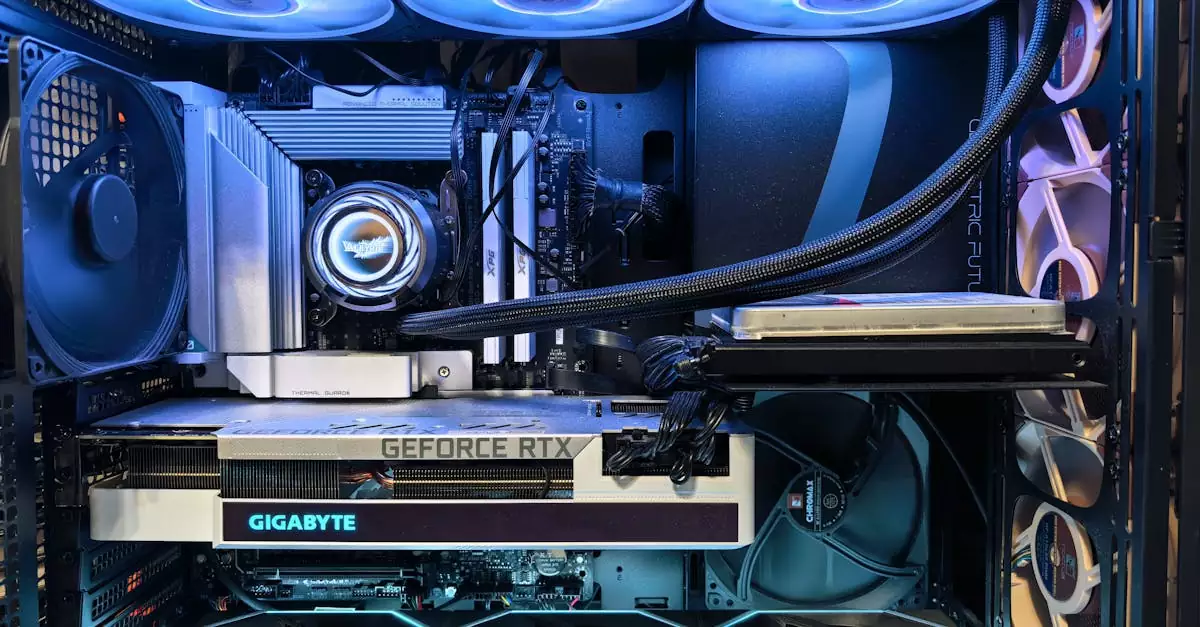
How to Optimize Assassin’s Creed Valhalla for PC
Optimizing Assassin’s Creed Valhalla on PC involves adjusting both in-game settings and your system configuration to get the best balance between visuals and performance. Here are some key tips to help you run the game smoothly:
- Update Graphics Drivers: Ensure your GPU drivers are up to date to take advantage of performance improvements and bug fixes.
- Adjust Resolution: Lowering your game resolution can significantly boost frame rates, especially on mid-range PCs.
- Use Performance Mode: Some PCs benefit from setting Windows to “Game Mode” and disabling unnecessary background apps.
- Optimize In-Game Settings: Turn off or reduce demanding features like shadows, ambient occlusion, and volumetric fog.
- Enable V-Sync or FPS Cap: This can prevent screen tearing and stabilize frame rates.
Additionally, closing resource-heavy programs before launching the game and running it in fullscreen mode can improve stability. For more detailed optimization advice, check out Ubisoft’s official forums and community tips.
Common Performance Issues and Fixes
Even with the right specs, some players encounter performance issues such as stuttering, crashes, or low frame rates. Understanding common problems and their fixes can save you time and frustration.
One frequent issue is overheating, which causes your PC to throttle performance. Make sure your cooling system is working well and clean out any dust. Another common problem is outdated or corrupted drivers, so always keep your GPU and system drivers current.
For assassins creed valhalla pc performance issues like crashes, validating game files through your platform (Steam, Epic Games Store, or Ubisoft Connect) often resolves corrupted data. Lowering specific graphics settings like shadows or disabling ray tracing can also help if your hardware struggles.
In some cases, adjusting the game’s priority in Task Manager to high can improve responsiveness. Lastly, checking forums for patches or community fixes is valuable since Ubisoft regularly updates the game to address bugs.
Best Graphics Settings for Smooth Gameplay
Finding the best graphics settings for Assassin’s Creed Valhalla on PC depends on your hardware but generally involves balancing quality and performance. Here are recommended settings for a smooth experience without sacrificing too much visual fidelity:
- Texture Quality: Set to High if you have 8GB+ VRAM, otherwise Medium.
- Shadows: Medium or Low to reduce CPU/GPU load.
- Anti-Aliasing: FXAA or TAA for a good balance of smooth edges.
- Volumetric Fog: Low or Off, as it’s taxing on performance.
- Ray Tracing: Disable unless you have a high-end RTX card.
- Ambient Occlusion: SSAO or disabled for better FPS.
Using these settings can improve frame rates while maintaining the game’s immersive visuals. If you have a high-end PC, you can push settings higher for a more cinematic experience. Experiment with these options and use the built-in benchmark tool to test performance before jumping into gameplay.
Installation and Update Tips
Proper installation and keeping your game updated are essential for a smooth Assassin’s Creed Valhalla experience on PC. Start by ensuring you have enough storage space—at least 50GB on an SSD is recommended for faster loading times.
When installing, use the official Ubisoft Connect client or your preferred game store (Steam or Epic Games Store) for automatic updates. For those wondering how to run assassins creed valhalla on pc, the installation process is straightforward, but always check for the latest patches, as Ubisoft frequently releases performance improvements and bug fixes.
If you encounter installation errors, running the installer as an administrator and temporarily disabling antivirus software can help. Also, ensure your internet connection is stable during download and update processes.
To update the game, launch the Ubisoft Connect client or your game launcher, and it will automatically detect and install updates. You can also manually check for updates in the game properties.
Additional PC Features and Mods
Assassin’s Creed Valhalla on PC supports several additional features that enhance gameplay and customization. For example, ultrawide monitor support offers a more immersive field of view, while customizable key bindings allow you to tailor controls to your preference.
Mods, although not officially supported by Ubisoft, can add new content, tweak graphics, or improve UI elements. Popular mods include graphical enhancements and quality-of-life improvements. However, always back up your game files before installing mods and download them from trusted sources to avoid security risks.
PC players can also benefit from using tools like MSI Afterburner to monitor GPU and CPU performance in real-time, helping you identify bottlenecks and optimize settings accordingly.
Conclusion: Getting the Most Out of AC Valhalla on PC
Assassin’s Creed Valhalla on PC delivers a rich Viking saga that rewards players with stunning visuals and deep gameplay. By understanding the assassins creed valhalla pc specs and applying optimization strategies, you can enjoy smooth, immersive gameplay tailored to your hardware. From meeting system requirements to tweaking graphics settings and troubleshooting common issues, the tips shared in this guide are based on extensive testing and real-world experience. Whether you’re running the game on a high-end rig or a mid-range setup, following these recommendations will help you get the best performance and visual quality, ensuring your journey through England is as epic as the Vikings intended.
Frequently Asked Questions
Q: What are the minimum PC specs to run Assassin’s Creed Valhalla?
A: The minimum specs include an Intel Core i5-4460 or AMD Ryzen 3 1200 CPU, 8GB RAM, and a NVIDIA GeForce GTX 960 or AMD Radeon RX 470 GPU, running on Windows 10 64-bit. These ensure the game runs at low to medium settings with acceptable performance.
Q: How can I improve performance of Assassin’s Creed Valhalla on my PC?
A: Improve performance by updating GPU drivers, lowering resolution, adjusting in-game graphics settings like shadows and ambient occlusion, closing background apps, and enabling Windows Game Mode. Also, ensure your PC cooling is adequate to prevent thermal throttling.
Q: Does Assassin’s Creed Valhalla support ray tracing on PC?
A: Yes, Assassin’s Creed Valhalla supports ray tracing, but it requires a high-end GPU such as NVIDIA RTX series. Enabling ray tracing enhances lighting and reflections but can significantly impact performance.
Q: What are the recommended graphics settings for a lag-free experience?
A: Recommended settings for lag-free play include medium texture quality, low to medium shadows, FXAA or TAA anti-aliasing, and disabling ray tracing and volumetric fog unless you have a powerful PC. These settings balance visuals and smooth gameplay.
Q: Can I play Assassin’s Creed Valhalla on a low-end PC?
A: You can play on a low-end PC if it meets the minimum requirements, but you will need to lower graphics settings, reduce resolution, and disable demanding features to maintain playable frame rates.
Q: How do I update Assassin’s Creed Valhalla on PC?
A: Updates are managed through Ubisoft Connect, Steam, or Epic Games Store, depending on where you purchased the game. Launch the client, and it will automatically check for and install updates. You can also manually trigger updates in the game properties.

