

Choosing the right hardware is vital for experiencing Call of Duty Modern Warfare II on PC at its best. While the game is optimized for a broad range of setups, investing in certain components can significantly boost performance.
The GPU is the most critical piece of hardware for this title. Cards like the NVIDIA GeForce RTX 4070 and AMD Radeon RX 7900 XT deliver excellent frame rates at high settings with ray tracing enabled. If you’re on a budget, mid-range GPUs such as the RTX 3060 Ti still offer solid performance.
The CPU should be a modern multi-core processor. Intel’s 12th and 13th generation Core i7 or AMD Ryzen 7 7000 series provide sufficient power for smooth gameplay and quick load times. Avoid older dual-core CPUs as they may bottleneck performance.
RAM is equally important. While 16GB is recommended, 32GB can future-proof your system and help with multitasking during gameplay streaming or recording. Using SSD storage instead of HDD dramatically reduces load times and texture pop-in.
Monitors with high refresh rates (144Hz or above) paired with low input lag enhance your reaction time. Pair this with a responsive gaming mouse and mechanical keyboard for the best overall experience.
How to Update and Maintain Game Performance
Keeping Call of Duty Modern Warfare II on PC updated is essential for stability and performance improvements. Developers regularly release patches that fix bugs, optimize graphics, and introduce new features.
Enable automatic updates through your game launcher to ensure you never miss critical patches. Additionally, update your GPU drivers frequently. Both NVIDIA and AMD release game-ready drivers optimized for new titles, which can improve frame rates and fix compatibility issues.
Regularly clean your PC by removing unnecessary files and monitoring system temperatures. Overheating can cause throttling, leading to performance drops. Using software tools to monitor CPU and GPU temperatures can alert you to potential cooling issues.
Backing up your game settings allows you to restore preferred configurations after updates or reinstallations quickly. Also, periodically check forums and official channels for community-shared optimization tips and known issues.
By maintaining both your hardware and software, you’ll enjoy a consistently smooth and immersive Call of Duty Modern Warfare II experience on PC.
Conclusion
Call of Duty Modern Warfare II on PC offers an exhilarating gaming experience that combines cutting-edge graphics with intense combat scenarios. Understanding the minimum and recommended system requirements is the first step to enjoying the game without performance issues. By applying optimization tips and keeping your hardware updated, you can achieve smooth gameplay even on mid-range PCs. Troubleshooting common problems and configuring multiplayer settings enhances your competitive edge, while selecting the right hardware ensures longevity and future-proofing. Whether you’re diving into the campaign or battling online, this guide equips you with the knowledge to maximize your Call of Duty Modern Warfare II experience on PC.
Frequently Asked Questions
Q: What are the minimum PC requirements for Call of Duty Modern Warfare II?
A: The minimum PC requirements include Windows 10 64-bit, an Intel Core i5-2500K or AMD Ryzen 3 1200 CPU, 8 GB RAM, and a NVIDIA GeForce GTX 960 or AMD Radeon RX 470 GPU. You’ll also need 125 GB of storage and DirectX 12 support. Meeting these specs allows basic gameplay, though higher settings require more powerful hardware.
Q: How can I improve FPS in Modern Warfare II on PC?
A: To improve FPS, lower graphics settings such as shadows, textures, and ray tracing. Update your GPU drivers, close background applications, and enable features like NVIDIA Reflex or AMD Anti-Lag. Additionally, playing at a resolution compatible with your monitor’s refresh rate helps maintain smooth gameplay.
Q: Does Modern Warfare II support ray tracing on PC?
A: Yes, Modern Warfare II supports ray tracing on compatible GPUs like NVIDIA RTX series and AMD’s RDNA 2 cards. Ray tracing enhances lighting and reflections but can impact performance, so it’s best to enable it on higher-end systems or tweak settings for balance.
Q: What is the best graphics setting for smooth gameplay?
A: The best setting balances visuals and performance. Typically, medium to high settings without ray tracing provide smooth gameplay on most PCs. Disabling motion blur, lowering shadows, and enabling low latency options help maintain high FPS and responsiveness.
Q: How much storage space is needed for Modern Warfare II on PC?
A: Modern Warfare II requires approximately 125 GB of free storage space. Using an SSD is recommended to reduce load times and improve texture streaming, enhancing the overall gaming experience.
Multiplayer is the heart of Call of Duty Modern Warfare II on PC, and optimizing your settings can provide a competitive edge. Network stability and in-game configurations play a significant role in your overall performance.
First, prioritize a stable internet connection. A wired Ethernet connection is preferred over Wi-Fi to reduce packet loss and latency. If you must use Wi-Fi, ensure you are close to the router and minimize interference. Using a gaming VPN can sometimes improve routing, but it depends on your location and provider.
Within the game, adjust the network settings to match your connection speed. Lowering the matchmaking region to your closest server reduces ping, which is crucial for real-time responsiveness. Enabling options like “Network Smoothing” can help mitigate the effects of minor connection instability.
In terms of gameplay settings, customize your key bindings and mouse sensitivity to suit your style. Many players prefer high DPI settings combined with low in-game sensitivity for precise aiming. Turning off mouse acceleration in Windows and the game can improve accuracy.
Also, consider using voice chat settings responsibly to maintain clear communication without unnecessary background noise. Properly configuring your audio devices ensures you don’t miss important in-game cues.
Best PC Hardware for Modern Warfare II
Choosing the right hardware is vital for experiencing Call of Duty Modern Warfare II on PC at its best. While the game is optimized for a broad range of setups, investing in certain components can significantly boost performance.
The GPU is the most critical piece of hardware for this title. Cards like the NVIDIA GeForce RTX 4070 and AMD Radeon RX 7900 XT deliver excellent frame rates at high settings with ray tracing enabled. If you’re on a budget, mid-range GPUs such as the RTX 3060 Ti still offer solid performance.
The CPU should be a modern multi-core processor. Intel’s 12th and 13th generation Core i7 or AMD Ryzen 7 7000 series provide sufficient power for smooth gameplay and quick load times. Avoid older dual-core CPUs as they may bottleneck performance.
RAM is equally important. While 16GB is recommended, 32GB can future-proof your system and help with multitasking during gameplay streaming or recording. Using SSD storage instead of HDD dramatically reduces load times and texture pop-in.
Monitors with high refresh rates (144Hz or above) paired with low input lag enhance your reaction time. Pair this with a responsive gaming mouse and mechanical keyboard for the best overall experience.
How to Update and Maintain Game Performance
Keeping Call of Duty Modern Warfare II on PC updated is essential for stability and performance improvements. Developers regularly release patches that fix bugs, optimize graphics, and introduce new features.
Enable automatic updates through your game launcher to ensure you never miss critical patches. Additionally, update your GPU drivers frequently. Both NVIDIA and AMD release game-ready drivers optimized for new titles, which can improve frame rates and fix compatibility issues.
Regularly clean your PC by removing unnecessary files and monitoring system temperatures. Overheating can cause throttling, leading to performance drops. Using software tools to monitor CPU and GPU temperatures can alert you to potential cooling issues.
Backing up your game settings allows you to restore preferred configurations after updates or reinstallations quickly. Also, periodically check forums and official channels for community-shared optimization tips and known issues.
By maintaining both your hardware and software, you’ll enjoy a consistently smooth and immersive Call of Duty Modern Warfare II experience on PC.
Conclusion
Call of Duty Modern Warfare II on PC offers an exhilarating gaming experience that combines cutting-edge graphics with intense combat scenarios. Understanding the minimum and recommended system requirements is the first step to enjoying the game without performance issues. By applying optimization tips and keeping your hardware updated, you can achieve smooth gameplay even on mid-range PCs. Troubleshooting common problems and configuring multiplayer settings enhances your competitive edge, while selecting the right hardware ensures longevity and future-proofing. Whether you’re diving into the campaign or battling online, this guide equips you with the knowledge to maximize your Call of Duty Modern Warfare II experience on PC.
Frequently Asked Questions
Q: What are the minimum PC requirements for Call of Duty Modern Warfare II?
A: The minimum PC requirements include Windows 10 64-bit, an Intel Core i5-2500K or AMD Ryzen 3 1200 CPU, 8 GB RAM, and a NVIDIA GeForce GTX 960 or AMD Radeon RX 470 GPU. You’ll also need 125 GB of storage and DirectX 12 support. Meeting these specs allows basic gameplay, though higher settings require more powerful hardware.
Q: How can I improve FPS in Modern Warfare II on PC?
A: To improve FPS, lower graphics settings such as shadows, textures, and ray tracing. Update your GPU drivers, close background applications, and enable features like NVIDIA Reflex or AMD Anti-Lag. Additionally, playing at a resolution compatible with your monitor’s refresh rate helps maintain smooth gameplay.
Q: Does Modern Warfare II support ray tracing on PC?
A: Yes, Modern Warfare II supports ray tracing on compatible GPUs like NVIDIA RTX series and AMD’s RDNA 2 cards. Ray tracing enhances lighting and reflections but can impact performance, so it’s best to enable it on higher-end systems or tweak settings for balance.
Q: What is the best graphics setting for smooth gameplay?
A: The best setting balances visuals and performance. Typically, medium to high settings without ray tracing provide smooth gameplay on most PCs. Disabling motion blur, lowering shadows, and enabling low latency options help maintain high FPS and responsiveness.
Q: How much storage space is needed for Modern Warfare II on PC?
A: Modern Warfare II requires approximately 125 GB of free storage space. Using an SSD is recommended to reduce load times and improve texture streaming, enhancing the overall gaming experience.
Despite its polish, Call of Duty Modern Warfare II on PC can present some common issues that hamper gameplay. Understanding these problems and their fixes will save you time and frustration.
One frequent issue is game crashes or failure to launch, often caused by outdated drivers or corrupted game files. Verifying the integrity of game files through platforms like Battle.net or Steam can resolve these errors. Another common complaint relates to low FPS or stuttering, which is typically addressed by adjusting graphics settings or updating hardware drivers.
Connectivity problems in multiplayer modes, such as high ping or disconnections, are often linked to network settings. Switching to a wired Ethernet connection instead of Wi-Fi can stabilize your connection. Additionally, configuring your router for Quality of Service (QoS) can prioritize gaming traffic and reduce latency.
Some players report input lag or delayed responses. Enabling low-latency modes like NVIDIA Reflex or adjusting Windows power settings to “High Performance” can mitigate these issues. Also, disabling fullscreen optimizations in the game’s properties has helped many users improve responsiveness.
For persistent problems, consulting official forums and support pages can provide tailored solutions. Keeping your system clean from malware and ensuring sufficient disk space also contribute to a smoother experience.
Multiplayer Settings and Network Recommendations
Multiplayer is the heart of Call of Duty Modern Warfare II on PC, and optimizing your settings can provide a competitive edge. Network stability and in-game configurations play a significant role in your overall performance.
First, prioritize a stable internet connection. A wired Ethernet connection is preferred over Wi-Fi to reduce packet loss and latency. If you must use Wi-Fi, ensure you are close to the router and minimize interference. Using a gaming VPN can sometimes improve routing, but it depends on your location and provider.
Within the game, adjust the network settings to match your connection speed. Lowering the matchmaking region to your closest server reduces ping, which is crucial for real-time responsiveness. Enabling options like “Network Smoothing” can help mitigate the effects of minor connection instability.
In terms of gameplay settings, customize your key bindings and mouse sensitivity to suit your style. Many players prefer high DPI settings combined with low in-game sensitivity for precise aiming. Turning off mouse acceleration in Windows and the game can improve accuracy.
Also, consider using voice chat settings responsibly to maintain clear communication without unnecessary background noise. Properly configuring your audio devices ensures you don’t miss important in-game cues.
Best PC Hardware for Modern Warfare II
Choosing the right hardware is vital for experiencing Call of Duty Modern Warfare II on PC at its best. While the game is optimized for a broad range of setups, investing in certain components can significantly boost performance.
The GPU is the most critical piece of hardware for this title. Cards like the NVIDIA GeForce RTX 4070 and AMD Radeon RX 7900 XT deliver excellent frame rates at high settings with ray tracing enabled. If you’re on a budget, mid-range GPUs such as the RTX 3060 Ti still offer solid performance.
The CPU should be a modern multi-core processor. Intel’s 12th and 13th generation Core i7 or AMD Ryzen 7 7000 series provide sufficient power for smooth gameplay and quick load times. Avoid older dual-core CPUs as they may bottleneck performance.
RAM is equally important. While 16GB is recommended, 32GB can future-proof your system and help with multitasking during gameplay streaming or recording. Using SSD storage instead of HDD dramatically reduces load times and texture pop-in.
Monitors with high refresh rates (144Hz or above) paired with low input lag enhance your reaction time. Pair this with a responsive gaming mouse and mechanical keyboard for the best overall experience.
How to Update and Maintain Game Performance
Keeping Call of Duty Modern Warfare II on PC updated is essential for stability and performance improvements. Developers regularly release patches that fix bugs, optimize graphics, and introduce new features.
Enable automatic updates through your game launcher to ensure you never miss critical patches. Additionally, update your GPU drivers frequently. Both NVIDIA and AMD release game-ready drivers optimized for new titles, which can improve frame rates and fix compatibility issues.
Regularly clean your PC by removing unnecessary files and monitoring system temperatures. Overheating can cause throttling, leading to performance drops. Using software tools to monitor CPU and GPU temperatures can alert you to potential cooling issues.
Backing up your game settings allows you to restore preferred configurations after updates or reinstallations quickly. Also, periodically check forums and official channels for community-shared optimization tips and known issues.
By maintaining both your hardware and software, you’ll enjoy a consistently smooth and immersive Call of Duty Modern Warfare II experience on PC.
Conclusion
Call of Duty Modern Warfare II on PC offers an exhilarating gaming experience that combines cutting-edge graphics with intense combat scenarios. Understanding the minimum and recommended system requirements is the first step to enjoying the game without performance issues. By applying optimization tips and keeping your hardware updated, you can achieve smooth gameplay even on mid-range PCs. Troubleshooting common problems and configuring multiplayer settings enhances your competitive edge, while selecting the right hardware ensures longevity and future-proofing. Whether you’re diving into the campaign or battling online, this guide equips you with the knowledge to maximize your Call of Duty Modern Warfare II experience on PC.
Frequently Asked Questions
Q: What are the minimum PC requirements for Call of Duty Modern Warfare II?
A: The minimum PC requirements include Windows 10 64-bit, an Intel Core i5-2500K or AMD Ryzen 3 1200 CPU, 8 GB RAM, and a NVIDIA GeForce GTX 960 or AMD Radeon RX 470 GPU. You’ll also need 125 GB of storage and DirectX 12 support. Meeting these specs allows basic gameplay, though higher settings require more powerful hardware.
Q: How can I improve FPS in Modern Warfare II on PC?
A: To improve FPS, lower graphics settings such as shadows, textures, and ray tracing. Update your GPU drivers, close background applications, and enable features like NVIDIA Reflex or AMD Anti-Lag. Additionally, playing at a resolution compatible with your monitor’s refresh rate helps maintain smooth gameplay.
Q: Does Modern Warfare II support ray tracing on PC?
A: Yes, Modern Warfare II supports ray tracing on compatible GPUs like NVIDIA RTX series and AMD’s RDNA 2 cards. Ray tracing enhances lighting and reflections but can impact performance, so it’s best to enable it on higher-end systems or tweak settings for balance.
Q: What is the best graphics setting for smooth gameplay?
A: The best setting balances visuals and performance. Typically, medium to high settings without ray tracing provide smooth gameplay on most PCs. Disabling motion blur, lowering shadows, and enabling low latency options help maintain high FPS and responsiveness.
Q: How much storage space is needed for Modern Warfare II on PC?
A: Modern Warfare II requires approximately 125 GB of free storage space. Using an SSD is recommended to reduce load times and improve texture streaming, enhancing the overall gaming experience.
Optimizing Call of Duty Modern Warfare II on PC is crucial for achieving a balance between visual quality and smooth gameplay. Even if your system meets the recommended specs, fine-tuning graphics settings can enhance responsiveness and reduce input lag. Here are some practical tips to optimize your gaming experience.
Firstly, adjust the resolution to match your monitor’s native settings but consider lowering it if you experience frame drops. Disabling or reducing demanding features such as ray tracing and shadow quality can free up GPU resources. Modern Warfare II also provides options like variable rate shading, which improves performance by reducing detail in less noticeable areas.
Another key setting is the texture quality. High-resolution textures look great but consume more VRAM. If you have a graphics card with less than 8GB VRAM, lowering this setting can prevent stuttering. Enabling NVIDIA Reflex or AMD Anti-Lag reduces latency, which is a game-changer in competitive play.
Don’t forget to update your GPU drivers regularly. Manufacturers release updates specifically optimized for popular games like Modern Warfare II. Additionally, closing unnecessary background applications can free up CPU and RAM, improving overall system responsiveness.
For a detailed step-by-step guide on optimization, you can check resources like Activision Support.
Common Issues and Fixes for PC Players
Despite its polish, Call of Duty Modern Warfare II on PC can present some common issues that hamper gameplay. Understanding these problems and their fixes will save you time and frustration.
One frequent issue is game crashes or failure to launch, often caused by outdated drivers or corrupted game files. Verifying the integrity of game files through platforms like Battle.net or Steam can resolve these errors. Another common complaint relates to low FPS or stuttering, which is typically addressed by adjusting graphics settings or updating hardware drivers.
Connectivity problems in multiplayer modes, such as high ping or disconnections, are often linked to network settings. Switching to a wired Ethernet connection instead of Wi-Fi can stabilize your connection. Additionally, configuring your router for Quality of Service (QoS) can prioritize gaming traffic and reduce latency.
Some players report input lag or delayed responses. Enabling low-latency modes like NVIDIA Reflex or adjusting Windows power settings to “High Performance” can mitigate these issues. Also, disabling fullscreen optimizations in the game’s properties has helped many users improve responsiveness.
For persistent problems, consulting official forums and support pages can provide tailored solutions. Keeping your system clean from malware and ensuring sufficient disk space also contribute to a smoother experience.
Multiplayer Settings and Network Recommendations
Multiplayer is the heart of Call of Duty Modern Warfare II on PC, and optimizing your settings can provide a competitive edge. Network stability and in-game configurations play a significant role in your overall performance.
First, prioritize a stable internet connection. A wired Ethernet connection is preferred over Wi-Fi to reduce packet loss and latency. If you must use Wi-Fi, ensure you are close to the router and minimize interference. Using a gaming VPN can sometimes improve routing, but it depends on your location and provider.
Within the game, adjust the network settings to match your connection speed. Lowering the matchmaking region to your closest server reduces ping, which is crucial for real-time responsiveness. Enabling options like “Network Smoothing” can help mitigate the effects of minor connection instability.
In terms of gameplay settings, customize your key bindings and mouse sensitivity to suit your style. Many players prefer high DPI settings combined with low in-game sensitivity for precise aiming. Turning off mouse acceleration in Windows and the game can improve accuracy.
Also, consider using voice chat settings responsibly to maintain clear communication without unnecessary background noise. Properly configuring your audio devices ensures you don’t miss important in-game cues.
Best PC Hardware for Modern Warfare II
Choosing the right hardware is vital for experiencing Call of Duty Modern Warfare II on PC at its best. While the game is optimized for a broad range of setups, investing in certain components can significantly boost performance.
The GPU is the most critical piece of hardware for this title. Cards like the NVIDIA GeForce RTX 4070 and AMD Radeon RX 7900 XT deliver excellent frame rates at high settings with ray tracing enabled. If you’re on a budget, mid-range GPUs such as the RTX 3060 Ti still offer solid performance.
The CPU should be a modern multi-core processor. Intel’s 12th and 13th generation Core i7 or AMD Ryzen 7 7000 series provide sufficient power for smooth gameplay and quick load times. Avoid older dual-core CPUs as they may bottleneck performance.
RAM is equally important. While 16GB is recommended, 32GB can future-proof your system and help with multitasking during gameplay streaming or recording. Using SSD storage instead of HDD dramatically reduces load times and texture pop-in.
Monitors with high refresh rates (144Hz or above) paired with low input lag enhance your reaction time. Pair this with a responsive gaming mouse and mechanical keyboard for the best overall experience.
How to Update and Maintain Game Performance
Keeping Call of Duty Modern Warfare II on PC updated is essential for stability and performance improvements. Developers regularly release patches that fix bugs, optimize graphics, and introduce new features.
Enable automatic updates through your game launcher to ensure you never miss critical patches. Additionally, update your GPU drivers frequently. Both NVIDIA and AMD release game-ready drivers optimized for new titles, which can improve frame rates and fix compatibility issues.
Regularly clean your PC by removing unnecessary files and monitoring system temperatures. Overheating can cause throttling, leading to performance drops. Using software tools to monitor CPU and GPU temperatures can alert you to potential cooling issues.
Backing up your game settings allows you to restore preferred configurations after updates or reinstallations quickly. Also, periodically check forums and official channels for community-shared optimization tips and known issues.
By maintaining both your hardware and software, you’ll enjoy a consistently smooth and immersive Call of Duty Modern Warfare II experience on PC.
Conclusion
Call of Duty Modern Warfare II on PC offers an exhilarating gaming experience that combines cutting-edge graphics with intense combat scenarios. Understanding the minimum and recommended system requirements is the first step to enjoying the game without performance issues. By applying optimization tips and keeping your hardware updated, you can achieve smooth gameplay even on mid-range PCs. Troubleshooting common problems and configuring multiplayer settings enhances your competitive edge, while selecting the right hardware ensures longevity and future-proofing. Whether you’re diving into the campaign or battling online, this guide equips you with the knowledge to maximize your Call of Duty Modern Warfare II experience on PC.
Frequently Asked Questions
Q: What are the minimum PC requirements for Call of Duty Modern Warfare II?
A: The minimum PC requirements include Windows 10 64-bit, an Intel Core i5-2500K or AMD Ryzen 3 1200 CPU, 8 GB RAM, and a NVIDIA GeForce GTX 960 or AMD Radeon RX 470 GPU. You’ll also need 125 GB of storage and DirectX 12 support. Meeting these specs allows basic gameplay, though higher settings require more powerful hardware.
Q: How can I improve FPS in Modern Warfare II on PC?
A: To improve FPS, lower graphics settings such as shadows, textures, and ray tracing. Update your GPU drivers, close background applications, and enable features like NVIDIA Reflex or AMD Anti-Lag. Additionally, playing at a resolution compatible with your monitor’s refresh rate helps maintain smooth gameplay.
Q: Does Modern Warfare II support ray tracing on PC?
A: Yes, Modern Warfare II supports ray tracing on compatible GPUs like NVIDIA RTX series and AMD’s RDNA 2 cards. Ray tracing enhances lighting and reflections but can impact performance, so it’s best to enable it on higher-end systems or tweak settings for balance.
Q: What is the best graphics setting for smooth gameplay?
A: The best setting balances visuals and performance. Typically, medium to high settings without ray tracing provide smooth gameplay on most PCs. Disabling motion blur, lowering shadows, and enabling low latency options help maintain high FPS and responsiveness.
Q: How much storage space is needed for Modern Warfare II on PC?
A: Modern Warfare II requires approximately 125 GB of free storage space. Using an SSD is recommended to reduce load times and improve texture streaming, enhancing the overall gaming experience.
Meeting the minimum requirements will allow you to play the game but expect to lower graphical settings for smoother performance. The recommended specs are designed to enjoy Modern Warfare II on PC with high settings and stable frame rates. Upgrading components such as RAM and GPU can drastically improve your experience, especially in multiplayer matches where responsiveness is key.
For users with limited hardware, tweaking the game’s settings can help achieve better performance without sacrificing too much visual quality. It’s also worth noting that these specs may evolve with future updates, so staying informed through official sources like Activision’s website is advisable.
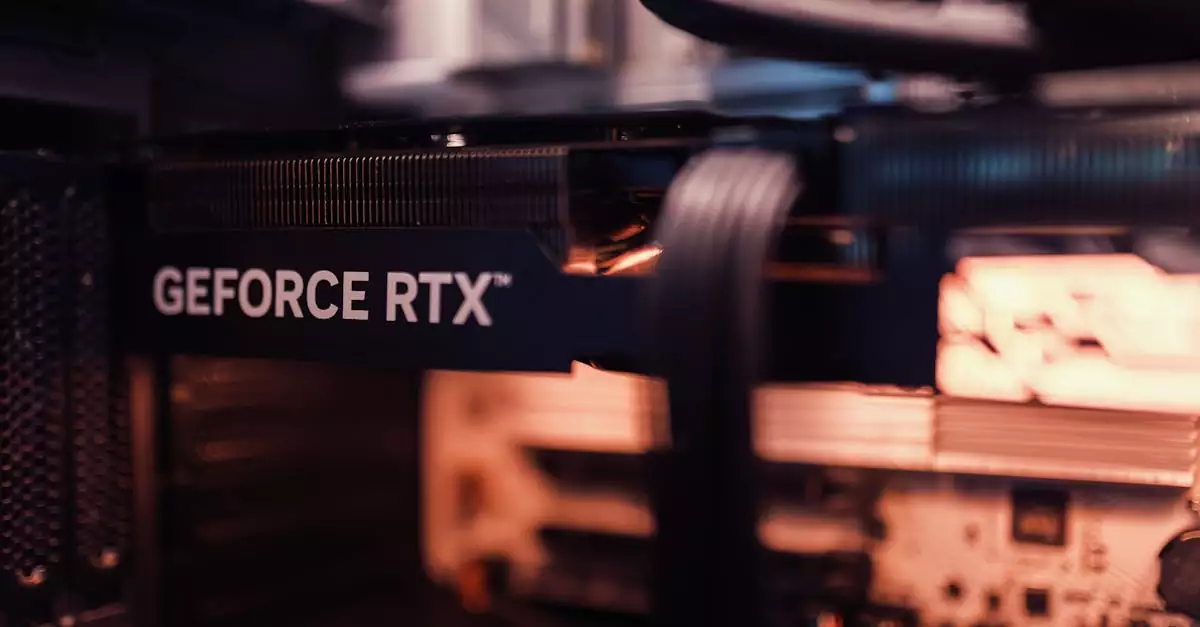
Graphics and Performance Optimization Tips
Optimizing Call of Duty Modern Warfare II on PC is crucial for achieving a balance between visual quality and smooth gameplay. Even if your system meets the recommended specs, fine-tuning graphics settings can enhance responsiveness and reduce input lag. Here are some practical tips to optimize your gaming experience.
Firstly, adjust the resolution to match your monitor’s native settings but consider lowering it if you experience frame drops. Disabling or reducing demanding features such as ray tracing and shadow quality can free up GPU resources. Modern Warfare II also provides options like variable rate shading, which improves performance by reducing detail in less noticeable areas.
Another key setting is the texture quality. High-resolution textures look great but consume more VRAM. If you have a graphics card with less than 8GB VRAM, lowering this setting can prevent stuttering. Enabling NVIDIA Reflex or AMD Anti-Lag reduces latency, which is a game-changer in competitive play.
Don’t forget to update your GPU drivers regularly. Manufacturers release updates specifically optimized for popular games like Modern Warfare II. Additionally, closing unnecessary background applications can free up CPU and RAM, improving overall system responsiveness.
For a detailed step-by-step guide on optimization, you can check resources like Activision Support.
Common Issues and Fixes for PC Players
Despite its polish, Call of Duty Modern Warfare II on PC can present some common issues that hamper gameplay. Understanding these problems and their fixes will save you time and frustration.
One frequent issue is game crashes or failure to launch, often caused by outdated drivers or corrupted game files. Verifying the integrity of game files through platforms like Battle.net or Steam can resolve these errors. Another common complaint relates to low FPS or stuttering, which is typically addressed by adjusting graphics settings or updating hardware drivers.
Connectivity problems in multiplayer modes, such as high ping or disconnections, are often linked to network settings. Switching to a wired Ethernet connection instead of Wi-Fi can stabilize your connection. Additionally, configuring your router for Quality of Service (QoS) can prioritize gaming traffic and reduce latency.
Some players report input lag or delayed responses. Enabling low-latency modes like NVIDIA Reflex or adjusting Windows power settings to “High Performance” can mitigate these issues. Also, disabling fullscreen optimizations in the game’s properties has helped many users improve responsiveness.
For persistent problems, consulting official forums and support pages can provide tailored solutions. Keeping your system clean from malware and ensuring sufficient disk space also contribute to a smoother experience.
Multiplayer Settings and Network Recommendations
Multiplayer is the heart of Call of Duty Modern Warfare II on PC, and optimizing your settings can provide a competitive edge. Network stability and in-game configurations play a significant role in your overall performance.
First, prioritize a stable internet connection. A wired Ethernet connection is preferred over Wi-Fi to reduce packet loss and latency. If you must use Wi-Fi, ensure you are close to the router and minimize interference. Using a gaming VPN can sometimes improve routing, but it depends on your location and provider.
Within the game, adjust the network settings to match your connection speed. Lowering the matchmaking region to your closest server reduces ping, which is crucial for real-time responsiveness. Enabling options like “Network Smoothing” can help mitigate the effects of minor connection instability.
In terms of gameplay settings, customize your key bindings and mouse sensitivity to suit your style. Many players prefer high DPI settings combined with low in-game sensitivity for precise aiming. Turning off mouse acceleration in Windows and the game can improve accuracy.
Also, consider using voice chat settings responsibly to maintain clear communication without unnecessary background noise. Properly configuring your audio devices ensures you don’t miss important in-game cues.
Best PC Hardware for Modern Warfare II
Choosing the right hardware is vital for experiencing Call of Duty Modern Warfare II on PC at its best. While the game is optimized for a broad range of setups, investing in certain components can significantly boost performance.
The GPU is the most critical piece of hardware for this title. Cards like the NVIDIA GeForce RTX 4070 and AMD Radeon RX 7900 XT deliver excellent frame rates at high settings with ray tracing enabled. If you’re on a budget, mid-range GPUs such as the RTX 3060 Ti still offer solid performance.
The CPU should be a modern multi-core processor. Intel’s 12th and 13th generation Core i7 or AMD Ryzen 7 7000 series provide sufficient power for smooth gameplay and quick load times. Avoid older dual-core CPUs as they may bottleneck performance.
RAM is equally important. While 16GB is recommended, 32GB can future-proof your system and help with multitasking during gameplay streaming or recording. Using SSD storage instead of HDD dramatically reduces load times and texture pop-in.
Monitors with high refresh rates (144Hz or above) paired with low input lag enhance your reaction time. Pair this with a responsive gaming mouse and mechanical keyboard for the best overall experience.
How to Update and Maintain Game Performance
Keeping Call of Duty Modern Warfare II on PC updated is essential for stability and performance improvements. Developers regularly release patches that fix bugs, optimize graphics, and introduce new features.
Enable automatic updates through your game launcher to ensure you never miss critical patches. Additionally, update your GPU drivers frequently. Both NVIDIA and AMD release game-ready drivers optimized for new titles, which can improve frame rates and fix compatibility issues.
Regularly clean your PC by removing unnecessary files and monitoring system temperatures. Overheating can cause throttling, leading to performance drops. Using software tools to monitor CPU and GPU temperatures can alert you to potential cooling issues.
Backing up your game settings allows you to restore preferred configurations after updates or reinstallations quickly. Also, periodically check forums and official channels for community-shared optimization tips and known issues.
By maintaining both your hardware and software, you’ll enjoy a consistently smooth and immersive Call of Duty Modern Warfare II experience on PC.
Conclusion
Call of Duty Modern Warfare II on PC offers an exhilarating gaming experience that combines cutting-edge graphics with intense combat scenarios. Understanding the minimum and recommended system requirements is the first step to enjoying the game without performance issues. By applying optimization tips and keeping your hardware updated, you can achieve smooth gameplay even on mid-range PCs. Troubleshooting common problems and configuring multiplayer settings enhances your competitive edge, while selecting the right hardware ensures longevity and future-proofing. Whether you’re diving into the campaign or battling online, this guide equips you with the knowledge to maximize your Call of Duty Modern Warfare II experience on PC.
Frequently Asked Questions
Q: What are the minimum PC requirements for Call of Duty Modern Warfare II?
A: The minimum PC requirements include Windows 10 64-bit, an Intel Core i5-2500K or AMD Ryzen 3 1200 CPU, 8 GB RAM, and a NVIDIA GeForce GTX 960 or AMD Radeon RX 470 GPU. You’ll also need 125 GB of storage and DirectX 12 support. Meeting these specs allows basic gameplay, though higher settings require more powerful hardware.
Q: How can I improve FPS in Modern Warfare II on PC?
A: To improve FPS, lower graphics settings such as shadows, textures, and ray tracing. Update your GPU drivers, close background applications, and enable features like NVIDIA Reflex or AMD Anti-Lag. Additionally, playing at a resolution compatible with your monitor’s refresh rate helps maintain smooth gameplay.
Q: Does Modern Warfare II support ray tracing on PC?
A: Yes, Modern Warfare II supports ray tracing on compatible GPUs like NVIDIA RTX series and AMD’s RDNA 2 cards. Ray tracing enhances lighting and reflections but can impact performance, so it’s best to enable it on higher-end systems or tweak settings for balance.
Q: What is the best graphics setting for smooth gameplay?
A: The best setting balances visuals and performance. Typically, medium to high settings without ray tracing provide smooth gameplay on most PCs. Disabling motion blur, lowering shadows, and enabling low latency options help maintain high FPS and responsiveness.
Q: How much storage space is needed for Modern Warfare II on PC?
A: Modern Warfare II requires approximately 125 GB of free storage space. Using an SSD is recommended to reduce load times and improve texture streaming, enhancing the overall gaming experience.
Before installing Call of Duty Modern Warfare II on your PC, it’s essential to verify if your system meets the requirements. Running the game on unsupported hardware can lead to poor performance and frequent crashes. Below are the minimum and recommended system requirements, reflecting the latest data for 2026.
| Specification | Minimum Requirements | Recommended Requirements |
|---|---|---|
| OS | Windows 10 64-bit | Windows 11 64-bit |
| Processor | Intel Core i5-2500K or AMD Ryzen 3 1200 | Intel Core i7-12700K or AMD Ryzen 7 5800X |
| RAM | 8 GB | 16 GB |
| Graphics Card | NVIDIA GeForce GTX 960 or AMD Radeon RX 470 | NVIDIA GeForce RTX 3060 or AMD Radeon RX 6700 XT |
| Storage | 125 GB HDD | 125 GB SSD |
| DirectX | Version 12 | Version 12 |
| Network | Broadband Internet connection | Broadband Internet connection |
Meeting the minimum requirements will allow you to play the game but expect to lower graphical settings for smoother performance. The recommended specs are designed to enjoy Modern Warfare II on PC with high settings and stable frame rates. Upgrading components such as RAM and GPU can drastically improve your experience, especially in multiplayer matches where responsiveness is key.
For users with limited hardware, tweaking the game’s settings can help achieve better performance without sacrificing too much visual quality. It’s also worth noting that these specs may evolve with future updates, so staying informed through official sources like Activision’s website is advisable.
Graphics and Performance Optimization Tips
Optimizing Call of Duty Modern Warfare II on PC is crucial for achieving a balance between visual quality and smooth gameplay. Even if your system meets the recommended specs, fine-tuning graphics settings can enhance responsiveness and reduce input lag. Here are some practical tips to optimize your gaming experience.
Firstly, adjust the resolution to match your monitor’s native settings but consider lowering it if you experience frame drops. Disabling or reducing demanding features such as ray tracing and shadow quality can free up GPU resources. Modern Warfare II also provides options like variable rate shading, which improves performance by reducing detail in less noticeable areas.
Another key setting is the texture quality. High-resolution textures look great but consume more VRAM. If you have a graphics card with less than 8GB VRAM, lowering this setting can prevent stuttering. Enabling NVIDIA Reflex or AMD Anti-Lag reduces latency, which is a game-changer in competitive play.
Don’t forget to update your GPU drivers regularly. Manufacturers release updates specifically optimized for popular games like Modern Warfare II. Additionally, closing unnecessary background applications can free up CPU and RAM, improving overall system responsiveness.
For a detailed step-by-step guide on optimization, you can check resources like Activision Support.
Common Issues and Fixes for PC Players
Despite its polish, Call of Duty Modern Warfare II on PC can present some common issues that hamper gameplay. Understanding these problems and their fixes will save you time and frustration.
One frequent issue is game crashes or failure to launch, often caused by outdated drivers or corrupted game files. Verifying the integrity of game files through platforms like Battle.net or Steam can resolve these errors. Another common complaint relates to low FPS or stuttering, which is typically addressed by adjusting graphics settings or updating hardware drivers.
Connectivity problems in multiplayer modes, such as high ping or disconnections, are often linked to network settings. Switching to a wired Ethernet connection instead of Wi-Fi can stabilize your connection. Additionally, configuring your router for Quality of Service (QoS) can prioritize gaming traffic and reduce latency.
Some players report input lag or delayed responses. Enabling low-latency modes like NVIDIA Reflex or adjusting Windows power settings to “High Performance” can mitigate these issues. Also, disabling fullscreen optimizations in the game’s properties has helped many users improve responsiveness.
For persistent problems, consulting official forums and support pages can provide tailored solutions. Keeping your system clean from malware and ensuring sufficient disk space also contribute to a smoother experience.
Multiplayer Settings and Network Recommendations
Multiplayer is the heart of Call of Duty Modern Warfare II on PC, and optimizing your settings can provide a competitive edge. Network stability and in-game configurations play a significant role in your overall performance.
First, prioritize a stable internet connection. A wired Ethernet connection is preferred over Wi-Fi to reduce packet loss and latency. If you must use Wi-Fi, ensure you are close to the router and minimize interference. Using a gaming VPN can sometimes improve routing, but it depends on your location and provider.
Within the game, adjust the network settings to match your connection speed. Lowering the matchmaking region to your closest server reduces ping, which is crucial for real-time responsiveness. Enabling options like “Network Smoothing” can help mitigate the effects of minor connection instability.
In terms of gameplay settings, customize your key bindings and mouse sensitivity to suit your style. Many players prefer high DPI settings combined with low in-game sensitivity for precise aiming. Turning off mouse acceleration in Windows and the game can improve accuracy.
Also, consider using voice chat settings responsibly to maintain clear communication without unnecessary background noise. Properly configuring your audio devices ensures you don’t miss important in-game cues.
Best PC Hardware for Modern Warfare II
Choosing the right hardware is vital for experiencing Call of Duty Modern Warfare II on PC at its best. While the game is optimized for a broad range of setups, investing in certain components can significantly boost performance.
The GPU is the most critical piece of hardware for this title. Cards like the NVIDIA GeForce RTX 4070 and AMD Radeon RX 7900 XT deliver excellent frame rates at high settings with ray tracing enabled. If you’re on a budget, mid-range GPUs such as the RTX 3060 Ti still offer solid performance.
The CPU should be a modern multi-core processor. Intel’s 12th and 13th generation Core i7 or AMD Ryzen 7 7000 series provide sufficient power for smooth gameplay and quick load times. Avoid older dual-core CPUs as they may bottleneck performance.
RAM is equally important. While 16GB is recommended, 32GB can future-proof your system and help with multitasking during gameplay streaming or recording. Using SSD storage instead of HDD dramatically reduces load times and texture pop-in.
Monitors with high refresh rates (144Hz or above) paired with low input lag enhance your reaction time. Pair this with a responsive gaming mouse and mechanical keyboard for the best overall experience.
How to Update and Maintain Game Performance
Keeping Call of Duty Modern Warfare II on PC updated is essential for stability and performance improvements. Developers regularly release patches that fix bugs, optimize graphics, and introduce new features.
Enable automatic updates through your game launcher to ensure you never miss critical patches. Additionally, update your GPU drivers frequently. Both NVIDIA and AMD release game-ready drivers optimized for new titles, which can improve frame rates and fix compatibility issues.
Regularly clean your PC by removing unnecessary files and monitoring system temperatures. Overheating can cause throttling, leading to performance drops. Using software tools to monitor CPU and GPU temperatures can alert you to potential cooling issues.
Backing up your game settings allows you to restore preferred configurations after updates or reinstallations quickly. Also, periodically check forums and official channels for community-shared optimization tips and known issues.
By maintaining both your hardware and software, you’ll enjoy a consistently smooth and immersive Call of Duty Modern Warfare II experience on PC.
Conclusion
Call of Duty Modern Warfare II on PC offers an exhilarating gaming experience that combines cutting-edge graphics with intense combat scenarios. Understanding the minimum and recommended system requirements is the first step to enjoying the game without performance issues. By applying optimization tips and keeping your hardware updated, you can achieve smooth gameplay even on mid-range PCs. Troubleshooting common problems and configuring multiplayer settings enhances your competitive edge, while selecting the right hardware ensures longevity and future-proofing. Whether you’re diving into the campaign or battling online, this guide equips you with the knowledge to maximize your Call of Duty Modern Warfare II experience on PC.
Frequently Asked Questions
Q: What are the minimum PC requirements for Call of Duty Modern Warfare II?
A: The minimum PC requirements include Windows 10 64-bit, an Intel Core i5-2500K or AMD Ryzen 3 1200 CPU, 8 GB RAM, and a NVIDIA GeForce GTX 960 or AMD Radeon RX 470 GPU. You’ll also need 125 GB of storage and DirectX 12 support. Meeting these specs allows basic gameplay, though higher settings require more powerful hardware.
Q: How can I improve FPS in Modern Warfare II on PC?
A: To improve FPS, lower graphics settings such as shadows, textures, and ray tracing. Update your GPU drivers, close background applications, and enable features like NVIDIA Reflex or AMD Anti-Lag. Additionally, playing at a resolution compatible with your monitor’s refresh rate helps maintain smooth gameplay.
Q: Does Modern Warfare II support ray tracing on PC?
A: Yes, Modern Warfare II supports ray tracing on compatible GPUs like NVIDIA RTX series and AMD’s RDNA 2 cards. Ray tracing enhances lighting and reflections but can impact performance, so it’s best to enable it on higher-end systems or tweak settings for balance.
Q: What is the best graphics setting for smooth gameplay?
A: The best setting balances visuals and performance. Typically, medium to high settings without ray tracing provide smooth gameplay on most PCs. Disabling motion blur, lowering shadows, and enabling low latency options help maintain high FPS and responsiveness.
Q: How much storage space is needed for Modern Warfare II on PC?
A: Modern Warfare II requires approximately 125 GB of free storage space. Using an SSD is recommended to reduce load times and improve texture streaming, enhancing the overall gaming experience.
Call of Duty Modern Warfare II on PC continues to captivate gamers with its intense gameplay and stunning graphics. As one of the most anticipated shooters of 2026, it offers an immersive experience that demands a capable PC setup. Whether you’re a seasoned player or a newcomer, understanding the system requirements and optimization techniques is crucial for smooth gameplay. This comprehensive guide explores everything you need to know about Call of Duty Modern Warfare II on PC, from minimum specs to advanced performance tips. Dive in to enhance your gaming experience and get the most out of this blockbuster title.

Introduction to Call of Duty Modern Warfare II on PC
Call of Duty Modern Warfare II on PC is the latest installment in the iconic franchise, delivering a blend of realistic combat mechanics and breathtaking visuals. The PC version is especially favored by competitive players due to its customizable controls and superior graphics capabilities. Unlike console versions, the PC edition allows players to fine-tune settings to balance performance and visual fidelity, which is essential for maintaining high frame rates during fast-paced matches.
The game leverages advanced rendering technologies and supports features like ray tracing and variable refresh rates, enabling a visually rich environment. However, these enhancements come with increased hardware demands, making it important to understand the minimum and recommended system specs. Additionally, optimizing your PC settings can significantly improve your gameplay experience, reducing lag and graphical glitches.
With a variety of multiplayer modes and a gripping campaign, Modern Warfare II on PC is designed to push your system to its limits. Whether you’re running on a budget build or a high-end rig, this guide will help you navigate the complexities of system requirements, graphics settings, and performance optimization to ensure you get the best possible experience.
Minimum and Recommended System Requirements
Before installing Call of Duty Modern Warfare II on your PC, it’s essential to verify if your system meets the requirements. Running the game on unsupported hardware can lead to poor performance and frequent crashes. Below are the minimum and recommended system requirements, reflecting the latest data for 2026.
| Specification | Minimum Requirements | Recommended Requirements |
|---|---|---|
| OS | Windows 10 64-bit | Windows 11 64-bit |
| Processor | Intel Core i5-2500K or AMD Ryzen 3 1200 | Intel Core i7-12700K or AMD Ryzen 7 5800X |
| RAM | 8 GB | 16 GB |
| Graphics Card | NVIDIA GeForce GTX 960 or AMD Radeon RX 470 | NVIDIA GeForce RTX 3060 or AMD Radeon RX 6700 XT |
| Storage | 125 GB HDD | 125 GB SSD |
| DirectX | Version 12 | Version 12 |
| Network | Broadband Internet connection | Broadband Internet connection |
Meeting the minimum requirements will allow you to play the game but expect to lower graphical settings for smoother performance. The recommended specs are designed to enjoy Modern Warfare II on PC with high settings and stable frame rates. Upgrading components such as RAM and GPU can drastically improve your experience, especially in multiplayer matches where responsiveness is key.
For users with limited hardware, tweaking the game’s settings can help achieve better performance without sacrificing too much visual quality. It’s also worth noting that these specs may evolve with future updates, so staying informed through official sources like Activision’s website is advisable.
Graphics and Performance Optimization Tips
Optimizing Call of Duty Modern Warfare II on PC is crucial for achieving a balance between visual quality and smooth gameplay. Even if your system meets the recommended specs, fine-tuning graphics settings can enhance responsiveness and reduce input lag. Here are some practical tips to optimize your gaming experience.
Firstly, adjust the resolution to match your monitor’s native settings but consider lowering it if you experience frame drops. Disabling or reducing demanding features such as ray tracing and shadow quality can free up GPU resources. Modern Warfare II also provides options like variable rate shading, which improves performance by reducing detail in less noticeable areas.
Another key setting is the texture quality. High-resolution textures look great but consume more VRAM. If you have a graphics card with less than 8GB VRAM, lowering this setting can prevent stuttering. Enabling NVIDIA Reflex or AMD Anti-Lag reduces latency, which is a game-changer in competitive play.
Don’t forget to update your GPU drivers regularly. Manufacturers release updates specifically optimized for popular games like Modern Warfare II. Additionally, closing unnecessary background applications can free up CPU and RAM, improving overall system responsiveness.
For a detailed step-by-step guide on optimization, you can check resources like Activision Support.
Common Issues and Fixes for PC Players
Despite its polish, Call of Duty Modern Warfare II on PC can present some common issues that hamper gameplay. Understanding these problems and their fixes will save you time and frustration.
One frequent issue is game crashes or failure to launch, often caused by outdated drivers or corrupted game files. Verifying the integrity of game files through platforms like Battle.net or Steam can resolve these errors. Another common complaint relates to low FPS or stuttering, which is typically addressed by adjusting graphics settings or updating hardware drivers.
Connectivity problems in multiplayer modes, such as high ping or disconnections, are often linked to network settings. Switching to a wired Ethernet connection instead of Wi-Fi can stabilize your connection. Additionally, configuring your router for Quality of Service (QoS) can prioritize gaming traffic and reduce latency.
Some players report input lag or delayed responses. Enabling low-latency modes like NVIDIA Reflex or adjusting Windows power settings to “High Performance” can mitigate these issues. Also, disabling fullscreen optimizations in the game’s properties has helped many users improve responsiveness.
For persistent problems, consulting official forums and support pages can provide tailored solutions. Keeping your system clean from malware and ensuring sufficient disk space also contribute to a smoother experience.
Multiplayer Settings and Network Recommendations
Multiplayer is the heart of Call of Duty Modern Warfare II on PC, and optimizing your settings can provide a competitive edge. Network stability and in-game configurations play a significant role in your overall performance.
First, prioritize a stable internet connection. A wired Ethernet connection is preferred over Wi-Fi to reduce packet loss and latency. If you must use Wi-Fi, ensure you are close to the router and minimize interference. Using a gaming VPN can sometimes improve routing, but it depends on your location and provider.
Within the game, adjust the network settings to match your connection speed. Lowering the matchmaking region to your closest server reduces ping, which is crucial for real-time responsiveness. Enabling options like “Network Smoothing” can help mitigate the effects of minor connection instability.
In terms of gameplay settings, customize your key bindings and mouse sensitivity to suit your style. Many players prefer high DPI settings combined with low in-game sensitivity for precise aiming. Turning off mouse acceleration in Windows and the game can improve accuracy.
Also, consider using voice chat settings responsibly to maintain clear communication without unnecessary background noise. Properly configuring your audio devices ensures you don’t miss important in-game cues.
Best PC Hardware for Modern Warfare II
Choosing the right hardware is vital for experiencing Call of Duty Modern Warfare II on PC at its best. While the game is optimized for a broad range of setups, investing in certain components can significantly boost performance.
The GPU is the most critical piece of hardware for this title. Cards like the NVIDIA GeForce RTX 4070 and AMD Radeon RX 7900 XT deliver excellent frame rates at high settings with ray tracing enabled. If you’re on a budget, mid-range GPUs such as the RTX 3060 Ti still offer solid performance.
The CPU should be a modern multi-core processor. Intel’s 12th and 13th generation Core i7 or AMD Ryzen 7 7000 series provide sufficient power for smooth gameplay and quick load times. Avoid older dual-core CPUs as they may bottleneck performance.
RAM is equally important. While 16GB is recommended, 32GB can future-proof your system and help with multitasking during gameplay streaming or recording. Using SSD storage instead of HDD dramatically reduces load times and texture pop-in.
Monitors with high refresh rates (144Hz or above) paired with low input lag enhance your reaction time. Pair this with a responsive gaming mouse and mechanical keyboard for the best overall experience.
How to Update and Maintain Game Performance
Keeping Call of Duty Modern Warfare II on PC updated is essential for stability and performance improvements. Developers regularly release patches that fix bugs, optimize graphics, and introduce new features.
Enable automatic updates through your game launcher to ensure you never miss critical patches. Additionally, update your GPU drivers frequently. Both NVIDIA and AMD release game-ready drivers optimized for new titles, which can improve frame rates and fix compatibility issues.
Regularly clean your PC by removing unnecessary files and monitoring system temperatures. Overheating can cause throttling, leading to performance drops. Using software tools to monitor CPU and GPU temperatures can alert you to potential cooling issues.
Backing up your game settings allows you to restore preferred configurations after updates or reinstallations quickly. Also, periodically check forums and official channels for community-shared optimization tips and known issues.
By maintaining both your hardware and software, you’ll enjoy a consistently smooth and immersive Call of Duty Modern Warfare II experience on PC.
Conclusion
Call of Duty Modern Warfare II on PC offers an exhilarating gaming experience that combines cutting-edge graphics with intense combat scenarios. Understanding the minimum and recommended system requirements is the first step to enjoying the game without performance issues. By applying optimization tips and keeping your hardware updated, you can achieve smooth gameplay even on mid-range PCs. Troubleshooting common problems and configuring multiplayer settings enhances your competitive edge, while selecting the right hardware ensures longevity and future-proofing. Whether you’re diving into the campaign or battling online, this guide equips you with the knowledge to maximize your Call of Duty Modern Warfare II experience on PC.
Frequently Asked Questions
Q: What are the minimum PC requirements for Call of Duty Modern Warfare II?
A: The minimum PC requirements include Windows 10 64-bit, an Intel Core i5-2500K or AMD Ryzen 3 1200 CPU, 8 GB RAM, and a NVIDIA GeForce GTX 960 or AMD Radeon RX 470 GPU. You’ll also need 125 GB of storage and DirectX 12 support. Meeting these specs allows basic gameplay, though higher settings require more powerful hardware.
Q: How can I improve FPS in Modern Warfare II on PC?
A: To improve FPS, lower graphics settings such as shadows, textures, and ray tracing. Update your GPU drivers, close background applications, and enable features like NVIDIA Reflex or AMD Anti-Lag. Additionally, playing at a resolution compatible with your monitor’s refresh rate helps maintain smooth gameplay.
Q: Does Modern Warfare II support ray tracing on PC?
A: Yes, Modern Warfare II supports ray tracing on compatible GPUs like NVIDIA RTX series and AMD’s RDNA 2 cards. Ray tracing enhances lighting and reflections but can impact performance, so it’s best to enable it on higher-end systems or tweak settings for balance.
Q: What is the best graphics setting for smooth gameplay?
A: The best setting balances visuals and performance. Typically, medium to high settings without ray tracing provide smooth gameplay on most PCs. Disabling motion blur, lowering shadows, and enabling low latency options help maintain high FPS and responsiveness.
Q: How much storage space is needed for Modern Warfare II on PC?
A: Modern Warfare II requires approximately 125 GB of free storage space. Using an SSD is recommended to reduce load times and improve texture streaming, enhancing the overall gaming experience.

