

Mobile Legends is one of the most popular multiplayer online battle arena (MOBA) games worldwide, originally designed for mobile devices. However, playing Mobile Legends on PC offers a whole new level of gaming experience with better controls, larger screen visibility, and enhanced performance. Whether you’re a seasoned player or a beginner, this ultimate guide will walk you through everything you need to know about mobile legends pc gameplay in 2026. From system requirements and emulator options to installation and optimization tips, we’ve got you covered to ensure smooth and immersive battles right on your computer.

What is Mobile Legends and Why Play it on PC?
Mobile Legends: Bang Bang is a real-time strategy MOBA game where players team up in 5v5 battles to destroy the enemy’s base. Originally launched for mobile platforms, it has captivated millions with its fast-paced gameplay, diverse heroes, and competitive scene. But why consider playing Mobile Legends on PC?
Playing Mobile Legends on PC brings several advantages:
- Larger Display: Enjoy the game on a bigger screen for better map awareness and visual clarity.
- Enhanced Controls: Use keyboard and mouse setups for precise aiming and faster reactions.
- Improved Performance: PCs generally offer more stable frame rates and graphics quality compared to many smartphones.
- Comfortable Gaming Sessions: Avoid mobile battery drain and overheating during extended gameplay.
Moreover, the PC environment allows players to customize controls and optimize settings, which can significantly improve gameplay effectiveness. For players looking to step up their competitive edge or simply enjoy the game comfortably, mobile legends pc download and playing through an emulator is the ideal solution.
For more detailed information about the game itself, visit Mobile Legends Wikipedia.
Minimum and Recommended System Requirements for Mobile Legends on PC
Before jumping into the installation process, it’s crucial to ensure your PC meets the necessary specifications to run Mobile Legends smoothly. While the game isn’t very demanding, running it on an emulator requires additional resources. Here is a breakdown of the minimum and recommended specs:
| Specification | Minimum | Recommended |
|---|---|---|
| Operating System | Windows 7 (64-bit) | Windows 10 or 11 (64-bit) |
| Processor | Intel Core i3 or Equivalent | Intel Core i5 or Higher |
| RAM | 4 GB | 8 GB or More |
| Graphics | Intel HD Graphics 4000 | NVIDIA GeForce GTX 660 or AMD Radeon HD 7850 |
| Storage | 2 GB Free Space | 5 GB Free Space |
| DirectX | Version 11 | Version 12 |
Meeting the recommended specs ensures smooth gameplay without lag or crashes, especially when using emulators that require additional processing power. Additionally, a stable internet connection is essential for uninterrupted online matches.
For more details on system requirements and official updates, check the Mobile Legends official website.
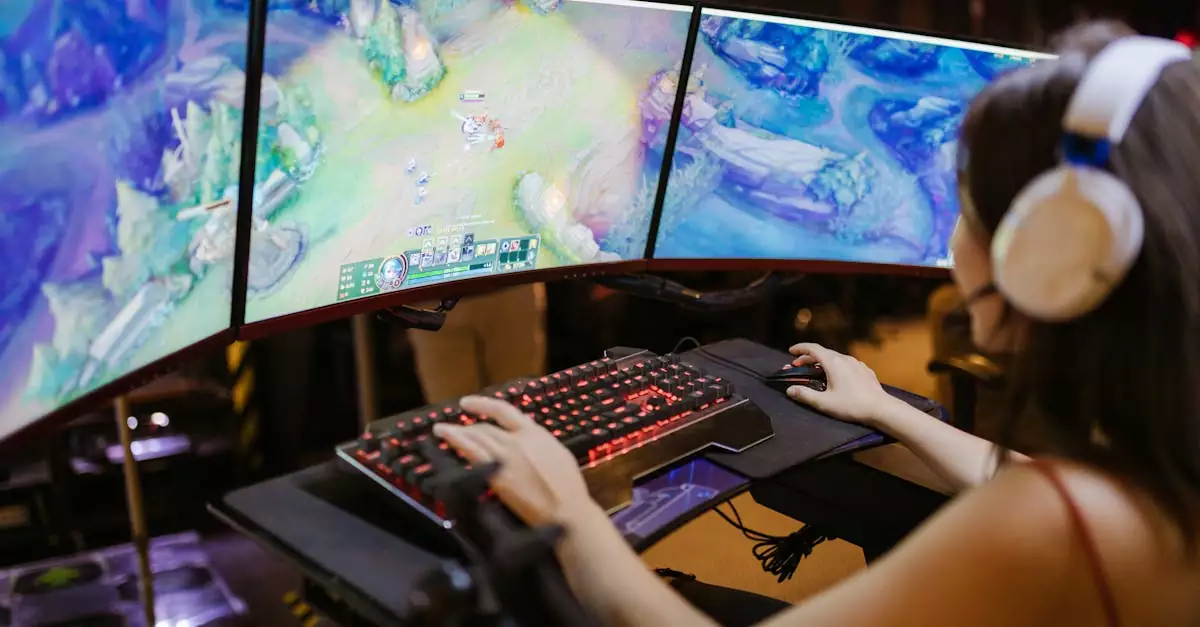
Best Emulators to Run Mobile Legends on PC
To play Mobile Legends on PC, you need a reliable Android emulator that can replicate the mobile environment seamlessly. Not all emulators are optimized for MOBA games, so choosing the right one is crucial for performance and control responsiveness.
- BlueStacks: One of the most popular emulators, BlueStacks offers excellent compatibility and performance for Mobile Legends. It supports keyboard mapping and has features tailored for MOBA games.
- LDPlayer: Lightweight and fast, LDPlayer is designed for gaming with minimal lag. It offers customizable control setups and good graphics options.
- NoxPlayer: Known for its stability and ease of use, NoxPlayer provides smooth gameplay and supports multiple instances, allowing you to run several games simultaneously.
- MEmu Play: A good choice for lower-end PCs, MEmu Play balances performance and usability with decent keyboard and mouse integration.
Among these, BlueStacks is often regarded as the best emulator for mobile legends pc due to its consistent updates and gaming-focused features. However, your choice should depend on your PC specs and personal preferences.
For official BlueStacks support and download, visit BlueStacks Mobile Legends page.
Step-by-Step Installation Guide for Mobile Legends on PC
Installing Mobile Legends on your PC is straightforward once you have selected your emulator. Here’s a step-by-step guide to get you started:
- Download and Install an Emulator: Visit the official website of your chosen emulator (e.g., BlueStacks) and download the latest version. Run the installer and follow on-screen instructions.
- Launch the Emulator: Open the emulator after installation. It will mimic an Android device interface on your PC.
- Sign in to Google Play Store: Use your Google account to access the Play Store within the emulator.
- Search for Mobile Legends: Type “Mobile Legends Bang Bang” in the Play Store search bar and select the official app.
- Install the Game: Click the install button and wait for the download and installation to complete.
- Open Mobile Legends: Once installed, launch the game from the emulator’s app drawer or home screen.
- Log in and Customize: Log in with your existing account or create a new one, and customize settings as needed.
This process ensures you have the full Mobile Legends experience on your PC. Remember to update both the emulator and the game regularly for the best performance and new features.
Optimizing PC Settings to Reduce Lag and Improve Performance
Lag can significantly affect your gameplay, making it difficult to compete effectively. To fix common issues and optimize your PC for Mobile Legends, consider the following tips:
- Allocate More RAM and CPU Cores: Most emulators allow you to adjust resource allocation in settings. Assigning more RAM and CPU cores can boost performance.
- Update Graphics Drivers: Ensure your GPU drivers are up to date to avoid compatibility issues and improve rendering.
- Lower In-Game Graphics Settings: Reduce resolution, disable shadows, and turn off unnecessary effects to lighten the load on your system.
- Close Background Applications: Free up system resources by closing unused programs while gaming.
- Enable Virtualization Technology: Check your BIOS settings to enable virtualization, which enhances emulator performance.
- Use Wired Internet Connection: A stable Ethernet connection reduces latency compared to Wi-Fi.
By applying these adjustments, you can minimize mobile legends pc lag fix concerns and enjoy smoother gameplay. Different PC setups may require specific tweaks, so experiment to find the best balance between visuals and performance.
Configuring Controls for Mobile Legends on PC
One of the biggest advantages of playing Mobile Legends on PC is the ability to use keyboard and mouse controls. Emulators come with built-in key mapping tools that let you customize controls for optimal gameplay.
- Key Mapping: Assign keyboard keys to different in-game actions such as movement, attacks, and abilities.
- Mouse Controls: Use the mouse to aim skills and target enemies more precisely.
- Customize Layout: Adjust key positions to fit your comfort and maximize reaction speed.
- Save Profiles: Create and save different control profiles for various heroes or play styles.
For example, the default setup in BlueStacks allows you to move with WASD keys and use number keys for abilities. Experiment with sensitivity settings and key bindings to find what works best. Proper mobile legends pc controls setup enhances your gameplay efficiency and responsiveness.
Common Issues and How to Fix Them
While playing Mobile Legends on PC is generally smooth, some users may encounter issues. Here are common problems and solutions:
- Game Crashes or Won’t Launch: Update your emulator and graphics drivers. Clear emulator cache or reinstall if needed.
- Lag and Stuttering: Lower graphics settings, allocate more resources, and ensure no background apps consume bandwidth or CPU.
- Login Problems: Check your internet connection and try logging in through different methods like Facebook or Google.
- Control Mapping Not Working: Reconfigure key mapping or reset to default and customize again.
- Emulator Freezes: Enable virtualization in BIOS and close unnecessary processes to free system resources.
Most issues stem from outdated software or insufficient system resources. Regular maintenance and updates keep your mobile legends pc download experience hassle-free.
Tips for the Best Mobile Legends Experience on PC
To make the most out of playing Mobile Legends on PC, consider these expert tips:
- Use a High-Quality Headset: Clear audio cues enhance situational awareness during battles.
- Customize HUD Layout: Adjust the in-game interface for better visibility of important elements.
- Practice Key Mapping: Spend time refining your control setup to improve reaction time.
- Keep Emulator Updated: New versions often include performance improvements and bug fixes.
- Join Online Communities: Engage with other PC players for strategies and support.
- Optimize Network Settings: Use wired connections or gaming VPNs to reduce ping and packet loss.
Applying these tips, combined with the right hardware and software setup, will elevate your gameplay and help you climb the ranks more effectively in Mobile Legends.
Conclusion
Playing Mobile Legends on PC offers a superior gaming experience with enhanced controls, better graphics, and improved performance. By understanding the system requirements, choosing the best emulator, and optimizing your PC settings, you can enjoy lag-free and immersive battles. Configuring your controls and troubleshooting common issues further ensures smooth gameplay. Whether you’re a competitive player or casual gamer, this guide provides all the essential steps and tips for mastering Mobile Legends on your PC in 2026. Embrace the power of desktop gaming and dominate the battlefield with confidence and precision.
Frequently Asked Questions
Q: Can I play Mobile Legends on any PC?
A: While Mobile Legends can run on most PCs, smooth gameplay depends on meeting the minimum system requirements and using a compatible emulator. Older or low-spec PCs may experience lag or crashes, so checking your specs before installation is important.
Q: Which emulator is best for Mobile Legends PC?
A: BlueStacks is widely considered the best emulator for Mobile Legends on PC due to its stability, performance optimizations, and customizable controls. However, alternatives like LDPlayer and NoxPlayer are also excellent choices depending on your PC’s capabilities.
Q: How do I fix lag when playing Mobile Legends on PC?
A: To fix lag, allocate more RAM and CPU cores to your emulator, update your graphics drivers, reduce in-game graphics settings, close background apps, and use a wired internet connection. Enabling virtualization technology in BIOS can also improve emulator performance.
Q: Is Mobile Legends free to play on PC?
A: Yes, Mobile Legends is free to download and play on PC through emulators. The game offers in-app purchases for cosmetic items and other upgrades, but the core gameplay is free.
Q: Can I use a keyboard and mouse for Mobile Legends on PC?
A: Absolutely. Emulators support keyboard and mouse input, allowing you to configure custom controls for movement, skills, and attacks. This setup provides better precision and faster response times compared to touchscreen controls.

