
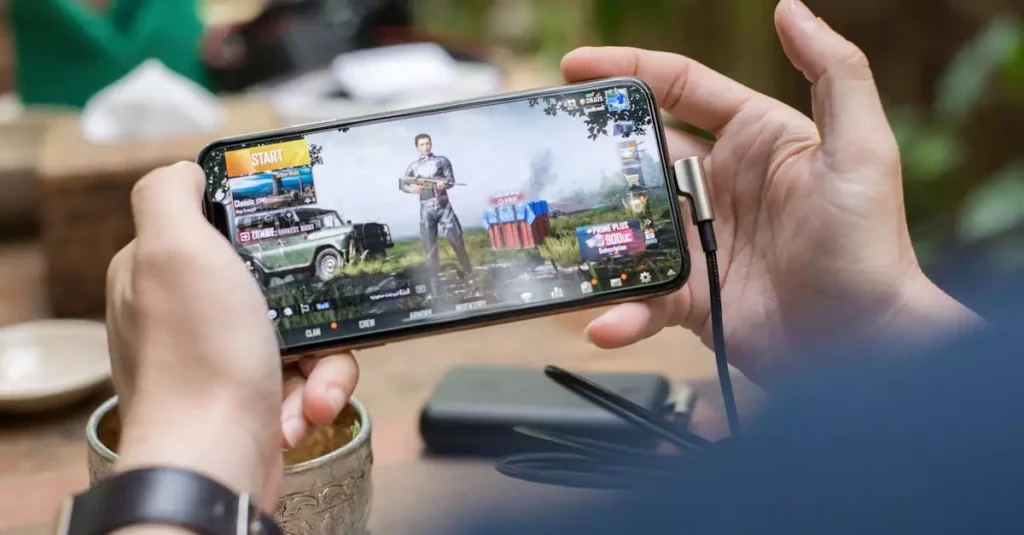
PUBG Mobile has taken the gaming world by storm with its thrilling battle royale gameplay. While it was originally designed for mobile devices, more and more players are looking to experience PUBG Mobile on PC for better controls, larger screens, and enhanced performance. This comprehensive guide will walk you through everything you need to know about playing PUBG Mobile on PC in 2026. From system requirements to the best emulators and troubleshooting tips, you will learn how to get the most out of your PUBG Mobile PC experience.
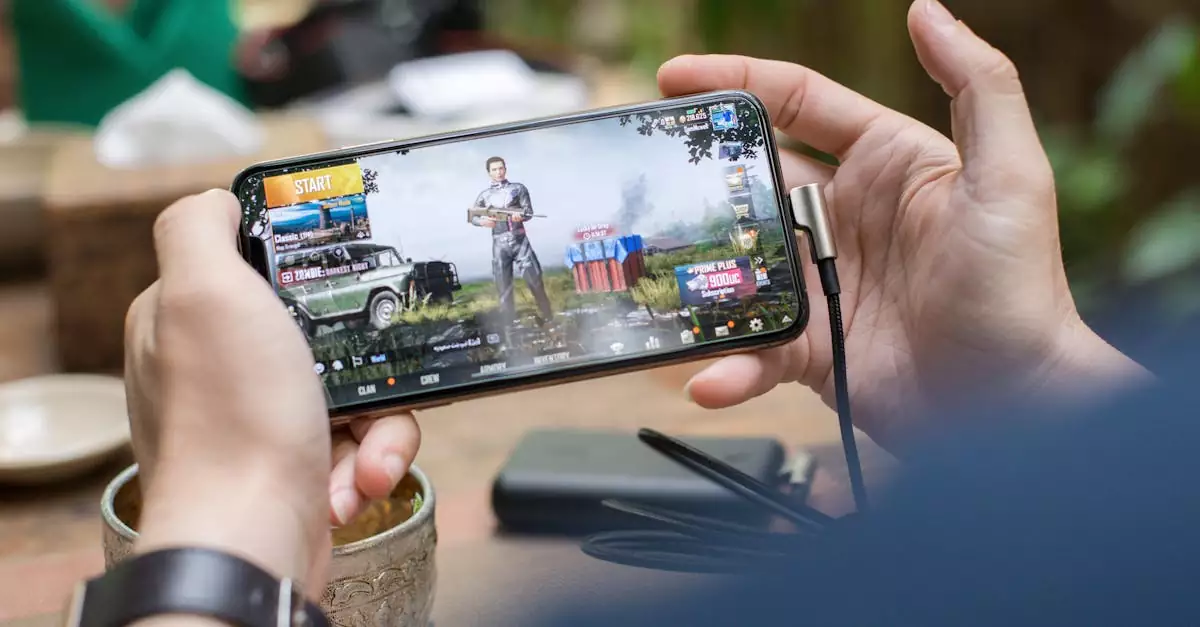
What is PUBG Mobile and Why Play It on PC?
PUBG Mobile is a free-to-play battle royale game developed by Tencent Games. Players parachute onto an island, scavenge for weapons, and fight to be the last person or team standing. Its fast-paced, strategic gameplay has made it one of the most popular mobile games globally. But why would gamers want to play PUBG Mobile on PC instead of mobile?
Playing PUBG Mobile on PC offers several advantages. First, the larger screen enhances visual clarity, helping players spot enemies more easily. Second, the use of keyboard and mouse provides more precise aiming and quicker reaction times compared to touchscreen controls. Third, PCs typically have better hardware capabilities, allowing smoother gameplay and higher frame rates. For players who want to compete seriously or enjoy a more immersive experience, PUBG Mobile PC is an excellent choice.
Additionally, PC players can customize controls extensively and use tools like emulators to optimize performance. However, it’s important to understand the differences between PUBG Mobile and PUBG PC (the original PC version) to set the right expectations. For more information about PUBG Mobile, visit Wikipedia or the official PUBG Mobile website.
Minimum and Recommended System Requirements for PUBG Mobile on PC
Before diving into PUBG Mobile on PC, it’s crucial to ensure your system meets the necessary requirements. Since PUBG Mobile runs through an emulator on PC, the system demands are relatively modest compared to high-end PC games. However, meeting the minimum specs ensures the game runs without major issues, while recommended specs provide a smoother, lag-free experience.
Minimum Specs: You’ll need at least a Windows 7 or higher OS, an Intel Core i3 or AMD equivalent processor, 4GB of RAM, and a DirectX 11 compatible graphics card. Storage space of around 2GB is also necessary for the game and emulator installation.
Recommended Specs: For optimal performance, a Windows 10 64-bit system with an Intel Core i5 or AMD Ryzen 5 processor, 8GB RAM, and a dedicated GPU like NVIDIA GeForce GTX 660 or AMD Radeon HD 7850 is ideal. These specs help support higher graphical settings and smoother frame rates, reducing lag and improving your overall gameplay.
Having a solid internet connection is equally important to avoid latency issues. If you want a detailed breakdown of the system requirements for PUBG Mobile PC emulators, check out this Bluestacks guide.
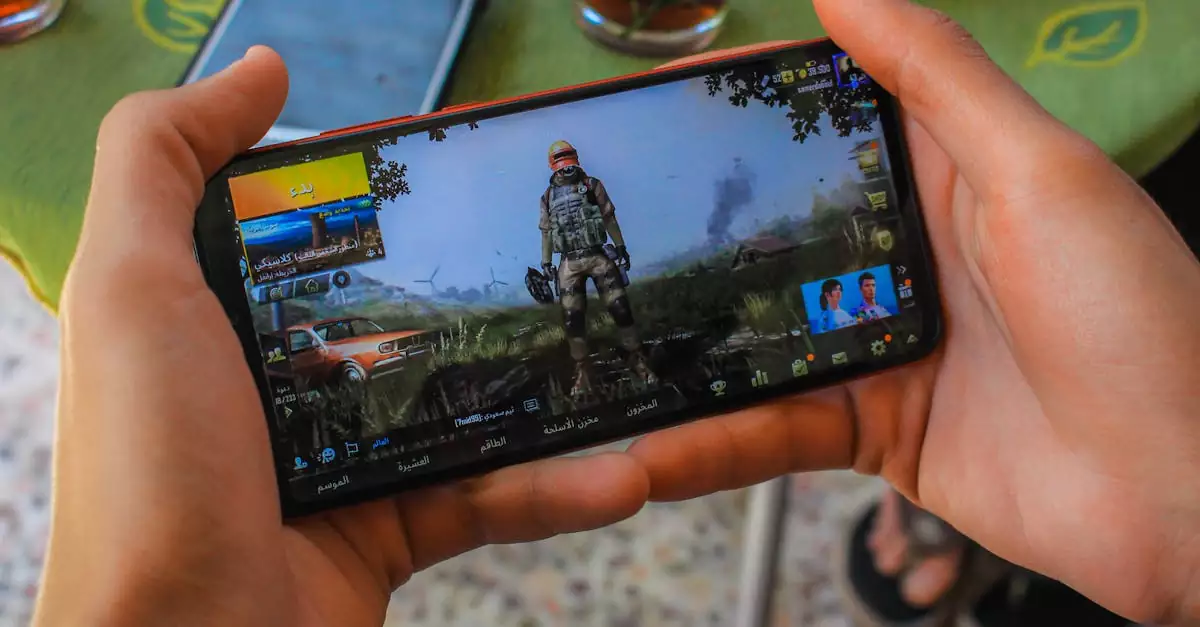
Best Emulators to Play PUBG Mobile on PC
Playing PUBG Mobile on PC requires an Android emulator that can mimic the mobile environment efficiently. Choosing the right emulator is key to ensuring smooth gameplay, effective controls, and minimal lag. Here are some of the best emulators for PUBG Mobile PC in 2026:
- Bluestacks: One of the most popular and user-friendly emulators, Bluestacks offers excellent compatibility and performance for PUBG Mobile. It supports keyboard and mouse controls and regularly updates to optimize gameplay.
- Gameloop (Tencent Gaming Buddy): Officially developed by Tencent, Gameloop is optimized specifically for PUBG Mobile and other Tencent games. It provides native support, reducing lag and ensuring fair play.
- NoxPlayer: Known for its customizable controls and multi-instance capabilities, NoxPlayer is a solid choice for players who want to run multiple games or accounts simultaneously.
- LDPlayer: Offers good performance with low resource usage and supports high FPS settings, making it suitable for mid-range PCs.
Each emulator has its pros and cons, but for PUBG Mobile PC, Gameloop and Bluestacks stand out for their stability and ease of use. Players with lower-end PCs might prefer LDPlayer or NoxPlayer for better resource management. Testing different emulators can help you find the best fit for your hardware and preferences.
Step-by-Step Installation Guide for PUBG Mobile on PC
Installing PUBG Mobile on PC is straightforward if you follow the right steps. Here’s a step-by-step guide to get you started:
- Step 1: Choose and download an emulator like Bluestacks or Gameloop from their official websites.
- Step 2: Install the emulator by following the on-screen instructions. This may take a few minutes depending on your system.
- Step 3: Launch the emulator and sign in with your Google account to access the Google Play Store.
- Step 4: Search for “PUBG Mobile” in the Play Store and click “Install.”
- Step 5: Once installed, open PUBG Mobile within the emulator and configure initial settings like graphics and controls.
- Step 6: Log in with your PUBG Mobile account or create a new one to start playing.
During installation, ensure your PC meets the minimum specs and has a stable internet connection. Also, regularly update both the emulator and PUBG Mobile to enjoy new features and improvements. For a detailed download guide, visit the official Bluestacks PUBG Mobile page.
Optimizing Controls and Settings for PC Gameplay
One of the biggest advantages of playing PUBG Mobile on PC is the ability to customize controls for better precision. Emulators come with built-in keymapping tools that let you assign keyboard and mouse buttons to in-game actions. Here’s how to optimize your controls and settings:
- Keymapping: Use the emulator’s keymapping feature to set keys for movement (WASD), shooting, aiming, crouching, and other functions. Customize them to suit your playstyle for quicker reactions.
- Mouse Sensitivity: Adjust mouse sensitivity within the emulator settings and PUBG Mobile’s in-game options to balance aiming speed and accuracy.
- Graphics Settings: Depending on your PC’s capabilities, set graphics to medium or high for better visuals without sacrificing performance. Lower settings can help reduce lag on weaker systems.
- Frame Rate: Enable the highest frame rate supported by your emulator and PC to ensure smooth gameplay.
- Sound Settings: Use headphones and adjust sound levels for better spatial awareness of footsteps and gunfire.
Experimenting with different setups can significantly improve your gameplay effectiveness. Many pro players recommend practicing with your chosen keybindings to build muscle memory. Proper control configuration is essential to compete effectively in PUBG Mobile on PC.
Common Issues and How to Fix PUBG Mobile PC Lag
Lag can ruin your PUBG Mobile experience on PC, causing delays and missed shots. Understanding common causes and fixes can help you maintain smooth gameplay. Here are some effective solutions:
- Check System Resources: Close unnecessary background applications to free up CPU and RAM for the emulator and game.
- Update Graphics Drivers: Outdated drivers can cause performance issues. Regularly update your GPU drivers from official sources like NVIDIA or AMD.
- Adjust Emulator Settings: Lower graphics quality or frame rates in the emulator’s settings to reduce strain on your PC.
- Optimize Internet Connection: Use a wired Ethernet connection instead of Wi-Fi for more stable latency. Avoid network congestion during gameplay.
- Allocate More RAM: Some emulators allow you to allocate more RAM and CPU cores. Increasing these can improve performance if your PC has sufficient resources.
If lag persists, consider switching to a lighter emulator or upgrading hardware components. Regular maintenance like disk cleanup and defragmentation can also enhance overall system performance. For detailed troubleshooting, the emulator’s support forums and official PUBG Mobile PC resources are invaluable.
Comparing PUBG Mobile on PC vs Mobile Experience
Many players wonder how PUBG Mobile on PC stacks up against the original mobile experience. While the core gameplay remains the same, there are notable differences and benefits on each platform.
Controls: PC players enjoy the precision of keyboard and mouse, leading to faster aiming and movement. Mobile players rely on touchscreen controls, which can be less accurate but more accessible on the go.
Graphics and Performance: PCs generally support higher frame rates and resolutions, providing smoother visuals and less input delay. Mobile devices vary widely in performance, with some older phones struggling to run the game smoothly.
Screen Size: Playing on a PC monitor offers a larger and clearer display, improving situational awareness. Mobile screens are limited in size but provide portability.
Game Updates and Features: Both versions receive regular updates, but some features may roll out differently or first on mobile. Emulators typically mirror the mobile client, so gameplay content stays consistent.
Ultimately, the choice depends on your preferences. Competitive players often prefer PC for better control and performance, while casual players value mobile’s convenience. Understanding these differences helps you choose the best platform for your PUBG Mobile experience.
Tips to Enhance Your PUBG Mobile PC Gaming
To maximize your PUBG Mobile PC experience, consider these practical tips that improve gameplay and enjoyment:
- Regularly Update Software: Keep your emulator, PUBG Mobile, and drivers up to date for the latest optimizations and bug fixes.
- Practice with Keybindings: Customize and memorize your control layout to improve reaction times and accuracy.
- Optimize Network Settings: Use a VPN if you experience regional lag or connect to the nearest game server for lower ping.
- Use Headphones: High-quality headphones enhance audio cues like footsteps and gunshots, giving you a tactical edge.
- Adjust In-Game Sensitivity: Fine-tune aiming and camera sensitivity for better control over your character and weapons.
- Warm-Up Before Matches: Spend time in training mode or casual matches to sharpen your skills.
- Monitor PC Temperature: Ensure your PC doesn’t overheat during long sessions by cleaning fans and using cooling pads if necessary.
By following these tips, you’ll enjoy a smoother, more competitive PUBG Mobile PC gameplay experience. Consistent practice and hardware maintenance are key to staying ahead in this fast-paced battle royale.
Conclusion
Playing PUBG Mobile on PC in 2026 offers a thrilling way to elevate your battle royale experience. With the right system specifications, emulator choice, and optimized controls, you can enjoy smooth, immersive gameplay that surpasses mobile performance. Whether you’re a casual gamer or a competitive player, understanding the installation process, troubleshooting lag, and fine-tuning settings is essential. This guide covers everything from minimum specs to practical tips, helping you get started and improve your skills efficiently. Embrace the advantages of PC gaming and dive into PUBG Mobile with confidence for an unbeatable experience.
Frequently Asked Questions
Q: Can I play PUBG Mobile on any PC?
A: While you can install PUBG Mobile on most PCs using an emulator, your experience depends on your system’s hardware. Meeting at least the minimum specs, such as a dual-core processor, 4GB RAM, and DirectX 11 support, is necessary for playable performance. Lower-end PCs may face lag or crashes.
Q: Which emulator is best for PUBG Mobile on PC?
A: The two most recommended emulators for PUBG Mobile PC are Gameloop, developed by Tencent, and Bluestacks. Gameloop offers official optimization specifically for PUBG Mobile, while Bluestacks provides a user-friendly interface and robust features. Your choice depends on your system and preferences.
Q: How do I fix lag when playing PUBG Mobile on PC?
A: To fix lag, try closing background apps, updating your graphics drivers, lowering graphics settings in the emulator, and ensuring a stable internet connection. Allocating more RAM to the emulator and using a wired connection can also help reduce latency.
Q: Is PUBG Mobile on PC free to download and play?
A: Yes, PUBG Mobile is free to download and play on PC through emulators. You can install the game from the Google Play Store within the emulator without any purchase. However, in-game purchases are available for cosmetic items and upgrades.
Q: Do I need a high-end PC to run PUBG Mobile smoothly?
A: A high-end PC is not mandatory, but recommended for the best experience. PUBG Mobile’s emulator system requirements are modest compared to other PC games, so mid-range PCs with decent CPUs and GPUs can run the game smoothly, especially with optimized settings.
Q: Are there any differences in gameplay between PC and mobile versions?
A: The core gameplay is the same, but PC players benefit from keyboard and mouse controls, which offer more precise aiming and faster movement. Graphics and frame rates are generally better on PC, while mobile offers portability. Some gameplay features and updates may roll out differently but remain largely consistent.

