
God of War on Steam offers robust controller support, making it accessible for players who prefer gamepads over keyboard and mouse. The game natively supports most popular controllers, including Xbox, PlayStation DualShock, and Steam Controller.
Steam’s controller configuration options allow you to customize button mappings, sensitivity, and vibration settings to suit your play style. Additionally, the Steam Input feature lets you create or download community-made controller profiles optimized for God of War.
For PlayStation controller users, connecting a DualSense or DualShock 4 to a PC via USB or Bluetooth works seamlessly, though some advanced features like adaptive triggers may not be fully supported yet.
To enable or tweak controller settings:
- Open Steam Big Picture Mode.
- Navigate to Settings > Controller Settings.
- Enable your controller type (e.g., Xbox Configuration Support).
- Launch God of War and access in-game controller options.
- Adjust sensitivity and vibration preferences.
Using a controller often provides a smoother and more immersive experience, especially for a game designed with console gameplay in mind.
How to Purchase and Download God of War on Steam
Purchasing God of War on Steam is straightforward. Visit the official Steam store page, where you can review system requirements, watch trailers, and read user reviews. The game is often available at discounted prices during seasonal sales, so keeping an eye out for deals can save you money.
Once purchased, downloading the game requires sufficient disk space—approximately 70 GB. A stable internet connection will ensure the download proceeds smoothly without interruptions.
After installation, Steam automatically manages updates and patches, delivering the latest content and performance improvements without manual intervention.
To get started after purchase:
- Open your Steam Library.
- Select God of War.
- Click “Install” and choose an installation directory.
- Wait for the download and installation to complete.
- Launch the game and configure your settings.
For additional help with installation or troubleshooting, the Steam Support page offers valuable resources and guides.
Frequently Asked Questions
Q: What are the minimum system requirements for God of War on Steam?
A: The minimum system requirements include Windows 10 64-bit, an Intel i5-2500k or AMD FX-6300 processor, 8 GB of RAM, NVIDIA GTX 960 or AMD R9 290 graphics card, and 70 GB of available storage. Meeting these specs allows the game to run at low settings with acceptable performance.
Q: Can I play God of War on a low-end PC?
A: Yes, but with reduced graphics quality and resolution. Lowering settings such as shadows, textures, and disabling post-processing effects can help the game run more smoothly on lower-end hardware. However, performance may vary depending on your specific PC configuration.
Q: Does God of War support controllers on Steam?
A: Absolutely. God of War supports a wide range of controllers, including Xbox, PlayStation DualShock, and Steam Controller. Steam’s input configuration allows customization for the best gameplay experience.
Q: Is the Steam version of God of War the same as the console version?
A: While the core game content is identical, the Steam version offers customizable graphics settings and unlocked frame rates, unlike the fixed performance of console versions. Controller support also differs slightly due to platform-specific hardware.
Q: How much disk space does God of War require on Steam?
A: God of War requires approximately 70 GB of free disk space on Steam. It’s recommended to install the game on an SSD to benefit from faster load times and smoother performance.
Conclusion
God of War on Steam delivers an exceptional experience for PC gamers, combining the franchise’s legendary storytelling with the flexibility and power of modern PC hardware. Understanding the system requirements and how to optimize performance ensures you enjoy smooth gameplay and stunning visuals. Whether you’re debating between PC and console or figuring out the best controller setup, this guide covers all essential aspects to help you get the most from your God of War journey. With regular updates and a supportive community, the Steam version remains a fantastic choice for both newcomers and fans alike.
Despite the polished experience, some players may encounter performance issues when running God of War on Steam. Common problems include frame rate drops, stuttering, crashes, or graphical glitches. Fortunately, many of these can be resolved with straightforward fixes.
One frequent cause of performance hiccups is outdated or incompatible graphics drivers. Ensuring your GPU drivers are up to date is a critical first step. Additionally, verifying the integrity of game files through Steam can fix corrupted installations.
Another common issue is overheating, which can throttle your CPU or GPU. Make sure your PC has adequate cooling and clean out dust regularly.
For crashes or freezes, running the game as an administrator and disabling overlays (such as Steam Overlay or third-party apps like Discord) can improve stability.
Here are some quick fixes summarized:
- Update GPU drivers to the latest version.
- Verify game files via Steam.
- Disable unnecessary background applications and overlays.
- Lower graphics settings if experiencing frame drops.
- Ensure your PC cooling system is functioning properly.
- Run the game in compatibility mode if issues persist.
If problems continue, consulting the official Steam support page or community forums can provide additional solutions tailored to specific hardware setups.
Controller Support and Settings on Steam
God of War on Steam offers robust controller support, making it accessible for players who prefer gamepads over keyboard and mouse. The game natively supports most popular controllers, including Xbox, PlayStation DualShock, and Steam Controller.
Steam’s controller configuration options allow you to customize button mappings, sensitivity, and vibration settings to suit your play style. Additionally, the Steam Input feature lets you create or download community-made controller profiles optimized for God of War.
For PlayStation controller users, connecting a DualSense or DualShock 4 to a PC via USB or Bluetooth works seamlessly, though some advanced features like adaptive triggers may not be fully supported yet.
To enable or tweak controller settings:
- Open Steam Big Picture Mode.
- Navigate to Settings > Controller Settings.
- Enable your controller type (e.g., Xbox Configuration Support).
- Launch God of War and access in-game controller options.
- Adjust sensitivity and vibration preferences.
Using a controller often provides a smoother and more immersive experience, especially for a game designed with console gameplay in mind.
How to Purchase and Download God of War on Steam
Purchasing God of War on Steam is straightforward. Visit the official Steam store page, where you can review system requirements, watch trailers, and read user reviews. The game is often available at discounted prices during seasonal sales, so keeping an eye out for deals can save you money.
Once purchased, downloading the game requires sufficient disk space—approximately 70 GB. A stable internet connection will ensure the download proceeds smoothly without interruptions.
After installation, Steam automatically manages updates and patches, delivering the latest content and performance improvements without manual intervention.
To get started after purchase:
- Open your Steam Library.
- Select God of War.
- Click “Install” and choose an installation directory.
- Wait for the download and installation to complete.
- Launch the game and configure your settings.
For additional help with installation or troubleshooting, the Steam Support page offers valuable resources and guides.
Frequently Asked Questions
Q: What are the minimum system requirements for God of War on Steam?
A: The minimum system requirements include Windows 10 64-bit, an Intel i5-2500k or AMD FX-6300 processor, 8 GB of RAM, NVIDIA GTX 960 or AMD R9 290 graphics card, and 70 GB of available storage. Meeting these specs allows the game to run at low settings with acceptable performance.
Q: Can I play God of War on a low-end PC?
A: Yes, but with reduced graphics quality and resolution. Lowering settings such as shadows, textures, and disabling post-processing effects can help the game run more smoothly on lower-end hardware. However, performance may vary depending on your specific PC configuration.
Q: Does God of War support controllers on Steam?
A: Absolutely. God of War supports a wide range of controllers, including Xbox, PlayStation DualShock, and Steam Controller. Steam’s input configuration allows customization for the best gameplay experience.
Q: Is the Steam version of God of War the same as the console version?
A: While the core game content is identical, the Steam version offers customizable graphics settings and unlocked frame rates, unlike the fixed performance of console versions. Controller support also differs slightly due to platform-specific hardware.
Q: How much disk space does God of War require on Steam?
A: God of War requires approximately 70 GB of free disk space on Steam. It’s recommended to install the game on an SSD to benefit from faster load times and smoother performance.
Conclusion
God of War on Steam delivers an exceptional experience for PC gamers, combining the franchise’s legendary storytelling with the flexibility and power of modern PC hardware. Understanding the system requirements and how to optimize performance ensures you enjoy smooth gameplay and stunning visuals. Whether you’re debating between PC and console or figuring out the best controller setup, this guide covers all essential aspects to help you get the most from your God of War journey. With regular updates and a supportive community, the Steam version remains a fantastic choice for both newcomers and fans alike.
God of War’s Steam release brings several advantages and some differences compared to its console counterparts on PlayStation consoles. Understanding these distinctions can help you decide which platform suits your preferences best.
One of the main benefits of the Steam version is the availability of customizable graphics settings. Unlike consoles, where performance is locked to the hardware, the PC version lets you adjust visual fidelity and frame rates. This means you can enjoy higher resolutions, unlocked frame rates, and enhanced textures if your hardware supports it.
However, the console versions often provide a more consistent experience with less need for tweaking. Consoles like the PlayStation 5 offer optimized performance out of the box, including features like ray tracing and quick resume.
Another point of comparison is controller support. While the PlayStation console uses its proprietary DualSense controller with haptic feedback and adaptive triggers, the Steam version supports a wide range of controllers, including Xbox and Steam controllers, ensuring flexibility for PC gamers.
Here’s a quick comparison table highlighting key differences:
| Feature | Steam Version | Console Version |
|---|---|---|
| Graphics Settings | Highly customizable | Fixed, optimized |
| Frame Rate | Unlocked (up to hardware limit) | Locked (usually 30 or 60 FPS) |
| Controller Support | Multiple controllers including Steam Controller | DualSense or DualShock only |
| Loading Times | Depends on storage (SSD recommended) | Optimized with console SSDs |
| Price Variability | Frequent sales and discounts | Standard retail pricing |
Ultimately, choosing between the Steam and console versions depends on your setup and preference for customization versus convenience.
Common Performance Issues and Fixes
Despite the polished experience, some players may encounter performance issues when running God of War on Steam. Common problems include frame rate drops, stuttering, crashes, or graphical glitches. Fortunately, many of these can be resolved with straightforward fixes.
One frequent cause of performance hiccups is outdated or incompatible graphics drivers. Ensuring your GPU drivers are up to date is a critical first step. Additionally, verifying the integrity of game files through Steam can fix corrupted installations.
Another common issue is overheating, which can throttle your CPU or GPU. Make sure your PC has adequate cooling and clean out dust regularly.
For crashes or freezes, running the game as an administrator and disabling overlays (such as Steam Overlay or third-party apps like Discord) can improve stability.
Here are some quick fixes summarized:
- Update GPU drivers to the latest version.
- Verify game files via Steam.
- Disable unnecessary background applications and overlays.
- Lower graphics settings if experiencing frame drops.
- Ensure your PC cooling system is functioning properly.
- Run the game in compatibility mode if issues persist.
If problems continue, consulting the official Steam support page or community forums can provide additional solutions tailored to specific hardware setups.
Controller Support and Settings on Steam
God of War on Steam offers robust controller support, making it accessible for players who prefer gamepads over keyboard and mouse. The game natively supports most popular controllers, including Xbox, PlayStation DualShock, and Steam Controller.
Steam’s controller configuration options allow you to customize button mappings, sensitivity, and vibration settings to suit your play style. Additionally, the Steam Input feature lets you create or download community-made controller profiles optimized for God of War.
For PlayStation controller users, connecting a DualSense or DualShock 4 to a PC via USB or Bluetooth works seamlessly, though some advanced features like adaptive triggers may not be fully supported yet.
To enable or tweak controller settings:
- Open Steam Big Picture Mode.
- Navigate to Settings > Controller Settings.
- Enable your controller type (e.g., Xbox Configuration Support).
- Launch God of War and access in-game controller options.
- Adjust sensitivity and vibration preferences.
Using a controller often provides a smoother and more immersive experience, especially for a game designed with console gameplay in mind.
How to Purchase and Download God of War on Steam
Purchasing God of War on Steam is straightforward. Visit the official Steam store page, where you can review system requirements, watch trailers, and read user reviews. The game is often available at discounted prices during seasonal sales, so keeping an eye out for deals can save you money.
Once purchased, downloading the game requires sufficient disk space—approximately 70 GB. A stable internet connection will ensure the download proceeds smoothly without interruptions.
After installation, Steam automatically manages updates and patches, delivering the latest content and performance improvements without manual intervention.
To get started after purchase:
- Open your Steam Library.
- Select God of War.
- Click “Install” and choose an installation directory.
- Wait for the download and installation to complete.
- Launch the game and configure your settings.
For additional help with installation or troubleshooting, the Steam Support page offers valuable resources and guides.
Frequently Asked Questions
Q: What are the minimum system requirements for God of War on Steam?
A: The minimum system requirements include Windows 10 64-bit, an Intel i5-2500k or AMD FX-6300 processor, 8 GB of RAM, NVIDIA GTX 960 or AMD R9 290 graphics card, and 70 GB of available storage. Meeting these specs allows the game to run at low settings with acceptable performance.
Q: Can I play God of War on a low-end PC?
A: Yes, but with reduced graphics quality and resolution. Lowering settings such as shadows, textures, and disabling post-processing effects can help the game run more smoothly on lower-end hardware. However, performance may vary depending on your specific PC configuration.
Q: Does God of War support controllers on Steam?
A: Absolutely. God of War supports a wide range of controllers, including Xbox, PlayStation DualShock, and Steam Controller. Steam’s input configuration allows customization for the best gameplay experience.
Q: Is the Steam version of God of War the same as the console version?
A: While the core game content is identical, the Steam version offers customizable graphics settings and unlocked frame rates, unlike the fixed performance of console versions. Controller support also differs slightly due to platform-specific hardware.
Q: How much disk space does God of War require on Steam?
A: God of War requires approximately 70 GB of free disk space on Steam. It’s recommended to install the game on an SSD to benefit from faster load times and smoother performance.
Conclusion
God of War on Steam delivers an exceptional experience for PC gamers, combining the franchise’s legendary storytelling with the flexibility and power of modern PC hardware. Understanding the system requirements and how to optimize performance ensures you enjoy smooth gameplay and stunning visuals. Whether you’re debating between PC and console or figuring out the best controller setup, this guide covers all essential aspects to help you get the most from your God of War journey. With regular updates and a supportive community, the Steam version remains a fantastic choice for both newcomers and fans alike.
Optimizing God of War on Steam involves tweaking settings and hardware configurations to achieve the best balance between visuals and performance. The game features extensive graphics options, allowing players to customize textures, shadows, anti-aliasing, and more.
Start by adjusting the resolution to match your monitor’s native settings. Lowering resolution can boost frame rates but may reduce image clarity. Next, consider setting texture quality and shadows to medium or high, depending on your GPU capabilities.
For smoother gameplay, enabling V-Sync or using adaptive sync technologies like G-Sync or FreeSync can prevent screen tearing. Additionally, turning off unnecessary background programs and updating your graphics drivers can help maintain stable frame rates.
Here are some practical tips for improving God of War PC performance:
- Update GPU drivers regularly to get the latest optimizations.
- Play in fullscreen mode for better resource allocation.
- Set shadows and reflections to a medium level to reduce GPU load.
- Use an SSD for faster loading and reduced stutter.
- Close background apps that consume CPU or RAM.
- Adjust the field of view (FOV) cautiously; higher FOV may impact performance.
For users struggling with lag, lowering post-processing effects and disabling motion blur can also help. Experimenting with these settings will allow you to find the optimal setup tailored to your PC.
Comparing Steam Version vs Console Versions
God of War’s Steam release brings several advantages and some differences compared to its console counterparts on PlayStation consoles. Understanding these distinctions can help you decide which platform suits your preferences best.
One of the main benefits of the Steam version is the availability of customizable graphics settings. Unlike consoles, where performance is locked to the hardware, the PC version lets you adjust visual fidelity and frame rates. This means you can enjoy higher resolutions, unlocked frame rates, and enhanced textures if your hardware supports it.
However, the console versions often provide a more consistent experience with less need for tweaking. Consoles like the PlayStation 5 offer optimized performance out of the box, including features like ray tracing and quick resume.
Another point of comparison is controller support. While the PlayStation console uses its proprietary DualSense controller with haptic feedback and adaptive triggers, the Steam version supports a wide range of controllers, including Xbox and Steam controllers, ensuring flexibility for PC gamers.
Here’s a quick comparison table highlighting key differences:
| Feature | Steam Version | Console Version |
|---|---|---|
| Graphics Settings | Highly customizable | Fixed, optimized |
| Frame Rate | Unlocked (up to hardware limit) | Locked (usually 30 or 60 FPS) |
| Controller Support | Multiple controllers including Steam Controller | DualSense or DualShock only |
| Loading Times | Depends on storage (SSD recommended) | Optimized with console SSDs |
| Price Variability | Frequent sales and discounts | Standard retail pricing |
Ultimately, choosing between the Steam and console versions depends on your setup and preference for customization versus convenience.
Common Performance Issues and Fixes
Despite the polished experience, some players may encounter performance issues when running God of War on Steam. Common problems include frame rate drops, stuttering, crashes, or graphical glitches. Fortunately, many of these can be resolved with straightforward fixes.
One frequent cause of performance hiccups is outdated or incompatible graphics drivers. Ensuring your GPU drivers are up to date is a critical first step. Additionally, verifying the integrity of game files through Steam can fix corrupted installations.
Another common issue is overheating, which can throttle your CPU or GPU. Make sure your PC has adequate cooling and clean out dust regularly.
For crashes or freezes, running the game as an administrator and disabling overlays (such as Steam Overlay or third-party apps like Discord) can improve stability.
Here are some quick fixes summarized:
- Update GPU drivers to the latest version.
- Verify game files via Steam.
- Disable unnecessary background applications and overlays.
- Lower graphics settings if experiencing frame drops.
- Ensure your PC cooling system is functioning properly.
- Run the game in compatibility mode if issues persist.
If problems continue, consulting the official Steam support page or community forums can provide additional solutions tailored to specific hardware setups.
Controller Support and Settings on Steam
God of War on Steam offers robust controller support, making it accessible for players who prefer gamepads over keyboard and mouse. The game natively supports most popular controllers, including Xbox, PlayStation DualShock, and Steam Controller.
Steam’s controller configuration options allow you to customize button mappings, sensitivity, and vibration settings to suit your play style. Additionally, the Steam Input feature lets you create or download community-made controller profiles optimized for God of War.
For PlayStation controller users, connecting a DualSense or DualShock 4 to a PC via USB or Bluetooth works seamlessly, though some advanced features like adaptive triggers may not be fully supported yet.
To enable or tweak controller settings:
- Open Steam Big Picture Mode.
- Navigate to Settings > Controller Settings.
- Enable your controller type (e.g., Xbox Configuration Support).
- Launch God of War and access in-game controller options.
- Adjust sensitivity and vibration preferences.
Using a controller often provides a smoother and more immersive experience, especially for a game designed with console gameplay in mind.
How to Purchase and Download God of War on Steam
Purchasing God of War on Steam is straightforward. Visit the official Steam store page, where you can review system requirements, watch trailers, and read user reviews. The game is often available at discounted prices during seasonal sales, so keeping an eye out for deals can save you money.
Once purchased, downloading the game requires sufficient disk space—approximately 70 GB. A stable internet connection will ensure the download proceeds smoothly without interruptions.
After installation, Steam automatically manages updates and patches, delivering the latest content and performance improvements without manual intervention.
To get started after purchase:
- Open your Steam Library.
- Select God of War.
- Click “Install” and choose an installation directory.
- Wait for the download and installation to complete.
- Launch the game and configure your settings.
For additional help with installation or troubleshooting, the Steam Support page offers valuable resources and guides.
Frequently Asked Questions
Q: What are the minimum system requirements for God of War on Steam?
A: The minimum system requirements include Windows 10 64-bit, an Intel i5-2500k or AMD FX-6300 processor, 8 GB of RAM, NVIDIA GTX 960 or AMD R9 290 graphics card, and 70 GB of available storage. Meeting these specs allows the game to run at low settings with acceptable performance.
Q: Can I play God of War on a low-end PC?
A: Yes, but with reduced graphics quality and resolution. Lowering settings such as shadows, textures, and disabling post-processing effects can help the game run more smoothly on lower-end hardware. However, performance may vary depending on your specific PC configuration.
Q: Does God of War support controllers on Steam?
A: Absolutely. God of War supports a wide range of controllers, including Xbox, PlayStation DualShock, and Steam Controller. Steam’s input configuration allows customization for the best gameplay experience.
Q: Is the Steam version of God of War the same as the console version?
A: While the core game content is identical, the Steam version offers customizable graphics settings and unlocked frame rates, unlike the fixed performance of console versions. Controller support also differs slightly due to platform-specific hardware.
Q: How much disk space does God of War require on Steam?
A: God of War requires approximately 70 GB of free disk space on Steam. It’s recommended to install the game on an SSD to benefit from faster load times and smoother performance.
Conclusion
God of War on Steam delivers an exceptional experience for PC gamers, combining the franchise’s legendary storytelling with the flexibility and power of modern PC hardware. Understanding the system requirements and how to optimize performance ensures you enjoy smooth gameplay and stunning visuals. Whether you’re debating between PC and console or figuring out the best controller setup, this guide covers all essential aspects to help you get the most from your God of War journey. With regular updates and a supportive community, the Steam version remains a fantastic choice for both newcomers and fans alike.
God of War has long been a beloved franchise among action-adventure gamers, and its arrival on Steam has opened the gates for PC players to experience the epic journey of Kratos and Atreus. Whether you’re a longtime fan or new to the series, playing God of War on Steam offers a rich narrative combined with stunning visuals and immersive gameplay. In this 2026 edition guide, we dive into everything you need to know—from system requirements and optimization tips to controller support and performance fixes. If you’re wondering how to run God of War on Steam or curious about how it compares to console versions, this comprehensive guide will help you make the most out of your gaming experience.
Introduction to God of War on Steam
God of War’s release on Steam marked a significant milestone for PC gamers eager to dive into the mythological saga. Developed by Santa Monica Studio, this installment reimagines the franchise with a deeper story, refined combat mechanics, and breathtaking open-world exploration. The Steam version brings these features with added benefits like customizable graphics settings and enhanced frame rates, making it a standout choice for PC enthusiasts.
One of the most exciting aspects of God of War on Steam is the accessibility it offers. Players can tailor their experience to their hardware capabilities, whether they own a high-end gaming rig or a modest setup. This adaptability is crucial, as the game’s visuals and physics-intensive gameplay can demand substantial resources.
Moreover, the Steam platform provides seamless integration with community features, achievements, and cloud saves, enhancing the overall experience. For those new to the game, the Steam store page offers detailed descriptions, trailers, and user reviews to help you decide if it’s the right fit.
Minimum and Recommended System Requirements
Before installing God of War on Steam, it’s essential to understand the hardware demands to ensure smooth gameplay. The game’s system requirements vary significantly between minimum and recommended specs, reflecting the difference in performance and visual fidelity you can expect.
The minimum requirements allow players with older or less powerful PCs to run the game at lower settings, ensuring basic functionality but sacrificing some visual quality. Meanwhile, the recommended specs target gamers with mid-range to high-end PCs, offering a more immersive and visually stunning experience.
| Specification | Minimum | Recommended |
|---|---|---|
| Operating System | Windows 10 64-bit | Windows 10/11 64-bit |
| Processor | Intel i5-2500k 3.3 GHz / AMD FX-6300 | Intel i5-6600k 3.5 GHz / AMD Ryzen 5 2400G |
| Memory | 8 GB RAM | 16 GB RAM |
| Graphics | NVIDIA GTX 960 / AMD R9 290 | NVIDIA GTX 1060 6GB / AMD RX 570 |
| Storage | 70 GB available space | 70 GB SSD recommended |
| DirectX | Version 11 | Version 12 |
| Network | Broadband Internet | Broadband Internet |
It’s worth noting that God of War’s Steam download size is approximately 70 GB, so having sufficient disk space and a stable internet connection is crucial. Using an SSD can significantly reduce loading times and improve overall responsiveness.
How to Optimize God of War for Your PC
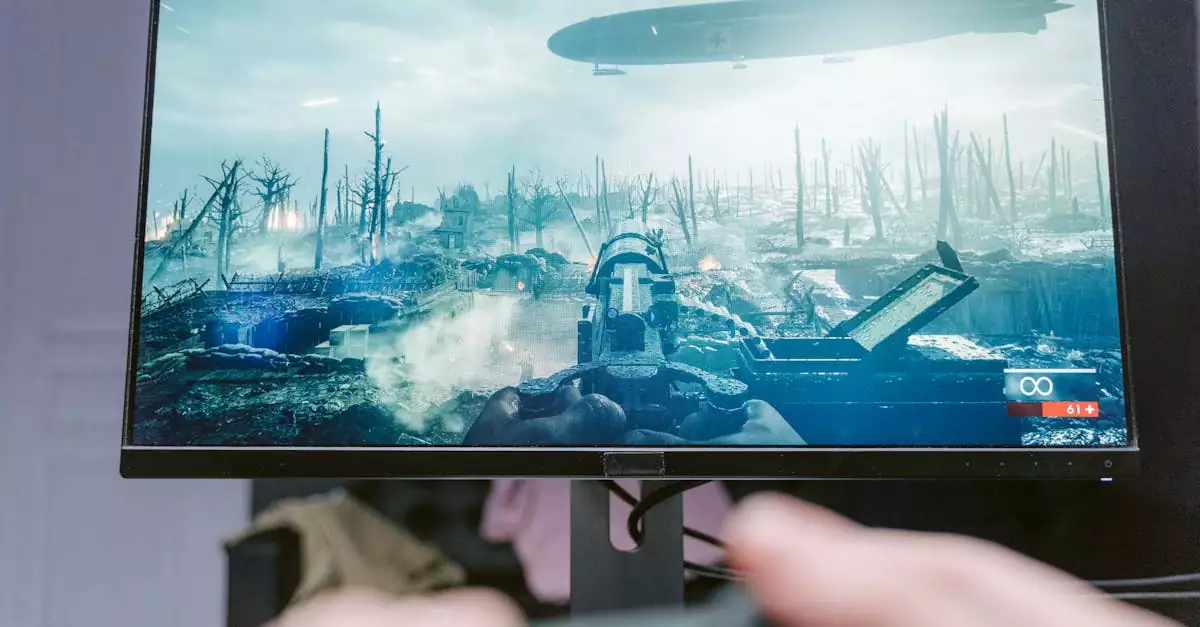
Optimizing God of War on Steam involves tweaking settings and hardware configurations to achieve the best balance between visuals and performance. The game features extensive graphics options, allowing players to customize textures, shadows, anti-aliasing, and more.
Start by adjusting the resolution to match your monitor’s native settings. Lowering resolution can boost frame rates but may reduce image clarity. Next, consider setting texture quality and shadows to medium or high, depending on your GPU capabilities.
For smoother gameplay, enabling V-Sync or using adaptive sync technologies like G-Sync or FreeSync can prevent screen tearing. Additionally, turning off unnecessary background programs and updating your graphics drivers can help maintain stable frame rates.
Here are some practical tips for improving God of War PC performance:
- Update GPU drivers regularly to get the latest optimizations.
- Play in fullscreen mode for better resource allocation.
- Set shadows and reflections to a medium level to reduce GPU load.
- Use an SSD for faster loading and reduced stutter.
- Close background apps that consume CPU or RAM.
- Adjust the field of view (FOV) cautiously; higher FOV may impact performance.
For users struggling with lag, lowering post-processing effects and disabling motion blur can also help. Experimenting with these settings will allow you to find the optimal setup tailored to your PC.
Comparing Steam Version vs Console Versions
God of War’s Steam release brings several advantages and some differences compared to its console counterparts on PlayStation consoles. Understanding these distinctions can help you decide which platform suits your preferences best.
One of the main benefits of the Steam version is the availability of customizable graphics settings. Unlike consoles, where performance is locked to the hardware, the PC version lets you adjust visual fidelity and frame rates. This means you can enjoy higher resolutions, unlocked frame rates, and enhanced textures if your hardware supports it.
However, the console versions often provide a more consistent experience with less need for tweaking. Consoles like the PlayStation 5 offer optimized performance out of the box, including features like ray tracing and quick resume.
Another point of comparison is controller support. While the PlayStation console uses its proprietary DualSense controller with haptic feedback and adaptive triggers, the Steam version supports a wide range of controllers, including Xbox and Steam controllers, ensuring flexibility for PC gamers.
Here’s a quick comparison table highlighting key differences:
| Feature | Steam Version | Console Version |
|---|---|---|
| Graphics Settings | Highly customizable | Fixed, optimized |
| Frame Rate | Unlocked (up to hardware limit) | Locked (usually 30 or 60 FPS) |
| Controller Support | Multiple controllers including Steam Controller | DualSense or DualShock only |
| Loading Times | Depends on storage (SSD recommended) | Optimized with console SSDs |
| Price Variability | Frequent sales and discounts | Standard retail pricing |
Ultimately, choosing between the Steam and console versions depends on your setup and preference for customization versus convenience.
Common Performance Issues and Fixes
Despite the polished experience, some players may encounter performance issues when running God of War on Steam. Common problems include frame rate drops, stuttering, crashes, or graphical glitches. Fortunately, many of these can be resolved with straightforward fixes.
One frequent cause of performance hiccups is outdated or incompatible graphics drivers. Ensuring your GPU drivers are up to date is a critical first step. Additionally, verifying the integrity of game files through Steam can fix corrupted installations.
Another common issue is overheating, which can throttle your CPU or GPU. Make sure your PC has adequate cooling and clean out dust regularly.
For crashes or freezes, running the game as an administrator and disabling overlays (such as Steam Overlay or third-party apps like Discord) can improve stability.
Here are some quick fixes summarized:
- Update GPU drivers to the latest version.
- Verify game files via Steam.
- Disable unnecessary background applications and overlays.
- Lower graphics settings if experiencing frame drops.
- Ensure your PC cooling system is functioning properly.
- Run the game in compatibility mode if issues persist.
If problems continue, consulting the official Steam support page or community forums can provide additional solutions tailored to specific hardware setups.
Controller Support and Settings on Steam
God of War on Steam offers robust controller support, making it accessible for players who prefer gamepads over keyboard and mouse. The game natively supports most popular controllers, including Xbox, PlayStation DualShock, and Steam Controller.
Steam’s controller configuration options allow you to customize button mappings, sensitivity, and vibration settings to suit your play style. Additionally, the Steam Input feature lets you create or download community-made controller profiles optimized for God of War.
For PlayStation controller users, connecting a DualSense or DualShock 4 to a PC via USB or Bluetooth works seamlessly, though some advanced features like adaptive triggers may not be fully supported yet.
To enable or tweak controller settings:
- Open Steam Big Picture Mode.
- Navigate to Settings > Controller Settings.
- Enable your controller type (e.g., Xbox Configuration Support).
- Launch God of War and access in-game controller options.
- Adjust sensitivity and vibration preferences.
Using a controller often provides a smoother and more immersive experience, especially for a game designed with console gameplay in mind.
How to Purchase and Download God of War on Steam
Purchasing God of War on Steam is straightforward. Visit the official Steam store page, where you can review system requirements, watch trailers, and read user reviews. The game is often available at discounted prices during seasonal sales, so keeping an eye out for deals can save you money.
Once purchased, downloading the game requires sufficient disk space—approximately 70 GB. A stable internet connection will ensure the download proceeds smoothly without interruptions.
After installation, Steam automatically manages updates and patches, delivering the latest content and performance improvements without manual intervention.
To get started after purchase:
- Open your Steam Library.
- Select God of War.
- Click “Install” and choose an installation directory.
- Wait for the download and installation to complete.
- Launch the game and configure your settings.
For additional help with installation or troubleshooting, the Steam Support page offers valuable resources and guides.
Frequently Asked Questions
Q: What are the minimum system requirements for God of War on Steam?
A: The minimum system requirements include Windows 10 64-bit, an Intel i5-2500k or AMD FX-6300 processor, 8 GB of RAM, NVIDIA GTX 960 or AMD R9 290 graphics card, and 70 GB of available storage. Meeting these specs allows the game to run at low settings with acceptable performance.
Q: Can I play God of War on a low-end PC?
A: Yes, but with reduced graphics quality and resolution. Lowering settings such as shadows, textures, and disabling post-processing effects can help the game run more smoothly on lower-end hardware. However, performance may vary depending on your specific PC configuration.
Q: Does God of War support controllers on Steam?
A: Absolutely. God of War supports a wide range of controllers, including Xbox, PlayStation DualShock, and Steam Controller. Steam’s input configuration allows customization for the best gameplay experience.
Q: Is the Steam version of God of War the same as the console version?
A: While the core game content is identical, the Steam version offers customizable graphics settings and unlocked frame rates, unlike the fixed performance of console versions. Controller support also differs slightly due to platform-specific hardware.
Q: How much disk space does God of War require on Steam?
A: God of War requires approximately 70 GB of free disk space on Steam. It’s recommended to install the game on an SSD to benefit from faster load times and smoother performance.
Conclusion
God of War on Steam delivers an exceptional experience for PC gamers, combining the franchise’s legendary storytelling with the flexibility and power of modern PC hardware. Understanding the system requirements and how to optimize performance ensures you enjoy smooth gameplay and stunning visuals. Whether you’re debating between PC and console or figuring out the best controller setup, this guide covers all essential aspects to help you get the most from your God of War journey. With regular updates and a supportive community, the Steam version remains a fantastic choice for both newcomers and fans alike.

