
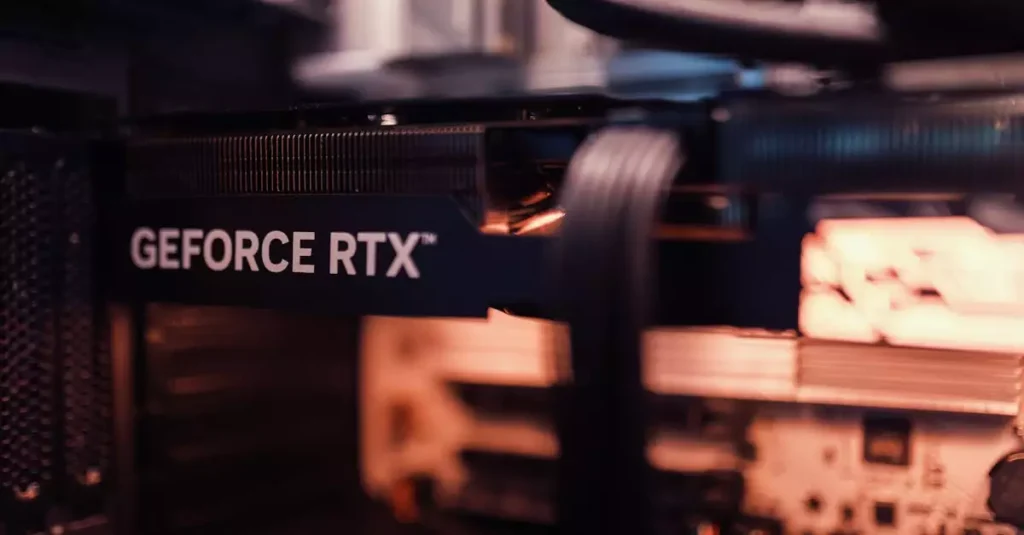
Apex Legends on PC remains one of the most thrilling battle royale experiences available in 2026. With its fast-paced gameplay, unique character abilities, and competitive scene, mastering Apex Legends on PC is essential for anyone looking to climb the ranks. Whether you are a newcomer or a seasoned player, understanding the latest system requirements, optimization techniques, and gameplay strategies can significantly enhance your experience. This comprehensive guide will walk you through everything you need to know about Apex Legends PC, from hardware specs to the newest updates and performance tips. Get ready to elevate your game and dominate the Apex arena with confidence and precision.

Introduction to Apex Legends on PC
Apex Legends is a free-to-play battle royale game developed by Respawn Entertainment and published by Electronic Arts. Since its launch, it has grown to become a staple in the competitive gaming community, especially on PC where precision controls and graphics capabilities shine. Playing Apex Legends on PC offers advantages such as higher frame rates, customizable graphics settings, and access to a vibrant modding community. Additionally, PC players benefit from quicker reaction times using keyboard and mouse controls, which can be crucial in competitive matches.
PC players also enjoy regular updates that introduce new legends, weapons, and gameplay improvements. Staying informed about these changes is vital for adapting your strategies. The community-driven nature of the game means that each season brings fresh challenges and opportunities. Whether you prefer aggressive playstyles or tactical positioning, Apex Legends on PC offers a dynamic and rewarding experience.
For more detailed background information on Apex Legends, you can visit this Wikipedia page or check out the official site at EA’s Apex Legends page.
Apex Legends PC System Requirements for 2026
Before diving into Apex Legends on PC, it’s crucial to understand the system requirements to ensure smooth gameplay. The 2026 version of Apex Legends has seen some graphical and gameplay enhancements, which means hardware demands have slightly increased compared to previous years. Meeting the minimum specs will allow you to play the game, but for an optimal experience, recommended specs are advised.
The minimum specs include an Intel Core i3-6300 3.8GHz processor or AMD FX-4350 4.2GHz, 6GB RAM, and an NVIDIA GeForce GT 640 or AMD Radeon HD 7730 GPU. These specs allow you to run the game at low settings with stable frame rates, but you might experience reduced visual quality and occasional frame drops during intense battles.
For the best experience, recommended specs suggest an Intel Core i5 3570K or equivalent AMD processor, 8GB RAM, and a NVIDIA GeForce GTX 970 or AMD Radeon R9 290 GPU. This setup supports higher graphics settings and smoother gameplay, which is essential for competitive play.
Here’s a quick overview of the system requirements:
| Specification | Minimum | Recommended |
|---|---|---|
| Processor | Intel Core i3-6300 / AMD FX-4350 | Intel Core i5-3570K / AMD Ryzen 5 1500X |
| RAM | 6GB | 8GB |
| Graphics Card | NVIDIA GeForce GT 640 / AMD Radeon HD 7730 | NVIDIA GeForce GTX 970 / AMD Radeon R9 290 |
| Storage | 22GB free space | 22GB free space |
| Operating System | Windows 10 64-bit | Windows 10/11 64-bit |
Keep in mind that having more powerful hardware can provide better frame rates and visuals, which is especially important in a fast-paced shooter like Apex Legends. If you want to check the latest Apex Legends PC system requirements 2026 or updates, EA’s official news page offers detailed patch notes and hardware recommendations.
How to Optimize Apex Legends for Smooth Gameplay
Optimizing Apex Legends on PC is essential for achieving smooth gameplay and maintaining high FPS (frames per second). Many players face issues like stuttering, lag, or frame drops, which can be frustrating during competitive matches. Fortunately, several practical steps can enhance your gaming experience, even on mid-range or older PCs.
First, ensure your graphics drivers are up to date. NVIDIA and AMD frequently release driver updates optimized for popular games, including Apex Legends. Using the latest drivers can improve performance and fix bugs. Additionally, close unnecessary background applications before launching the game to free up system resources.
Adjusting in-game settings is another critical step. Lowering shadow quality, disabling anti-aliasing, and reducing texture quality can significantly boost FPS without drastically affecting visual clarity. Players should experiment with these settings to find the right balance between visuals and performance.
Enabling the game mode in Windows 10 or 11 helps prioritize gaming resources, and turning off overlays (like Discord or GeForce Experience) can reduce input lag. For those with SSDs, installing Apex Legends on an SSD rather than an HDD reduces loading times and texture pop-ins.
Lastly, tweaking your PC’s power settings to “High Performance” mode ensures your CPU and GPU run at their full potential during gaming sessions. Combining these optimization tips will help you enjoy Apex Legends PC with minimal interruptions.
Best Graphics and Performance Settings
Finding the best graphics and performance settings for Apex Legends on PC is crucial to gain a competitive edge. While high graphical fidelity looks impressive, it can sometimes hinder gameplay due to lower frame rates. Balancing quality and performance is key.
Start by setting your display mode to “Fullscreen” to reduce input lag. Resolution should match your monitor’s native resolution, but if you need more FPS, lowering it slightly can help. Set the Field of View (FOV) between 90 and 110 to maintain situational awareness without distorting visuals.
For texture streaming budget, medium settings typically offer a good balance, ensuring textures load quickly without overburdening your GPU. Shadows are one of the most demanding graphical features; setting shadows to low or disabled can increase FPS significantly without sacrificing gameplay clarity.
Anti-aliasing smooths edges but can be resource-heavy. Using “TSAA” or turning it off altogether can improve performance. Effects detail and model detail can be set to medium or low to reduce GPU load. Ambient occlusion and sun shadow coverage should be disabled or set to minimum for better frame rates.
Here’s a quick settings guide to optimize graphics and performance:
- Display Mode: Fullscreen
- Resolution: Native or slightly lower
- Field of View: 90–110
- Texture Streaming Budget: Medium
- Shadow Detail: Low or Disabled
- Anti-Aliasing: TSAA or Off
- Effects Detail: Low/Medium
- Model Detail: Low/Medium
- Ambient Occlusion: Off
- Sun Shadow Coverage: Off or Low
By customizing these settings, you can maintain smooth gameplay, reduce input lag, and increase your responsiveness during matches. For more detailed guidance, the official Apex Legends PC update notes often include recommendations and performance improvements.
Latest Apex Legends PC Updates and Patch Notes
Keeping up with the latest Apex Legends PC updates is essential for staying competitive and enjoying new content. Respawn Entertainment regularly releases patches that include bug fixes, gameplay tweaks, new legends, weapons, and map adjustments. These updates often address performance issues and optimize the game for various PC configurations.
In 2026, key updates have focused on improving server stability, adding new ranked modes, and enhancing the user interface for PC players. Patch notes typically detail changes such as weapon balance adjustments, bug fixes related to hit registration, and improvements in matchmaking algorithms.
For example, recent patches have improved frame pacing on high-end GPUs and addressed crashes related to certain graphics drivers. These enhancements contribute to a smoother and more reliable experience, especially for players with diverse PC setups.
To access the most current patch notes and detailed update information, visit the official EA Apex Legends news page. Staying informed allows you to adapt your gameplay strategies and optimize your PC settings accordingly.
Common PC Issues and Fixes
Despite its polish, Apex Legends on PC can sometimes present common issues like crashes, freezes, and performance drops. Understanding how to troubleshoot these problems can save you time and frustration.
One frequent issue is the game crashing on launch or during gameplay, often caused by outdated drivers or corrupted game files. Verifying game files through the Origin or Steam client can resolve corrupted data, while updating GPU drivers can fix compatibility problems.
Performance drops may stem from background applications consuming resources or incorrect in-game settings. Closing unnecessary programs and following optimization tips can mitigate these issues. If you experience lag spikes, checking your internet connection and switching to wired Ethernet can improve stability.
For freezes or stuttering, adjusting the in-game graphics settings to lower levels often helps. Additionally, disabling overlays and running the game as an administrator can resolve permission conflicts. If problems persist, reinstalling the game or updating Windows can be effective last resorts.
Being proactive with these fixes ensures a smoother Apex Legends PC experience and minimizes downtime during crucial matches.
Gameplay Tips and Strategies for PC Players
Mastering Apex Legends on PC involves more than just hardware and settings; solid gameplay strategies are equally important. PC players benefit from precise aiming and quick reflexes, so honing your skills can make a significant difference.
First, familiarize yourself with the unique abilities of each legend. Understanding how to synergize your team’s abilities can create powerful combos that overwhelm opponents. For example, combining Bangalore’s smoke with Bloodhound’s tracking ability can provide tactical advantages in both offense and defense.
Map knowledge is another critical factor. Knowing high loot areas, rotation paths, and common ambush spots allows you to make smarter decisions during matches. Positioning yourself on high ground or near cover increases survival chances in firefights.
Communication with your squadmates is vital. Use ping systems effectively to share enemy locations, loot, and tactical information without voice chat. This ensures coordinated attacks and better team cohesion.
Lastly, practice aiming regularly with aim trainers or in-game shooting ranges. The precision offered by mouse and keyboard controls on PC can be a game-changer when combined with good positioning and decision-making.
Conclusion: Getting the Most Out of Apex Legends on PC
Playing Apex Legends on PC in 2026 offers an immersive and competitive experience that can be tailored through system optimization, smart graphics settings, and strategic gameplay. By ensuring your PC meets the system requirements and applying performance tips, you can enjoy smooth gameplay and reduce frustrating technical issues. Staying updated with the latest patches allows you to adapt to game changes and maintain a competitive edge. Moreover, mastering legend abilities, map knowledge, and communication will elevate your skills and increase your chances of victory. Whether you are a casual player or aiming for the top ranks, this guide equips you with the knowledge to get the most out of Apex Legends on PC.
Frequently Asked Questions
Q: What are the minimum and recommended PC specs for Apex Legends?
A: The minimum specs include an Intel Core i3-6300 or AMD FX-4350 with 6GB RAM and an NVIDIA GeForce GT 640 or AMD Radeon HD 7730. Recommended specs suggest an Intel Core i5-3570K or AMD Ryzen 5 1500X with 8GB RAM and a NVIDIA GeForce GTX 970 or AMD Radeon R9 290 for better performance and visuals.
Q: How can I improve Apex Legends performance on a low-end PC?
A: To improve performance on a low-end PC, update your graphics drivers, lower in-game graphics settings such as shadows and textures, close background applications, and enable Windows Game Mode. Installing the game on an SSD and adjusting power settings to high performance can also help boost FPS.
Q: Is there a way to reduce lag and increase FPS in Apex Legends on PC?
A: Yes, reducing lag and increasing FPS can be achieved by optimizing graphics settings, updating drivers, using a wired internet connection, disabling overlays, and ensuring your PC meets at least the recommended specs. Regularly clearing temporary files and verifying game files also helps maintain stable performance.
Q: What are the latest updates for Apex Legends on PC?
A: The latest updates focus on server stability, new ranked modes, weapon balancing, and bug fixes. They also include performance improvements for various hardware setups. You can find detailed patch notes on the official EA Apex Legends news page.
Q: Can I play Apex Legends on any PC, or do I need specific hardware?
A: You can play Apex Legends on most modern PCs that meet the minimum system requirements. However, for smooth gameplay and competitive performance, a PC that meets or exceeds the recommended specs is ideal. Specific hardware like a dedicated graphics card and sufficient RAM significantly impacts your experience.
Q: How do I troubleshoot crashes or freezes in Apex Legends on PC?
A: Troubleshooting crashes or freezes involves updating your GPU drivers, verifying game files, closing background applications, disabling overlays, and running the game as an administrator. If problems persist, reinstalling the game or updating your Windows OS can often resolve underlying issues.

