
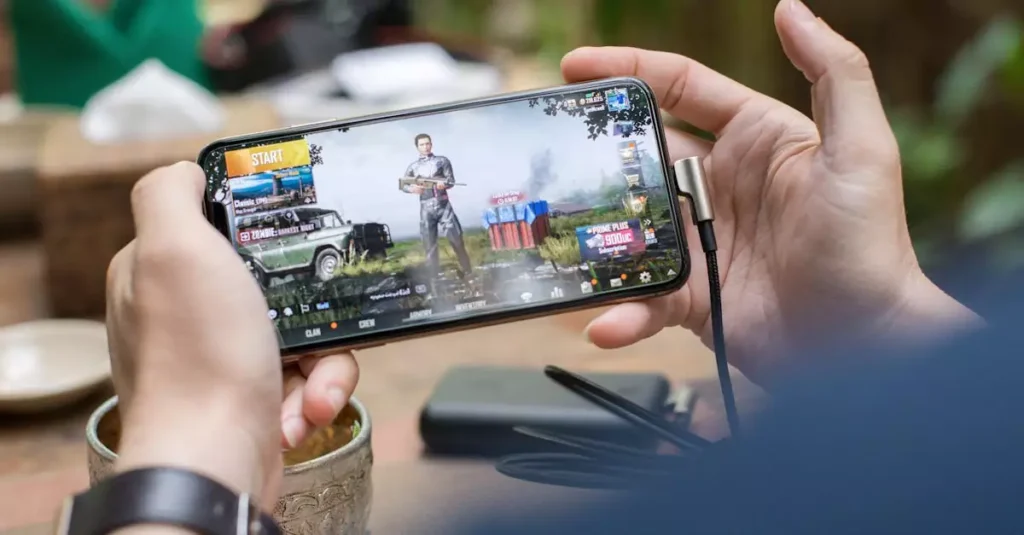
PlayerUnknown’s Battlegrounds (PUBG) has become a global sensation in the battle royale genre, captivating millions of players worldwide. If you’re looking to join the action on your PC, this comprehensive guide on how to download PUBG for PC in 2026 will walk you through every essential step. From understanding what makes PUBG unique to ensuring your system meets the necessary requirements, we’ve got you covered. Whether you’re a seasoned gamer or a newcomer, learning the official methods to download and install PUBG safely and efficiently will enhance your gaming experience. Let’s dive in and get you ready for the intense, strategic gameplay PUBG offers on PC.

What is PUBG and Why Play It on PC?
PlayerUnknown’s Battlegrounds (PUBG) is a multiplayer battle royale game where 100 players parachute onto an island and fight to be the last person or team standing. The game combines survival elements, strategic gameplay, and fast-paced combat, making it highly addictive and competitive. Playing PUBG on PC offers several advantages over mobile or console versions, including superior graphics, smoother controls, and a larger player base.
PC gameplay allows for more precise aiming using a mouse and keyboard, which is crucial in high-stakes matches. Additionally, the PC version receives frequent updates and features exclusive modes that enhance the overall experience. For players seeking the best performance and immersive gameplay, downloading PUBG on PC is highly recommended.
Moreover, PUBG on PC supports a wide range of configurations, enabling players with high-end rigs to enjoy stunning visuals or those with modest setups to optimize performance. The competitive scene also thrives mainly on PC, making it the platform of choice for esports enthusiasts. To learn more about PUBG’s history and impact, visit this Wikipedia page.
Official Ways to Download PUBG for PC
When it comes to downloading PUBG for PC, it’s essential to use official sources to avoid security risks and ensure you get the latest version with full support. The primary official platform for PUBG PC download is Steam, a widely trusted digital distribution service for games.
To download PUBG PC officially, head over to the PUBG Steam page. From there, you can purchase and download the game directly. This method guarantees you receive all updates, patches, and access to official servers.
Additionally, the official PUBG website (pubg.com) provides links and information on how to download and install the game properly. Avoid third-party sites that claim to offer “PUBG PC download free” as these are often scams or illegal copies that can harm your PC.
For players with lower-end PCs, PUBG Lite was previously available as a free, streamlined version of the game. However, its availability can vary by region, so it’s best to check the official PUBG website for the latest details on how to download PUBG Lite for PC.
Step-by-Step Guide to Installing PUBG on Your PC
Installing PUBG on your PC is straightforward when following the official steps. Here’s a simple guide to help you through the process:
- First, create a Steam account if you don’t have one already. Steam is required to manage your PUBG installation.
- Go to the official PUBG page on Steam and purchase the game or add it to your library if you already own it.
- Download and install the Steam client on your PC.
- Log in to Steam and navigate to your library, then select PUBG.
- Click “Install” to begin downloading the game files. Make sure you have a stable internet connection for a smooth download.
- Once the download completes, click “Play” to launch PUBG.
During installation, Steam will automatically manage game updates and patches, ensuring you always have the latest version. For additional setup guidance, you can check the official PUBG Steam page.
If you want to avoid lag and improve download speeds, consider closing other bandwidth-heavy applications during the installation. Also, ensure your PC meets the minimum system requirements to prevent performance issues during gameplay.
System Requirements for PUBG on PC
Before you download PUBG for PC, it’s crucial to verify your system’s compatibility. Running PUBG smoothly depends on meeting or exceeding the game’s system requirements. Here’s a breakdown of the minimum and recommended specs:
| Requirement | Minimum | Recommended |
|---|---|---|
| OS | Windows 7 64-bit | Windows 10 64-bit |
| Processor | Intel Core i5-4430 / AMD FX-6300 | Intel Core i5-6600K / AMD Ryzen 5 1600 |
| Memory | 8 GB RAM | 16 GB RAM |
| Graphics | NVIDIA GeForce GTX 960 2GB / AMD Radeon R7 370 2GB | NVIDIA GeForce GTX 1060 3GB / AMD RX 580 4GB |
| DirectX | Version 11 | Version 11 |
| Storage | At least 30 GB free space | At least 30 GB free space |
Meeting the minimum requirements will allow you to play PUBG, but for the best experience with high frame rates and graphics quality, aim for the recommended specs. If your PC is on the lower end of the spectrum, consider downloading PUBG Lite for PC to enjoy a more optimized version with fewer resource demands.
Checking your system specs is easy: on Windows, type “System Information” in the Start menu and review your CPU, RAM, and GPU details. This step ensures you avoid download and installation issues related to hardware incompatibility.
Troubleshooting Common Download and Installation Issues
Downloading and installing PUBG on PC is usually seamless, but sometimes users encounter issues like download errors, installation failures, or lag during gameplay. Here are some common problems and how to fix them:
- Download errors: Check your internet connection and restart Steam. Clear the Steam download cache via Steam settings to resolve corrupted files.
- Installation stuck: Disable antivirus temporarily as it might block the installer. Run Steam as administrator for proper permissions.
- Game crashes on launch: Update your graphics drivers and ensure Windows is up to date. Verify game files through Steam to repair missing or corrupted files.
- Lag and low FPS: Lower in-game graphics settings and close background applications consuming CPU or network resources.
For persistent issues, visiting the official PUBG support forums or Steam community pages can provide additional solutions from experienced players and developers. Keeping your PC optimized and drivers updated significantly reduces installation and performance problems.
Tips to Optimize PUBG Performance on PC
Once PUBG is installed, optimizing performance ensures a smooth and enjoyable gaming experience. Here are some expert tips to help you get the best out of PUBG on your PC:
- Adjust graphics settings: Set textures, shadows, and effects to medium or low if you experience lag. Using the “Performance” preset can boost frame rates.
- Update drivers: Keep your graphics card drivers up to date for better compatibility and performance.
- Close unnecessary apps: Free up system resources by closing background programs and disabling overlays that may interfere with gameplay.
- Optimize network connection: Use a wired Ethernet connection instead of Wi-Fi to reduce latency and packet loss.
- Enable Game Mode in Windows: This prioritizes gaming processes and can improve frame rates.
Additionally, using tools like NVIDIA GeForce Experience or AMD Radeon Software allows you to optimize PUBG automatically based on your hardware. Monitoring your PC’s temperature during gameplay can prevent overheating, which also affects performance.
How to Update PUBG and Keep It Running Smoothly
Keeping PUBG updated is crucial for accessing new content, bug fixes, and security patches. Steam handles updates automatically, but you can manually check for updates as well:
- Open the Steam client and go to your Library.
- Right-click on PUBG and select “Properties.”
- Navigate to the “Updates” tab and ensure automatic updates are enabled.
- If an update is available, Steam will download and install it the next time you launch the client.
Besides Steam updates, regularly updating your PC’s operating system, graphics drivers, and network drivers helps maintain optimal performance. Restart your PC periodically to clear temporary files and memory.
For major updates or patches, checking the official PUBG website or community forums can provide insights into new features and how they might affect your setup. Staying informed helps you adjust settings or troubleshoot new issues quickly.
Conclusion
Downloading PUBG for PC in 2026 is easier and safer than ever when you follow the official methods outlined in this guide. From understanding why the PC version stands out to ensuring your system meets the requirements and troubleshooting common installation issues, this comprehensive approach guarantees a smooth start to your PUBG journey. Optimizing your PC for performance and keeping the game updated will help you enjoy the intense battle royale action without interruptions. Whether you’re playing on a high-end rig or a modest setup, PUBG’s thrilling gameplay awaits. Dive into the world of PUBG on PC today and experience the ultimate competitive edge.
Frequently Asked Questions
Q: Is PUBG free to download on PC?
A: PUBG is not free on PC; it requires purchase via official platforms like Steam. However, PUBG Lite was a free version for low-end PCs, though its availability varies by region. Always download from official sources to avoid scams.
Q: Can I download PUBG from Steam or official sites?
A: Yes, the safest and most reliable way to download PUBG for PC is through Steam or the official PUBG website. These sources ensure you get legitimate copies with full updates and support.
Q: What are the minimum system requirements for PUBG on PC?
A: The minimum system specs include Windows 7 64-bit, Intel Core i5-4430 or AMD FX-6300 processor, 8 GB RAM, and a NVIDIA GTX 960 or AMD Radeon R7 370 graphics card. Meeting these ensures basic gameplay but higher specs improve performance.
Q: How do I fix download errors when installing PUBG?
A: Common fixes include checking your internet connection, clearing Steam’s download cache, disabling antivirus temporarily, and running Steam as administrator. Verifying game files through Steam can also resolve corrupted downloads.
Q: Is PUBG Lite available for PC and how to download it?
A: PUBG Lite was designed for low-end PCs and was available for free in certain regions. To download it, visit the official PUBG website for the latest status and links, as availability can change over time.
Q: Can I play PUBG on low-end PCs?
A: Yes, playing PUBG on low-end PCs is possible by adjusting in-game settings to lower graphics quality or using PUBG Lite if available. Ensuring your PC meets at least the minimum requirements helps maintain playable performance.