
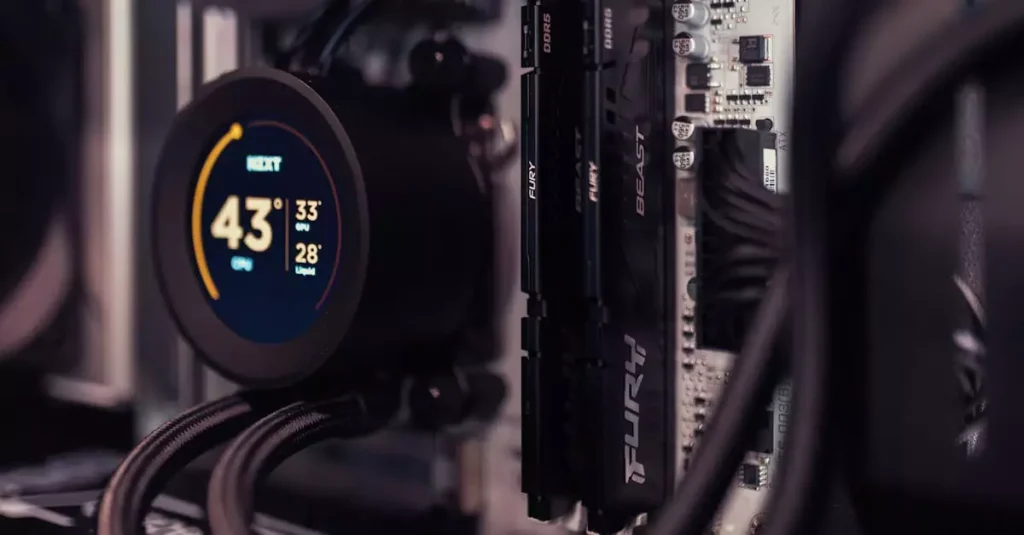
Control is a critically acclaimed action-adventure game that has captivated PC gamers with its stunning visuals and immersive gameplay. However, getting the best experience on your PC can be a challenge without the right setup and optimizations. Whether you’re new to Control or looking to enhance your current gameplay, understanding how to control PC performance, meet system requirements, and tweak settings is essential. This ultimate guide will walk you through everything you need to know about playing Control on PC, from minimum specs to advanced performance tips, ensuring your gaming sessions are smooth and visually impressive.

Introduction to Control on PC
Control is a visually rich game developed by Remedy Entertainment, known for its unique narrative and physics-based gameplay mechanics. Released on multiple platforms, the PC version stands out due to its potential for high-fidelity graphics and customization. Playing Control on PC offers advantages like higher frame rates, mod support, and flexible control options, but these benefits depend heavily on your system’s capabilities and settings.
Understanding how to control PC settings for optimal performance can drastically improve your experience. This involves knowing the game’s system requirements, adjusting graphics settings intelligently, and choosing the right input devices. Additionally, troubleshooting common issues and applying performance tips can help both high-end and low-end PC users enjoy the game without frustration.
With this guide, you’ll gain insights into Control’s technical demands and practical advice on how to get the best visuals and smooth gameplay. Whether you want to push your hardware to the max or make the game playable on a modest setup, this comprehensive overview has you covered.
Minimum and Recommended System Requirements
Before diving into Control, it’s crucial to ensure your PC meets the game’s system requirements. These specs determine whether the game will run at all and how well it performs. Remedy Games has outlined both minimum and recommended specs to guide players.
The minimum specs represent the baseline needed to launch and play Control at low settings, while the recommended specs enable a smoother experience with higher graphics quality and better frame rates. Understanding these specs will help you decide if an upgrade or optimization is necessary.
| Specification | Minimum | Recommended |
|---|---|---|
| OS | Windows 10 64-bit | Windows 10 64-bit |
| Processor | Intel Core i5-4690 / AMD FX 4350 | Intel Core i5-7600K / AMD Ryzen 5 1600X |
| Memory | 8 GB RAM | 16 GB RAM |
| Graphics | NVIDIA GeForce GTX 780 / AMD Radeon R9 280X | NVIDIA GeForce GTX 1060 / AMD Radeon RX 580 |
| DirectX | Version 12 | Version 12 |
| Storage | 42 GB available space | 42 GB available space |
Meeting the minimum specs ensures the game runs but expect to use lower graphics settings for smooth gameplay. The recommended specs allow you to enjoy Control with enhanced visuals, including higher resolution textures and improved effects. For players aiming to experience ray tracing and ultra settings, a more powerful GPU like NVIDIA RTX series is necessary.
Optimizing Graphics Settings for Smooth Gameplay
Control’s graphics are demanding due to its advanced lighting, particle effects, and ray tracing features. To achieve smooth gameplay, especially if your PC is closer to the minimum specs, adjusting graphics settings is key. Here are some tips on how to optimize Control on PC effectively.
Start with resolution settings—lowering the resolution can significantly boost frame rates but may reduce image sharpness. Next, tweak the texture quality; medium or high textures balance visuals and performance well. Shadows and reflections are resource-intensive, so setting shadows to medium or low can improve performance without drastically impacting visual fidelity.
Ray tracing is a highlight of Control but is very demanding. If you want to enable ray tracing, ensure you have an RTX GPU and consider lowering other settings. Alternatively, disabling ray tracing can increase frame rates substantially.
Enabling V-Sync can prevent screen tearing but might introduce input lag; this setting is best customized based on your preference and monitor capabilities. Lastly, use the built-in benchmark tool to test changes and find the best balance between visuals and performance.
Controller Support and Keybindings
Control on PC offers extensive controller support, allowing players to use popular gamepads like the Xbox, PlayStation DualShock, and DualSense controllers. This flexibility caters to gamers who prefer a console-style experience or find controllers more comfortable for action games.
When connecting a controller, the game usually detects it automatically and switches input prompts accordingly. You can customize keybindings and controller mappings through the in-game settings menu to tailor controls to your playstyle. This is particularly useful for remapping abilities or adjusting sensitivity for aiming and movement.
For players using keyboard and mouse, Control provides customizable keybindings as well, helping you create a setup that feels intuitive. Combining controller support with personalized keybindings can enhance gameplay fluidity and responsiveness, making combat and exploration more enjoyable.
Troubleshooting Common PC Issues
Despite its polish, Control can face common PC issues such as crashes, frame drops, and input lag. Addressing these problems often involves a mix of hardware checks, driver updates, and software tweaks.
First, ensure your graphics drivers are up to date, as outdated drivers can cause performance problems and crashes. Verifying the integrity of game files via Steam or the game launcher can fix corrupted files that might lead to errors.
Disabling background applications that consume significant CPU or memory resources can free up system power for Control. Additionally, running the game as an administrator and checking for Windows updates can resolve compatibility issues.
If you experience persistent frame rate drops, lowering graphics settings or disabling ray tracing might help. For input lag, adjusting V-Sync settings or switching between fullscreen and windowed modes can improve responsiveness.
Tips to Boost Performance on Low-End PCs
Playing Control on a low-end PC can be challenging, but with the right adjustments, it’s possible to enjoy the game without constant lag or stuttering. Here are some practical control game PC performance tips to enhance your experience.
- Lower Resolution: Reducing the resolution is the quickest way to gain frame rate improvements.
- Disable Ray Tracing: Turn off ray tracing effects to save GPU resources.
- Adjust Texture Quality: Set textures to low or medium to reduce VRAM usage.
- Turn Off Motion Blur and Depth of Field: These effects can impact performance without adding much to gameplay.
- Limit Background Processes: Close unnecessary applications to free up CPU and RAM.
- Use Performance Mode: Some GPUs and Windows versions offer performance modes that prioritize gaming.
Combining these tips helps maintain playable frame rates and reduces input lag, making Control accessible even on PCs that don’t meet recommended specs. Testing settings incrementally allows you to find the sweet spot between visuals and performance tailored to your hardware.
Conclusion
Playing Control on PC offers a remarkable experience with its detailed environments and engaging gameplay. However, achieving optimal performance requires understanding the game’s system requirements, graphics settings, and controller options. By meeting at least the minimum specs and applying smart optimizations, players can enjoy Control smoothly, whether on high-end rigs or low-end setups. Troubleshooting common issues and customizing controls further enhance the experience, making the game accessible and enjoyable for a wide range of PC gamers. With this guide, you’re equipped to unlock the full potential of Control on your PC and dive into its mysterious world with confidence.
Frequently Asked Questions
Q: What are the minimum system requirements to play Control on PC?
A: The minimum system requirements for Control on PC include a Windows 10 64-bit OS, Intel Core i5-4690 or AMD FX 4350 processor, 8 GB RAM, and an NVIDIA GeForce GTX 780 or AMD Radeon R9 280X graphics card. These specs allow the game to run at low settings with playable frame rates.
Q: How can I improve Control’s performance on my PC?
A: To improve performance, update your graphics drivers, lower resolution and graphics settings, disable ray tracing, close background apps, and use the game’s benchmark tool to test changes. These steps help balance visuals and frame rates for smoother gameplay.
Q: Does Control support game controllers on PC?
A: Yes, Control supports a variety of controllers including Xbox, PlayStation DualShock, and DualSense controllers. The game automatically detects controllers and allows custom keybindings for both controllers and keyboard/mouse setups.
Q: What graphics settings should I use for the best balance of visuals and performance?
A: For a good balance, use medium texture quality, medium shadows, and disable ray tracing if your hardware struggles. Adjust resolution based on your monitor and performance needs, and consider turning off motion blur to improve clarity and frame rates.
Q: Why is Control running slow or lagging on my PC?
A: Slow performance can be due to outdated drivers, insufficient hardware, background applications consuming resources, or high graphics settings. Updating drivers, lowering settings, and closing unnecessary apps usually resolve lag issues.
Q: Can I play Control on a low-end PC?
A: Yes, by lowering resolution and graphics settings, disabling ray tracing, and optimizing system performance, Control can be played on low-end PCs, though visual quality will be reduced to maintain smooth gameplay.

